Upload from Unreal
The E3DS Automation Tools plugin packages your project, bundles it and uploads it in one action, without leaving the Unreal Editor. It replaces the package–zip–browse–upload sequence you would otherwise repeat every time.
It produces exactly the same result as uploading from the Control Panel — it does not unlock anything. What it saves is the repetition, which is why it is worth setting up once you are uploading regularly rather than on your very first attempt.
Before you begin
- Unreal Engine 5.1 or newer, with your project open.
- 7-Zip
installed. The plugin uses it to bundle the build into one archive. It
stores the files without compressing them, so the upload is the build's
full size; the plugin makes it smaller by leaving out the debug files
(
*.pdb). - An Eagle 3D Streaming account, for the API key in step 3.
1. Install the plugin
Three ways to get it. They install the same plugin.
Fab Marketplace
Through the Epic Games Launcher. Updates arrive the way every other marketplace plugin's do, and there is no folder to name correctly.
Download from GitHub
A ZIP you extract into your project. Use it when you cannot install through the Launcher.
Clone from GitHub
Same files, kept under git, so you can pull updates. Use it if you track the plugin's changes.
From the Fab Marketplace
Open the Epic Games Launcher, go to Unreal Engine › Fab and press Start exploring, which opens Fab in your browser. Search for E3DS Automation Tools and press Add to My Library. Back in the Launcher, go to Unreal Engine › Library, refresh the Fab library, and install the plugin for your engine version.
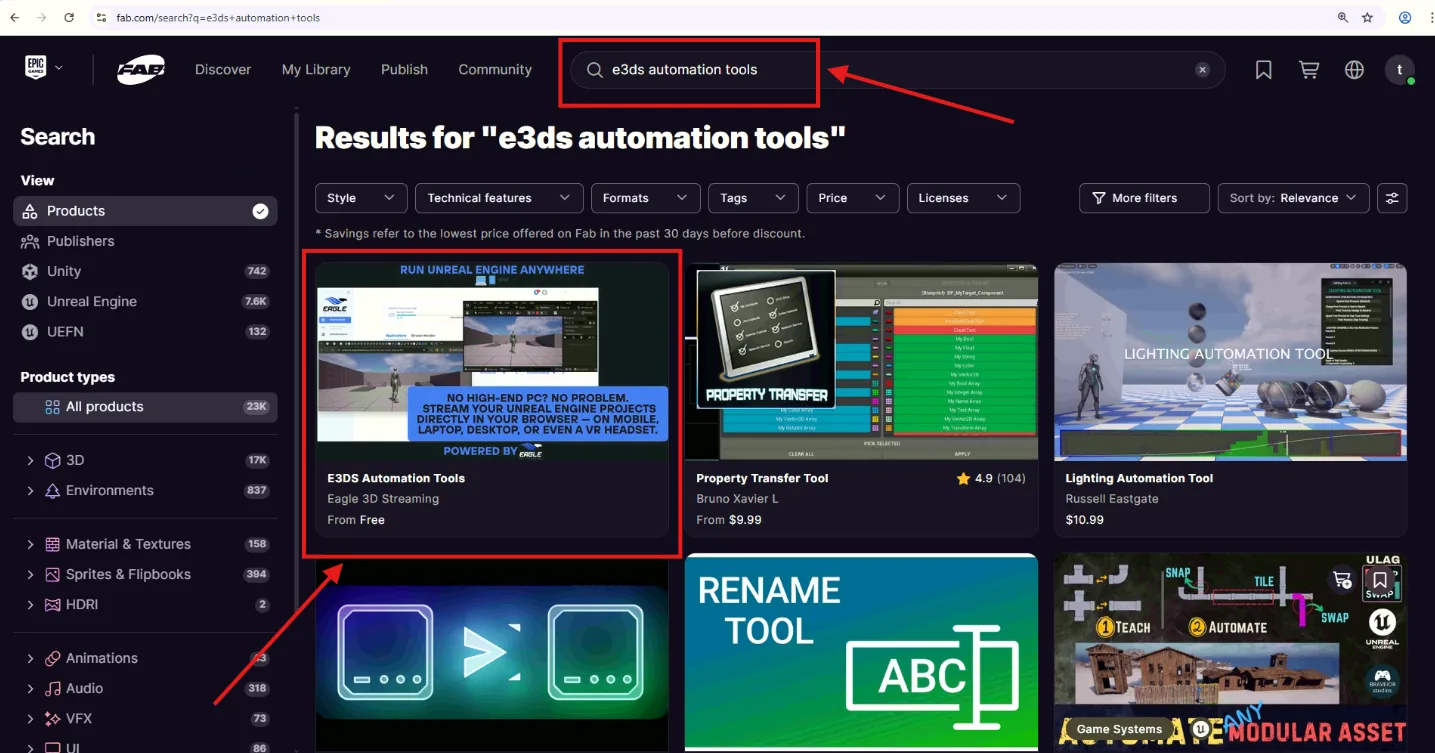
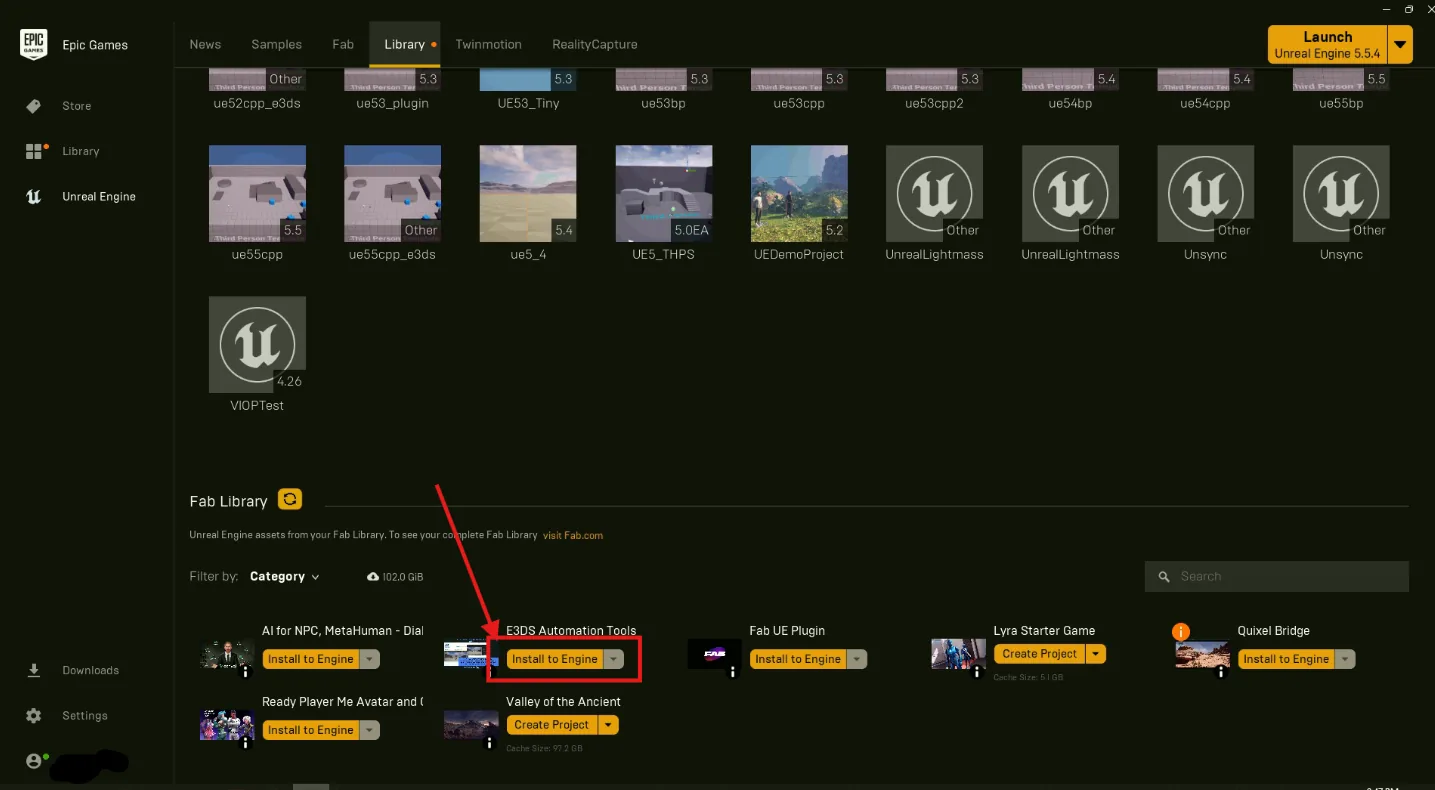
From GitHub, as a download or a clone
Both routes put the plugin in the same place. In your Unreal project folder, create a Plugins folder if there is not one already, then either download the ZIP and extract it there, or clone the repository into it.
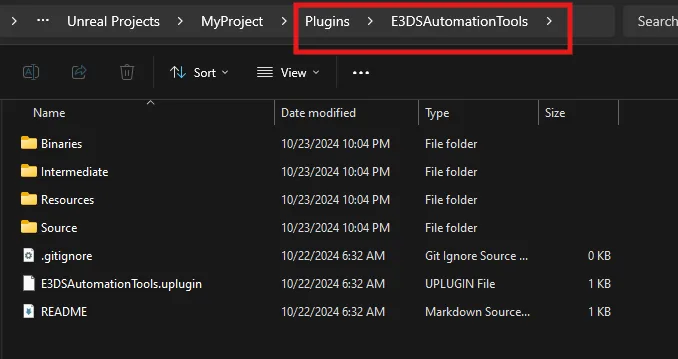
2. Enable Pixel Streaming
Separate from the plugin above, and required either way: a build without it cannot stream.
-
Open Edit › Plugins
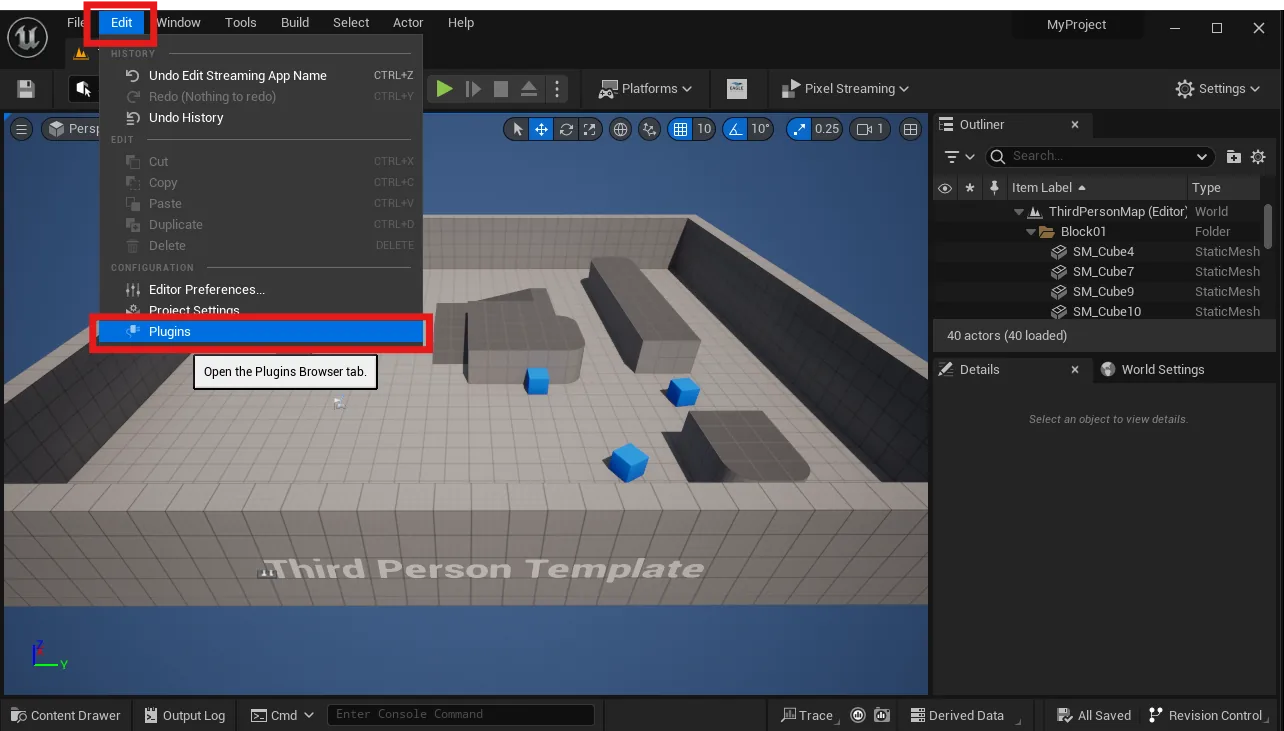
Edit › Plugins. -
Enable the Pixel Streaming plugin
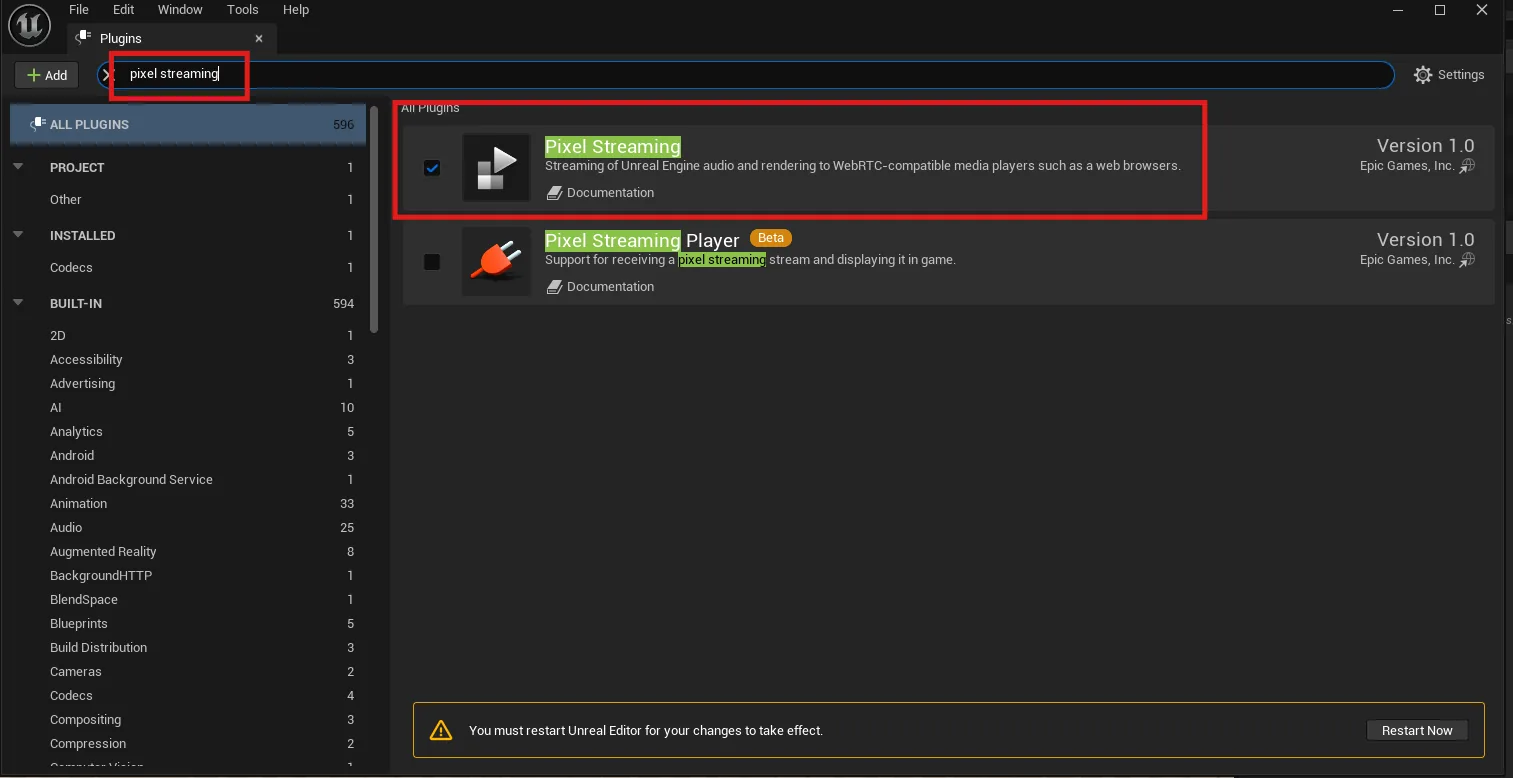
Ticking Pixel Streaming. -
Restart the editor
The plugin is not active until you do.
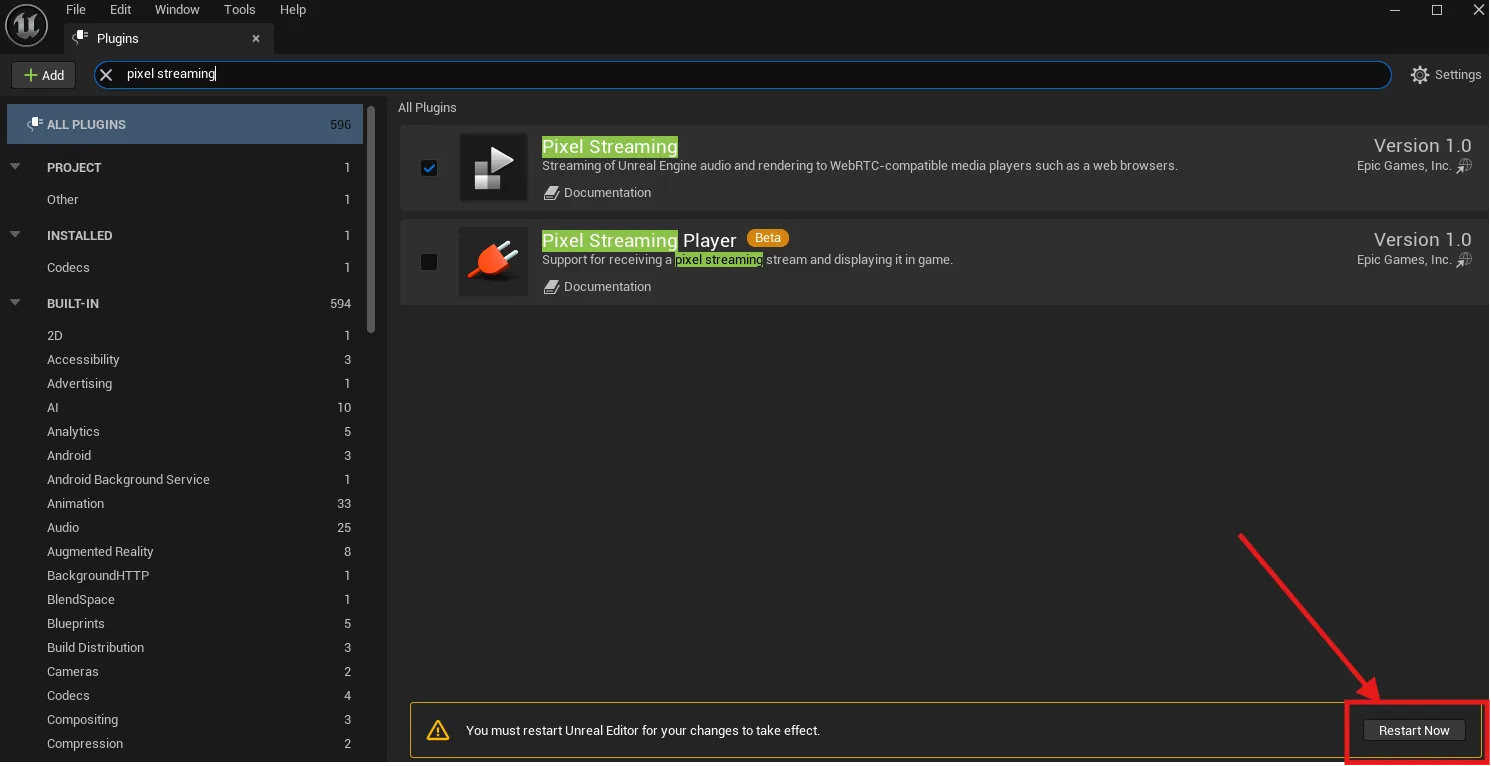
Restart Now.
3. Configure the plugin
Go to Edit › Project Settings, and under Plugins choose E3DS Automation Tools Settings. Everything below lives on that one page, and you set it once per project.
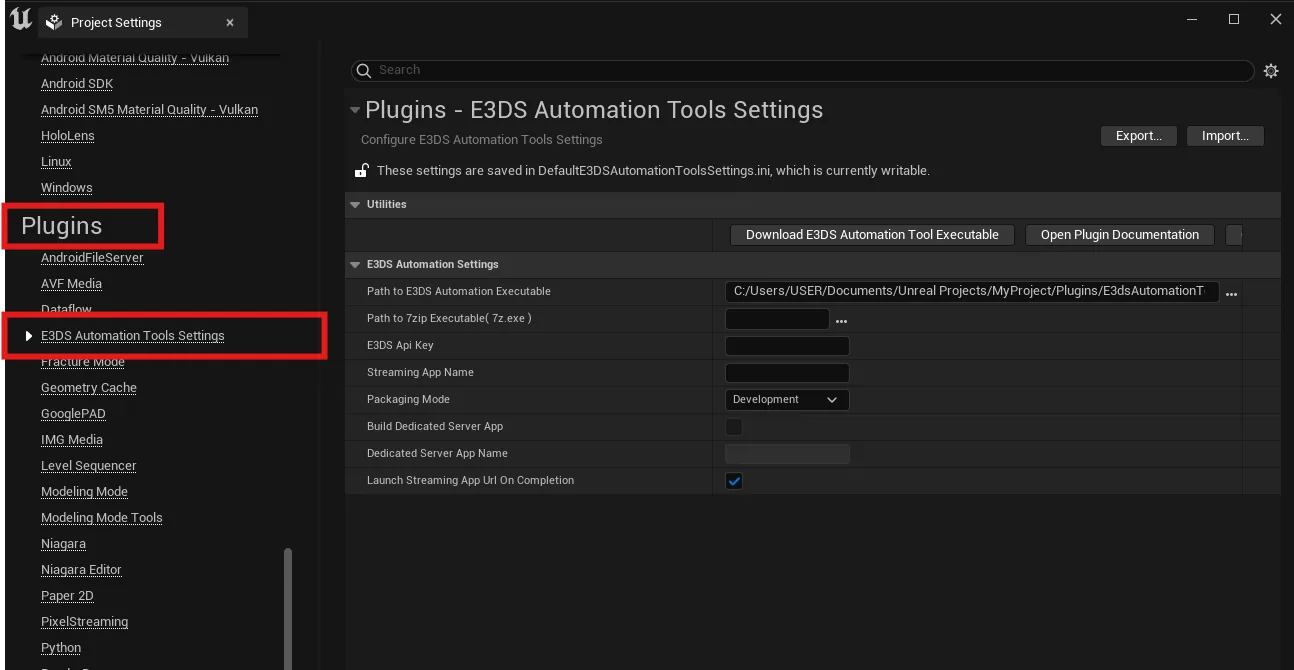
-
Download the E3DS automation executable
Press Download E3DS Automation Tool Executable, then point Path to E3DS Automation Executable at the
EL_AT.exeyou just downloaded.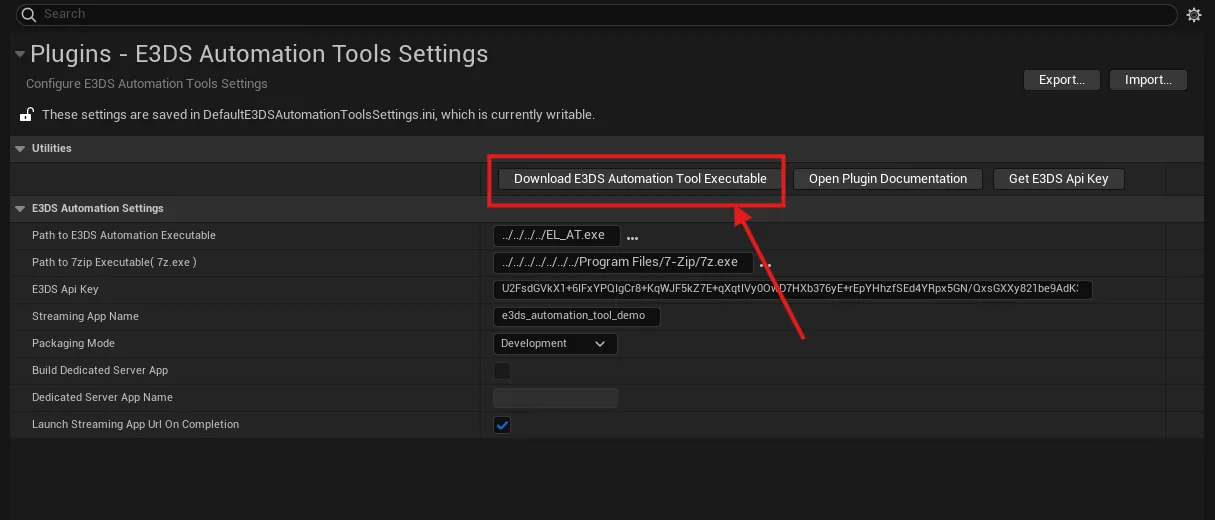
Downloading the executable. 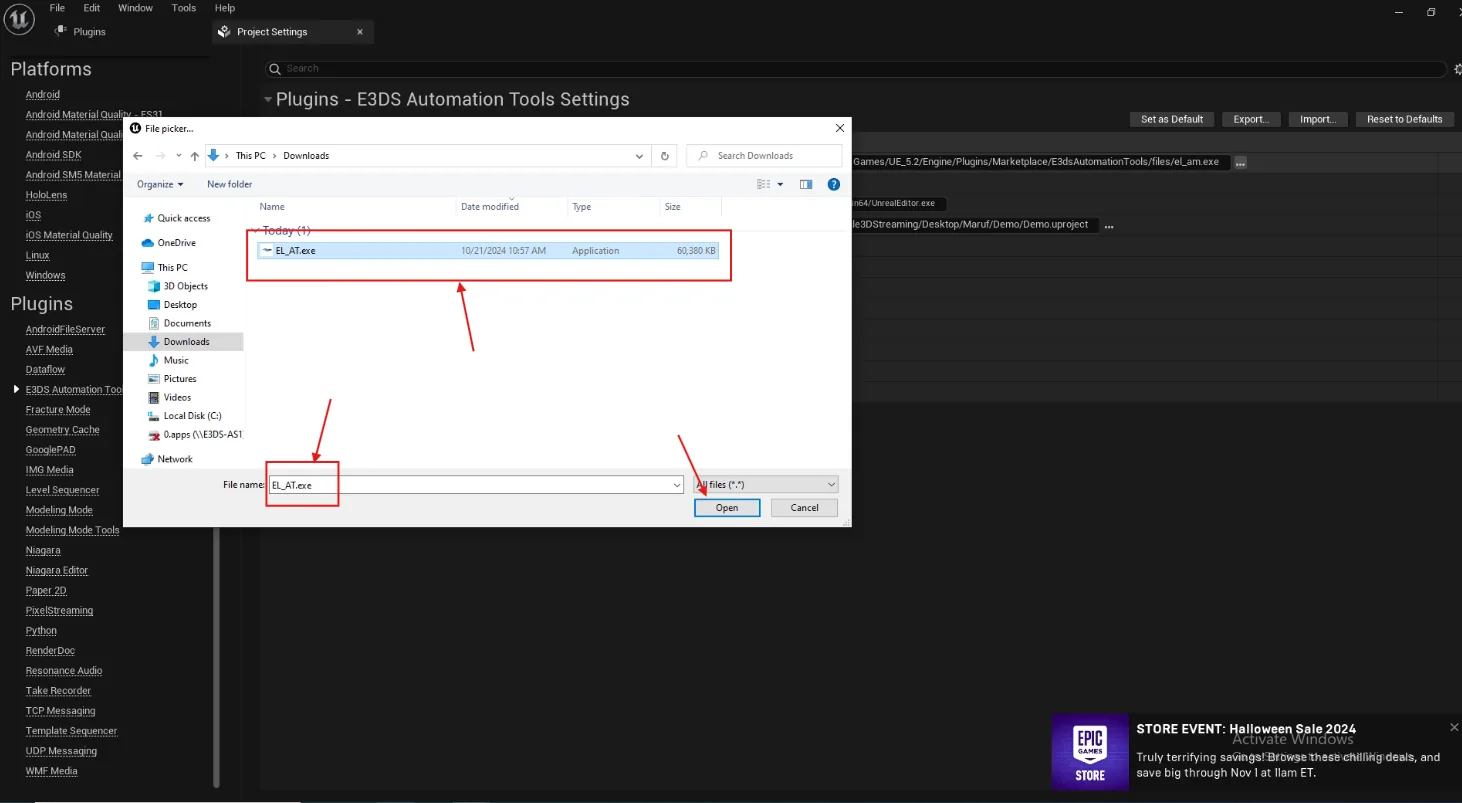
Pointing the setting at EL_AT.exe. -
Point it at 7-Zip
Set Path to 7zip Executable (7z.exe) to your 7-Zip installation.
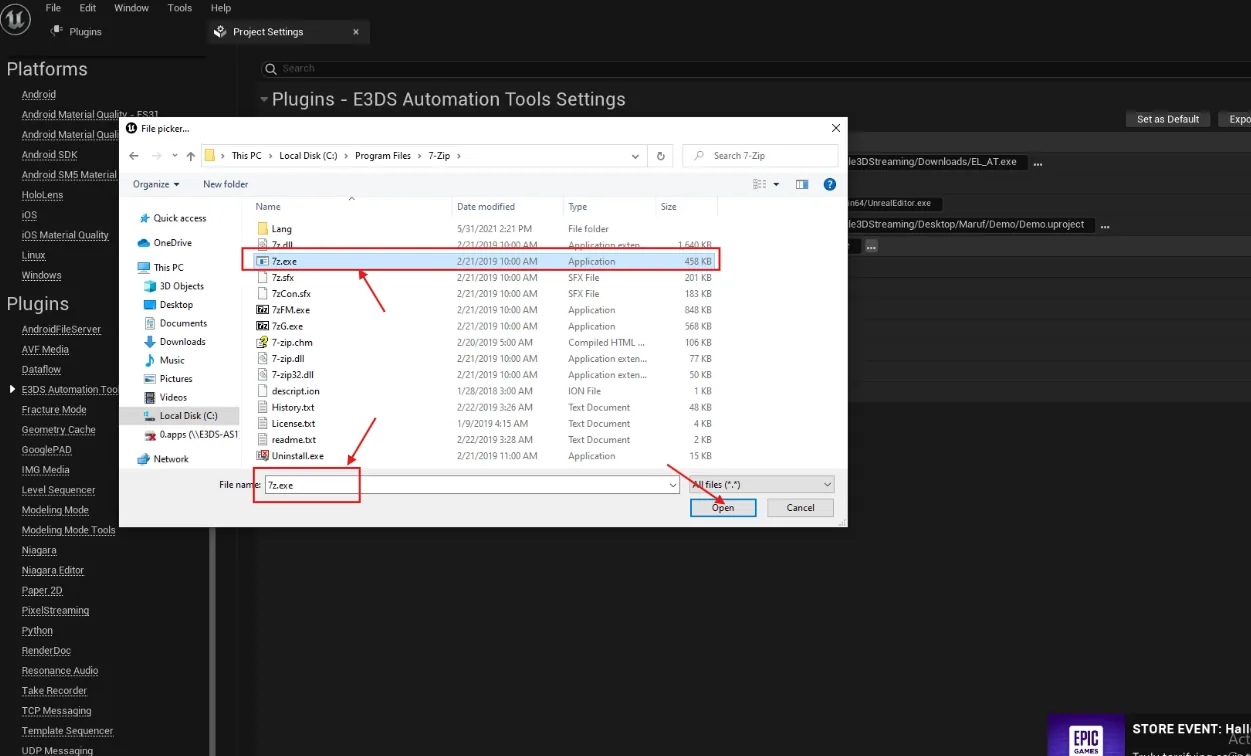
The path to 7z.exe. -
Get and paste your API key
Press Get E3DS API Key, which opens the Control Panel; sign in if you are asked. Copy the generated key and paste it into the E3DS Api Key field. This is what ties the upload to your account, so treat it like a password.
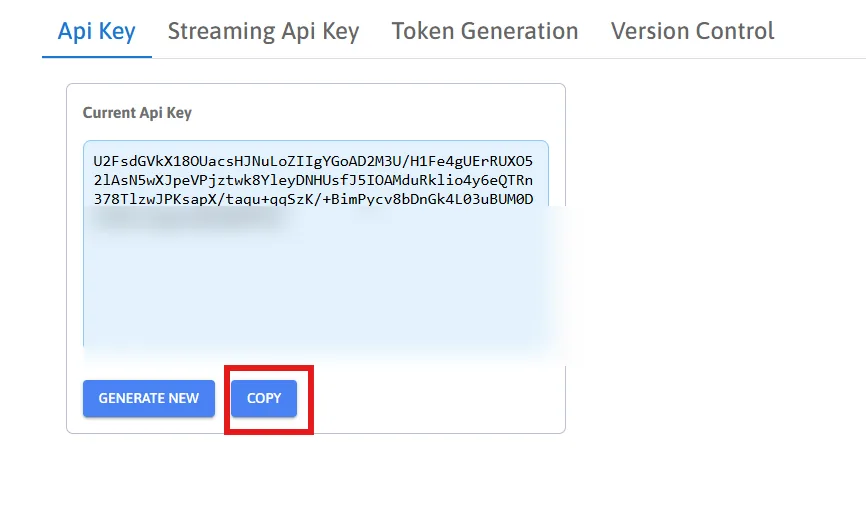
Copying the key. 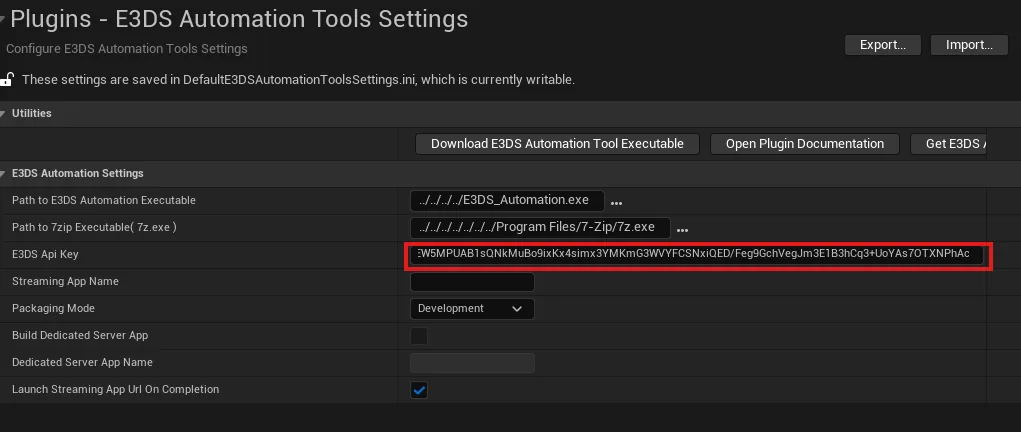
Pasting it into the settings. -
Name the streaming application
Letters, numbers and underscores only — no dots, no spaces.
Reusing a name is not a mistake, it is how you publish an update. Uploading under a name you have used before creates a new version of that application rather than a second application. Use a new name only when you mean a genuinely separate app.
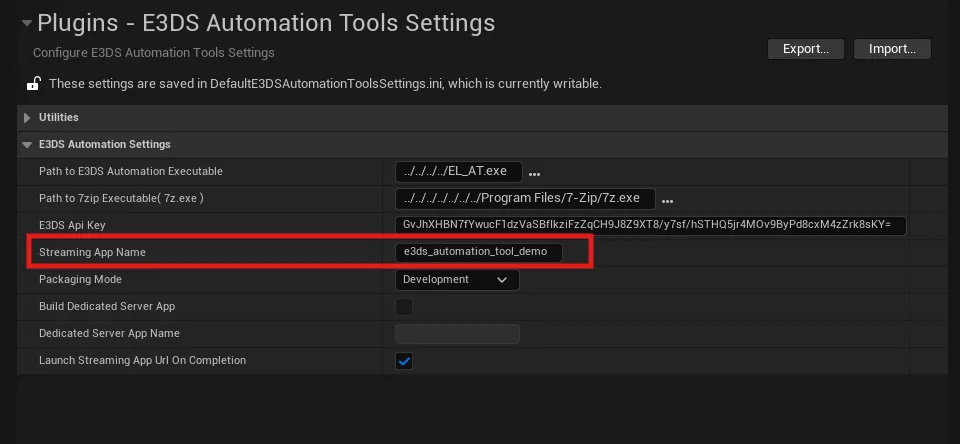
The application name. -
Choose a packaging mode
Development packages more slowly and shows the output log while it works. Shipping is faster and shows nothing. Use Development until an upload has succeeded once — when something fails, that log is the only thing that will tell you why.
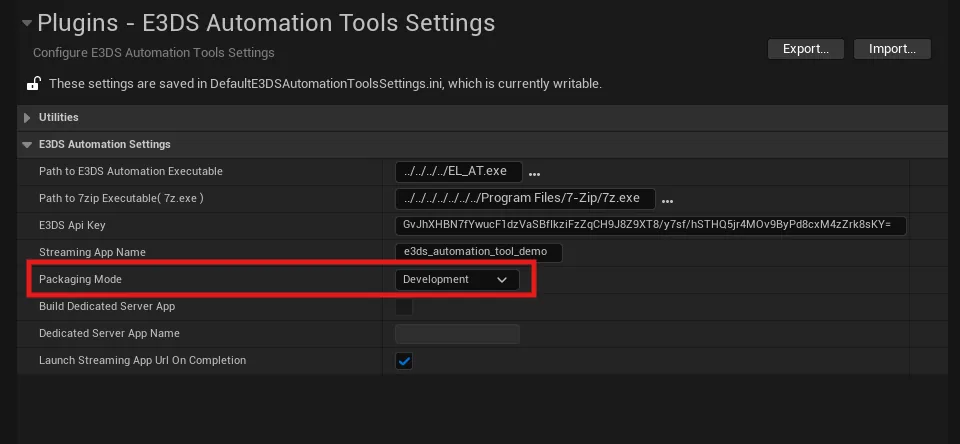
Packaging mode. -
Leave "Build Dedicated Server App" unticked
It is for multiplayer projects with a dedicated server, and produces a build that will not stream on its own.
Check it rather than assume it. It is off by default with an engine installed from the Epic Games Launcher, but on by default in the Epic GitHub build and in the E3DS custom engine — so whether you need to change anything depends on where your Unreal came from.
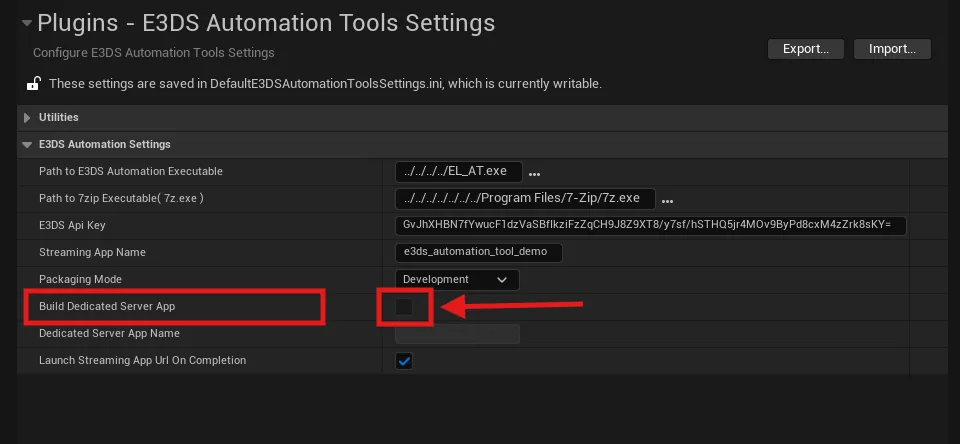
Leave this off unless you are building a multiplayer server. -
Open the stream when the upload finishes
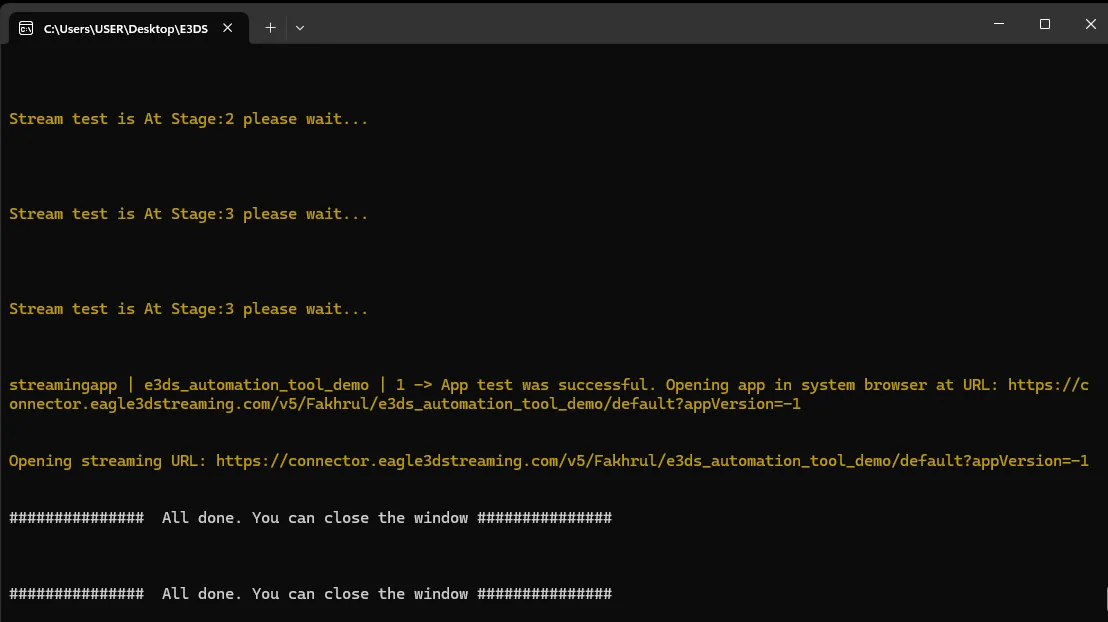
Launch Streaming App Url On Completion is ticked by default: the stream opens in your browser as soon as the upload completes, so you are not watching for it. Untick it if you would rather not.
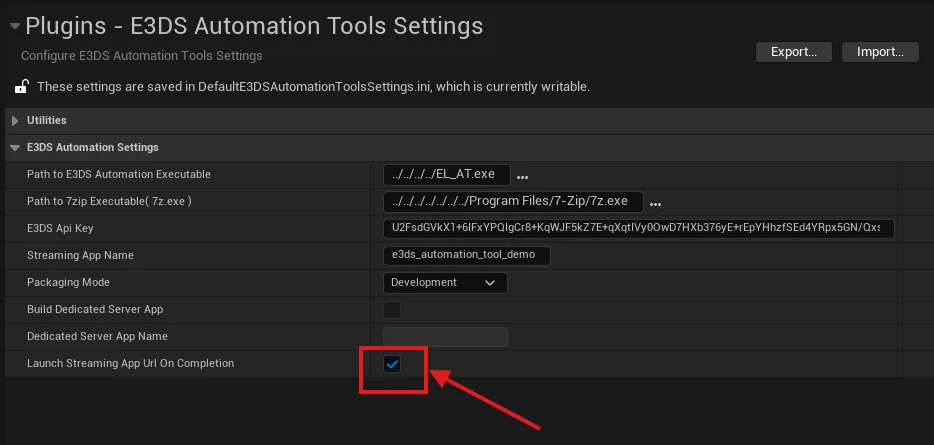
Opening the stream automatically.
4. Push it to the cloud
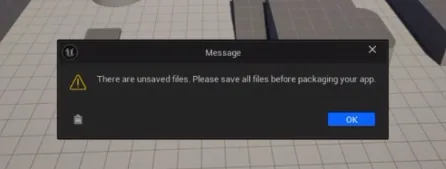
Then press Launch E3DS Automation Tool. Packaging runs first, then compression, then the upload.
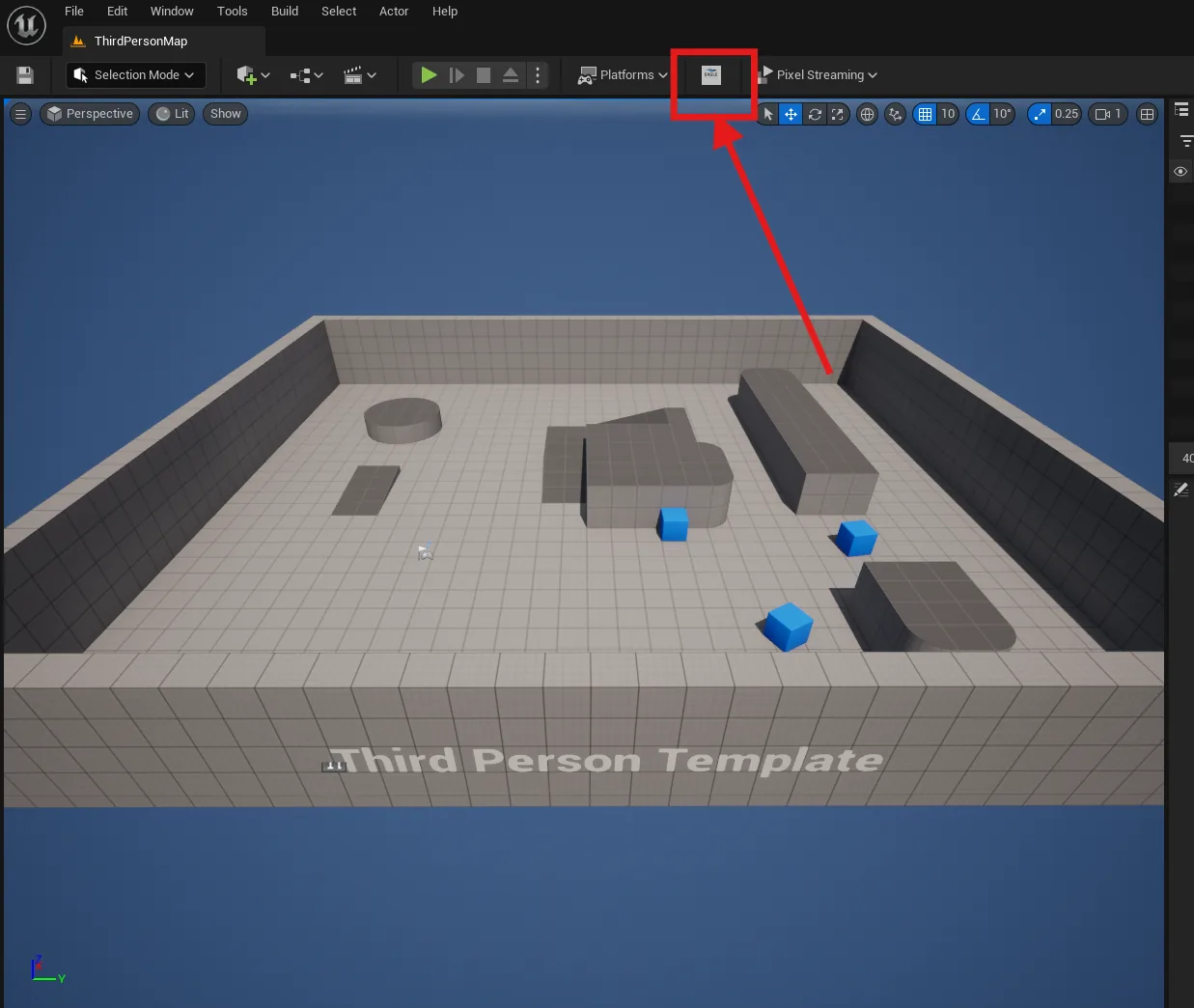
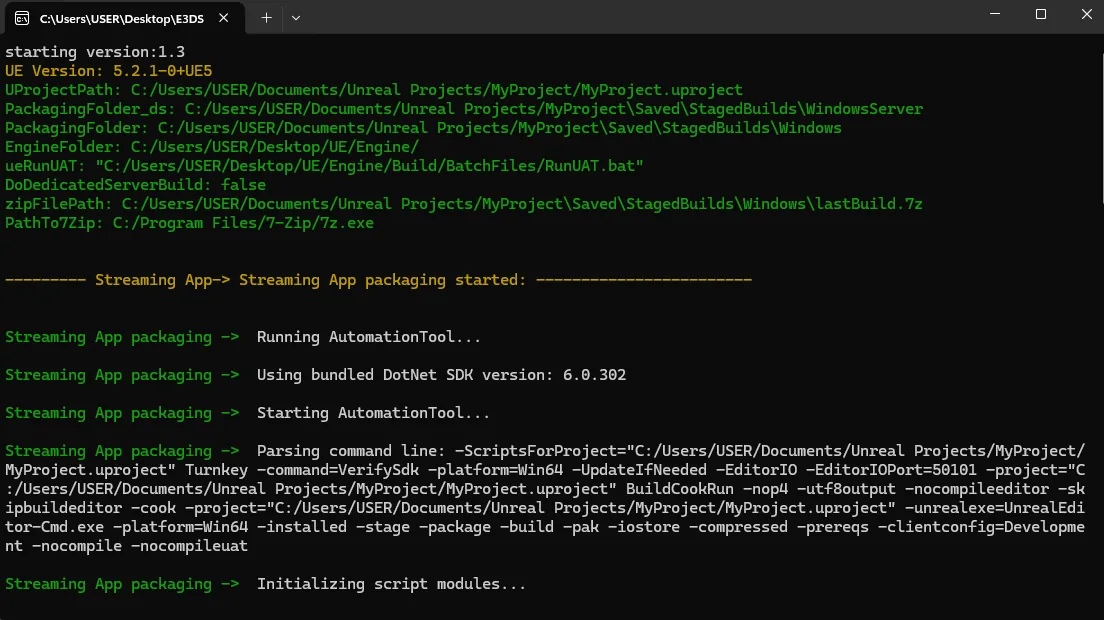
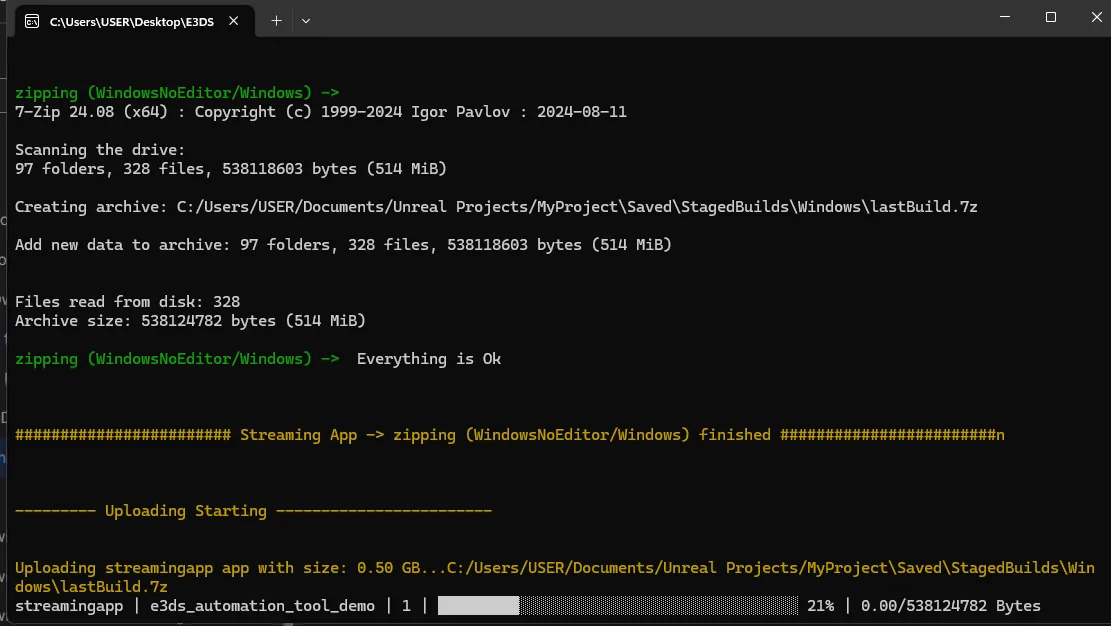
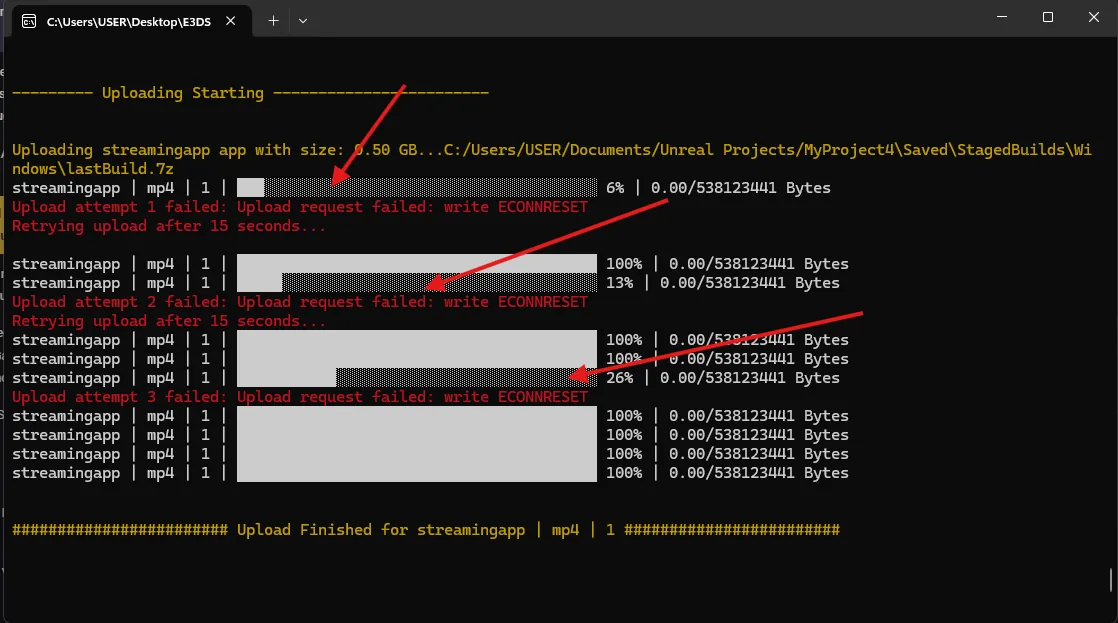
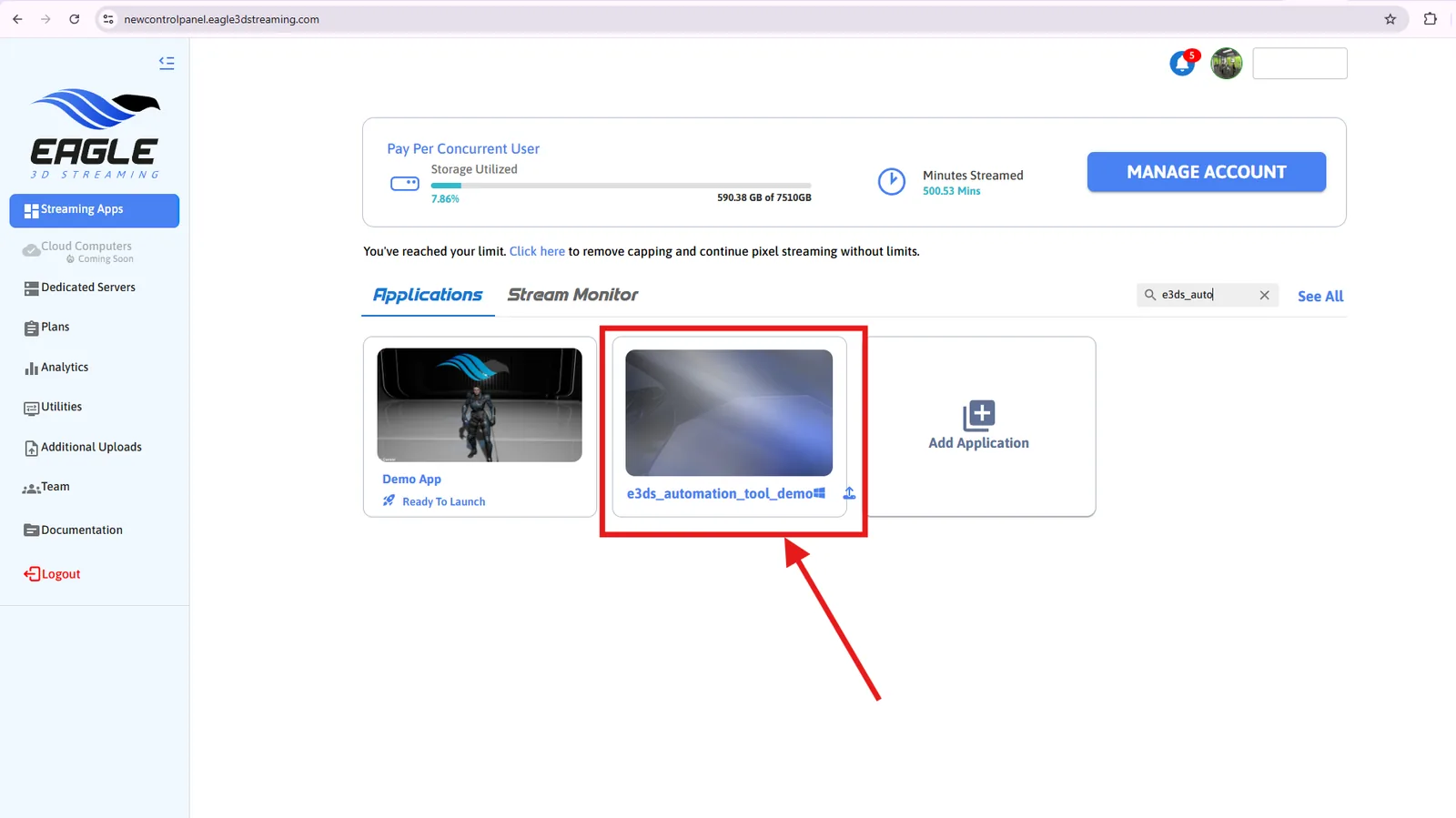
The tool reports the upload finished, and the application appears in your Control Panel — as a new version, if you reused the name.
5. Stream it
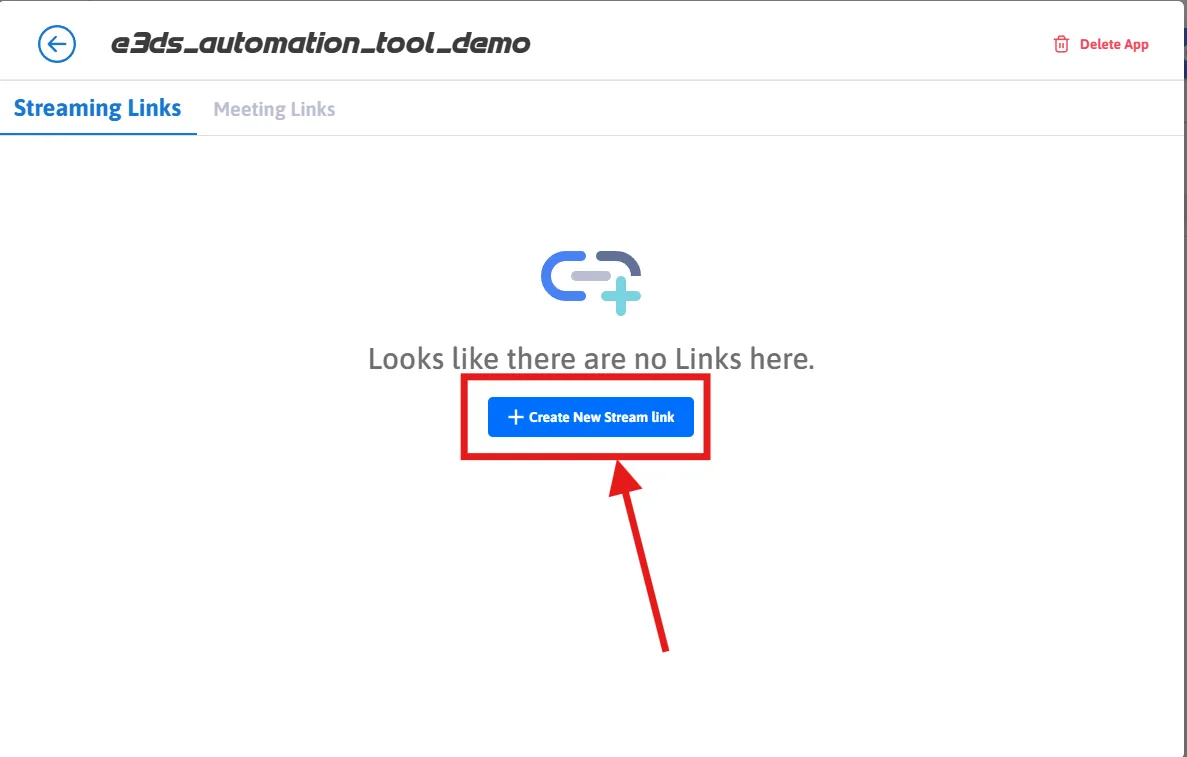
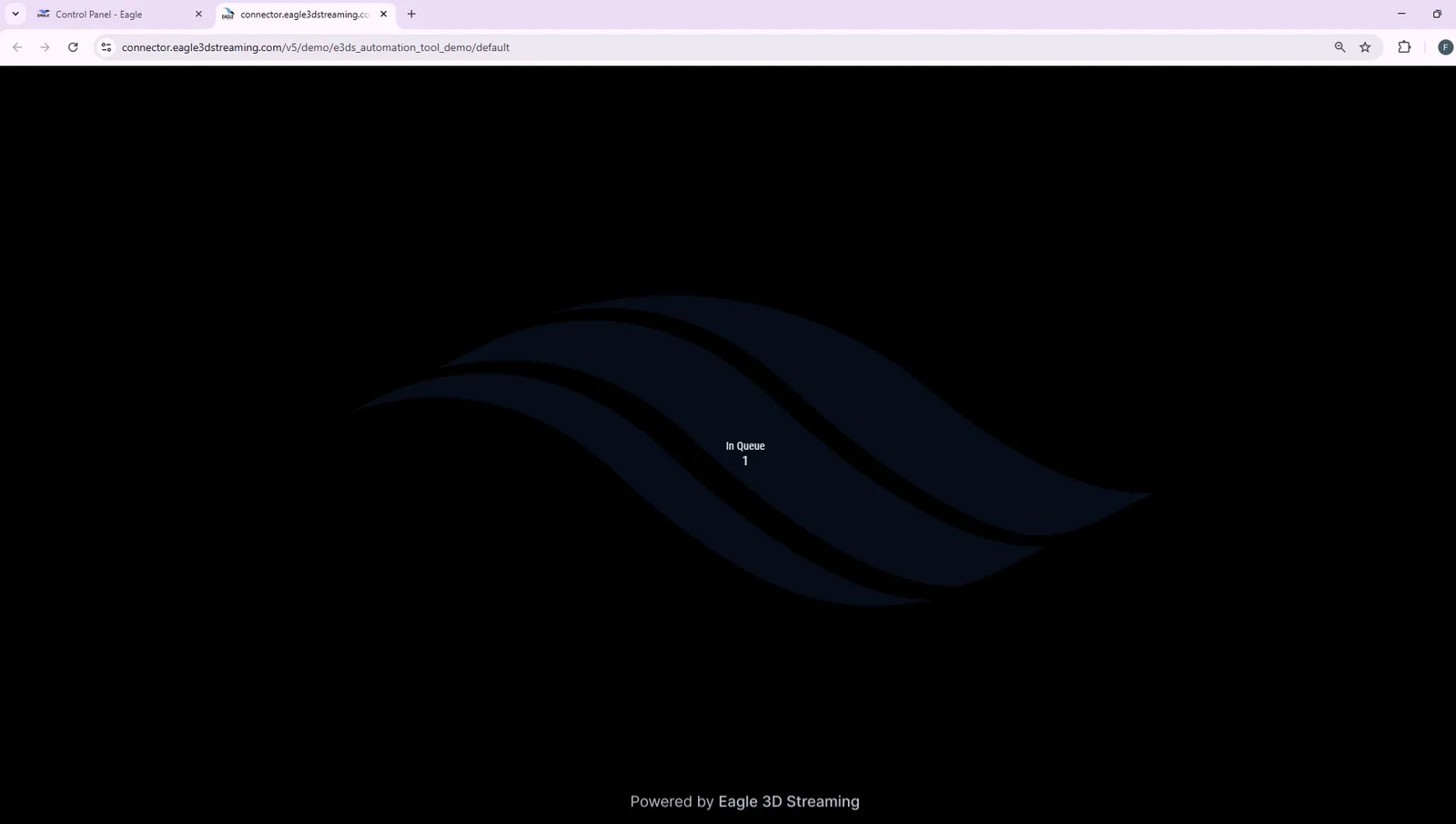
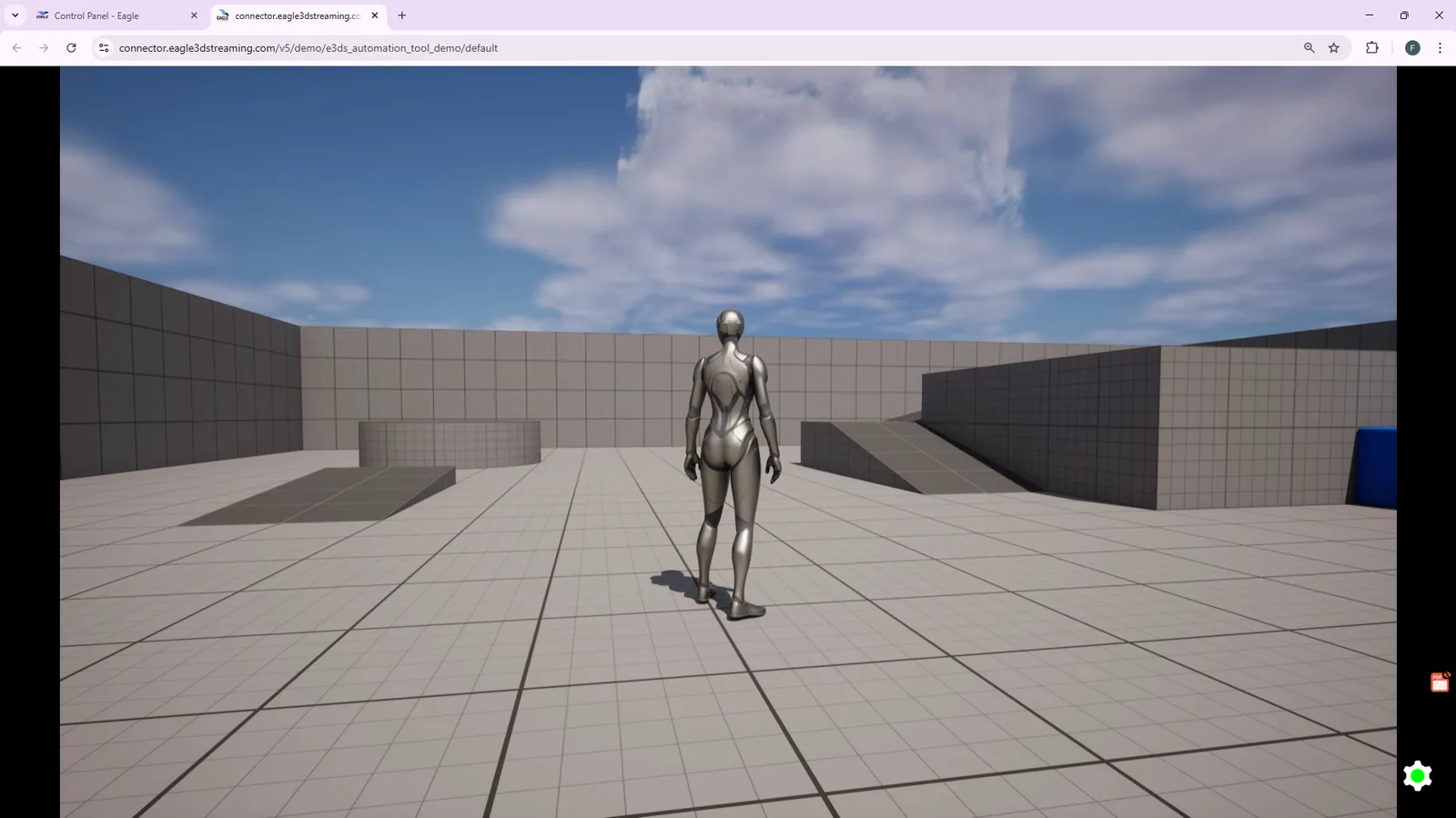
Identical to the Control Panel route from here: open the application, press Create New Stream Link, then Play App, wait for a machine, and press play.
Microphone, fullscreen and the rest of the per-app settings.
Last updated