Create your account
Signing up for Eagle 3D Streaming takes about two minutes and finishes with you inside the Control Panel, which is where every app you stream is managed from.
Before you begin
- An email address you can receive mail at. A one-time code is sent to it during sign-up, so an address you cannot open right now will stop you at step 4.
-
Open the sign-up page
Go to controlpanel.eagle3dstreaming.com/signup. Accounts are free to create. A new account starts on a free trial; nothing is charged until you choose a plan. Sign up with Google is on the same page if you prefer it to an email and password.
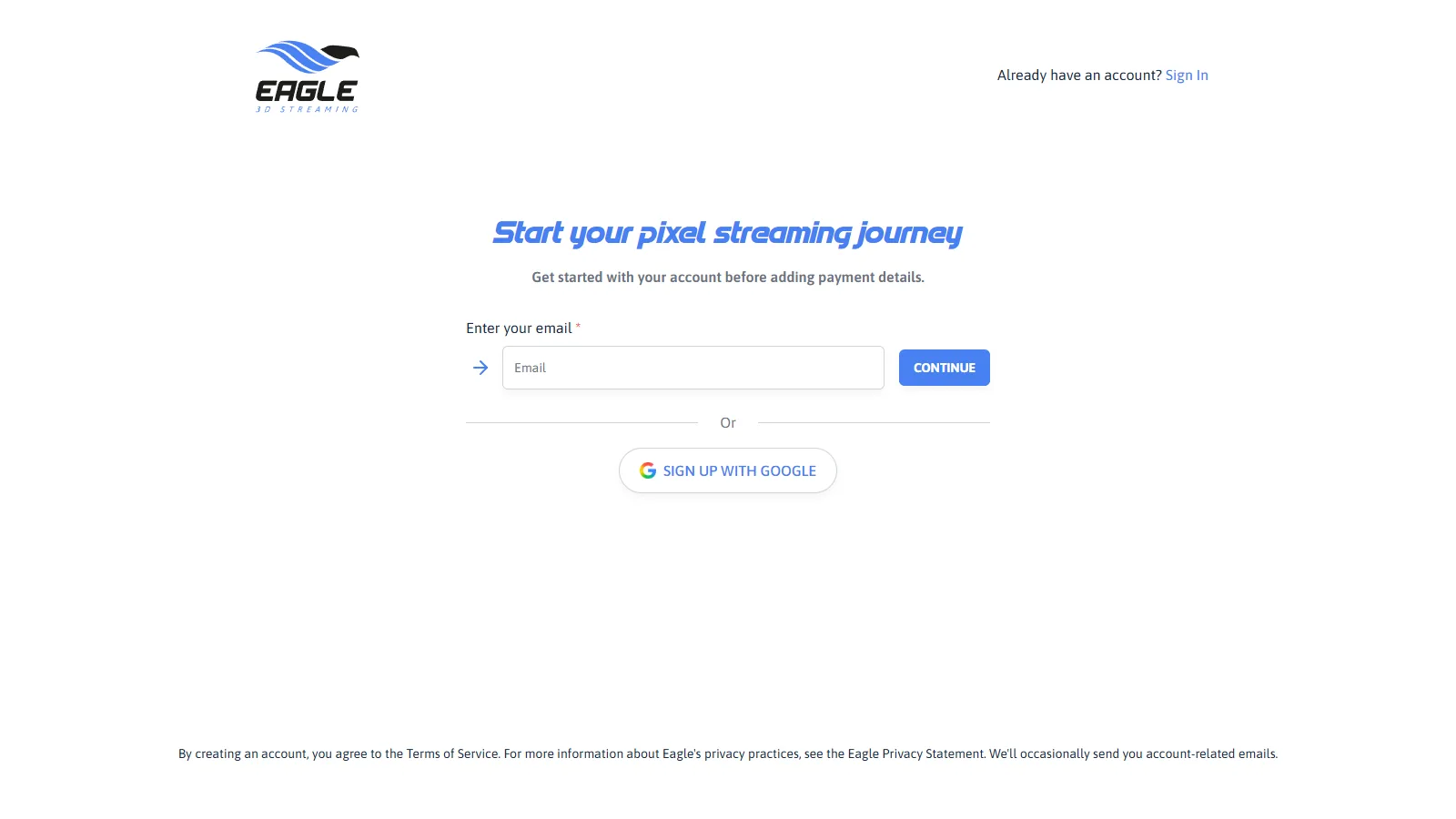
The sign-up page. -
Enter your email address
Type the address and press Continue. Use an address you can open now — the code in step 4 goes to it.
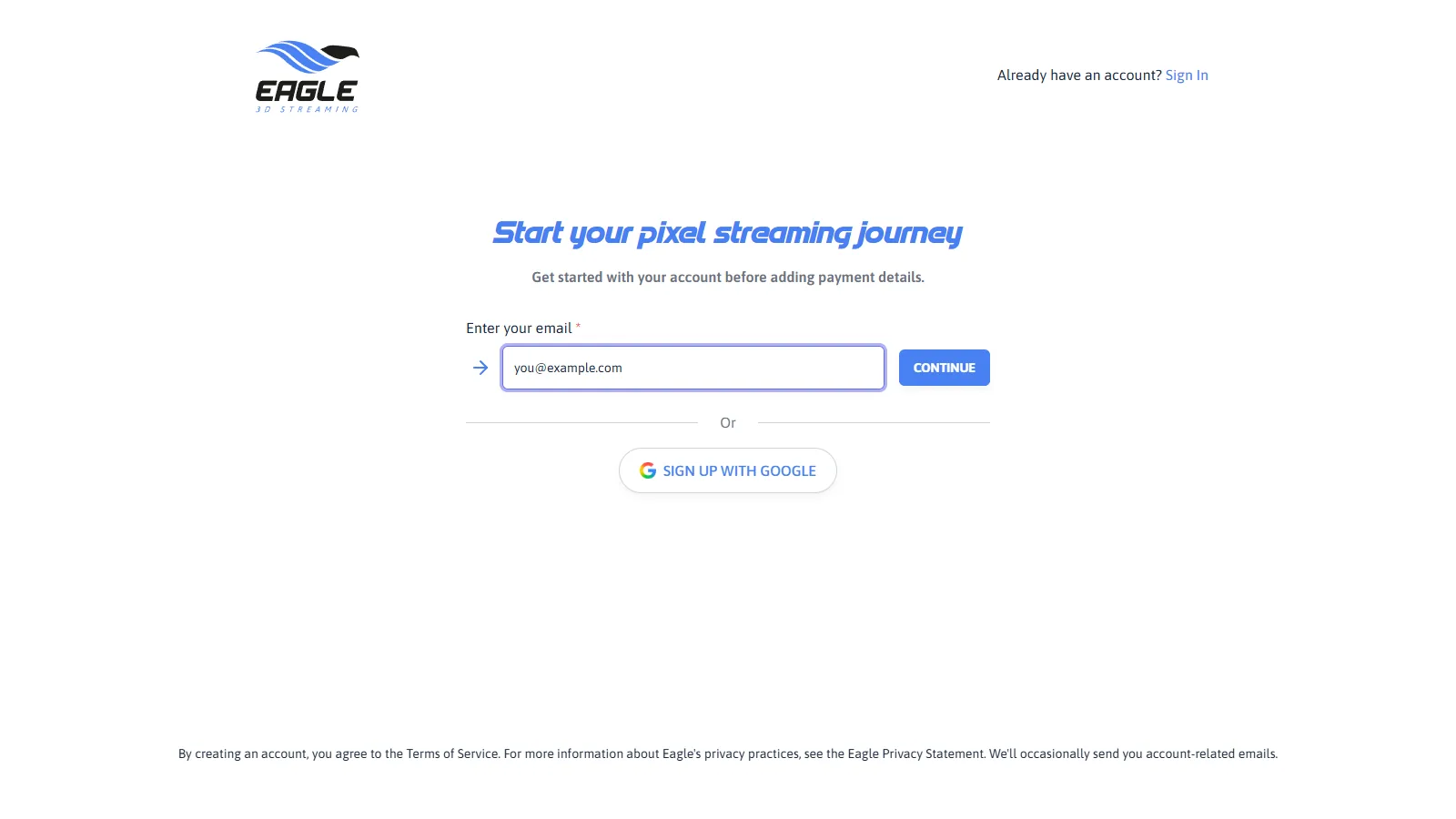
Entering your email address. -
Choose a password
Enter a password and press Continue.
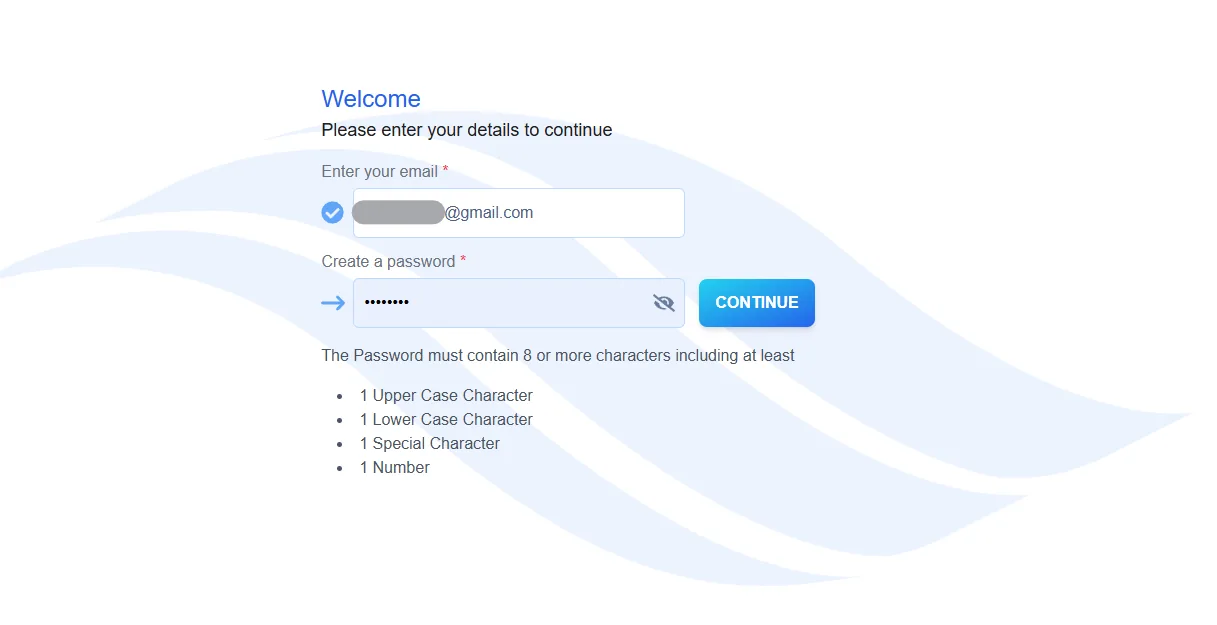
Choosing a password. -
Enter the code from your email
A 6-digit code is sent to the address from step 2. Type it into Enter OTP. If it has not arrived after a minute, check your spam folder before pressing RESEND.
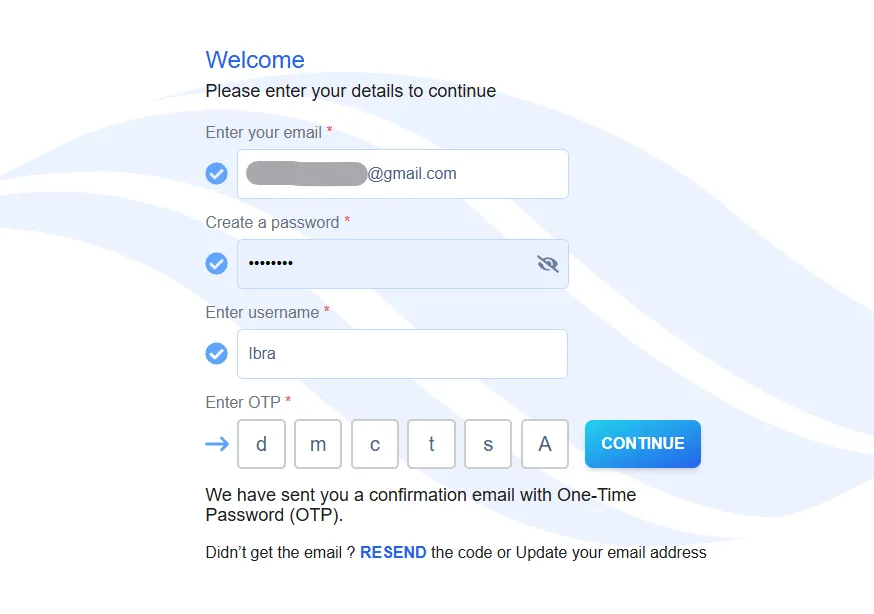
Entering the one-time code. -
Finish your profile
A last page asks for your username, your phone number and where you heard about Eagle 3D Streaming.
- Username: 3 to 30 characters; letters, digits and
-_!only. It becomes part of the address of every app you publish, so anyone you send a link to sees it. - Phone: in international form, starting with your country code.
- CREATE stays greyed out until the newsletter box is ticked. If the button will not press, that box is why.
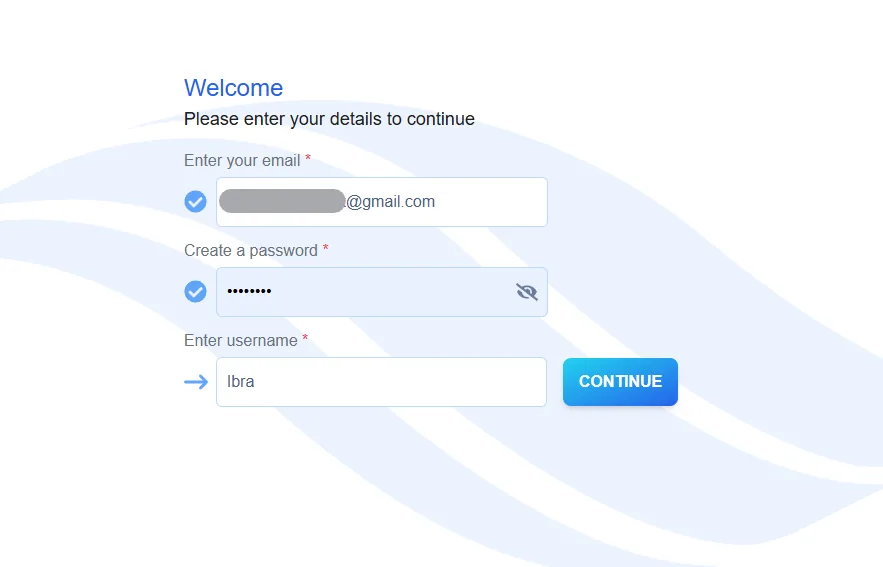
Choosing a username. - Username: 3 to 30 characters; letters, digits and
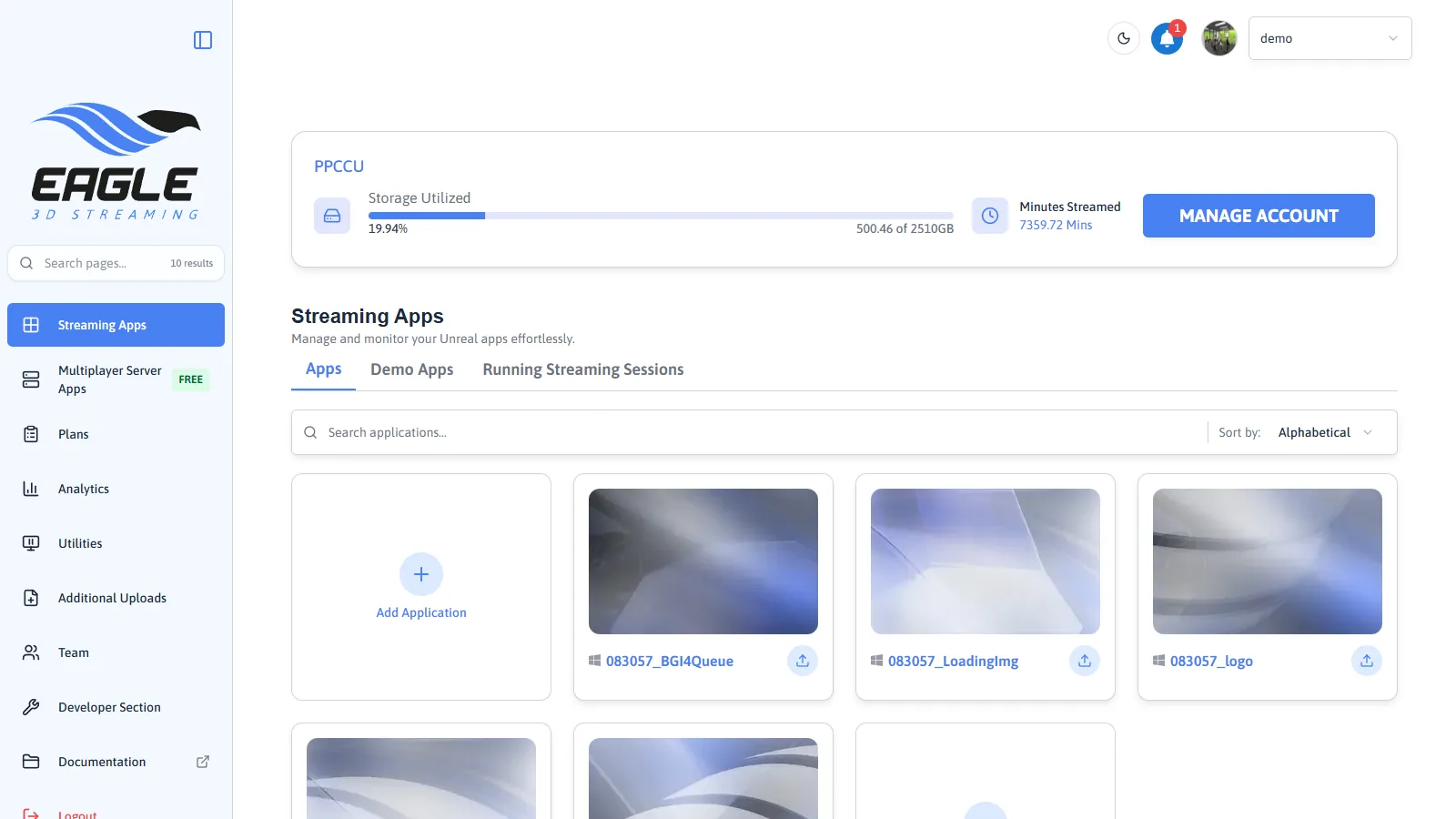
The Control Panel opens after CREATE. This is where you add applications, configure how they stream and get the links you share — you will return to it for everything that follows.
To have something to stream before you have built anything, use the sample app on the next page.
Prove the whole chain works before your own build is involved.
Last updated