Prepare your app in Unreal
Three things turn an Unreal project into something the platform can stream: the Pixel Streaming plugin, a Windows package, and a ZIP of the result. This page does all three.
Most of the elapsed time here is Unreal packaging, which runs unattended. The work you actually do takes a few minutes.
Before you begin
- Unreal Engine 5.1 or newer. Earlier versions are not supported. Unreal's own installation guide covers getting it, and its Visual Studio setup covers the rest.
- A project to stream. Any project works — if you only want to try this, a new Third Person template is enough.
- Disk space for the package. A modest project produces a few gigabytes.
If you need a project to try with
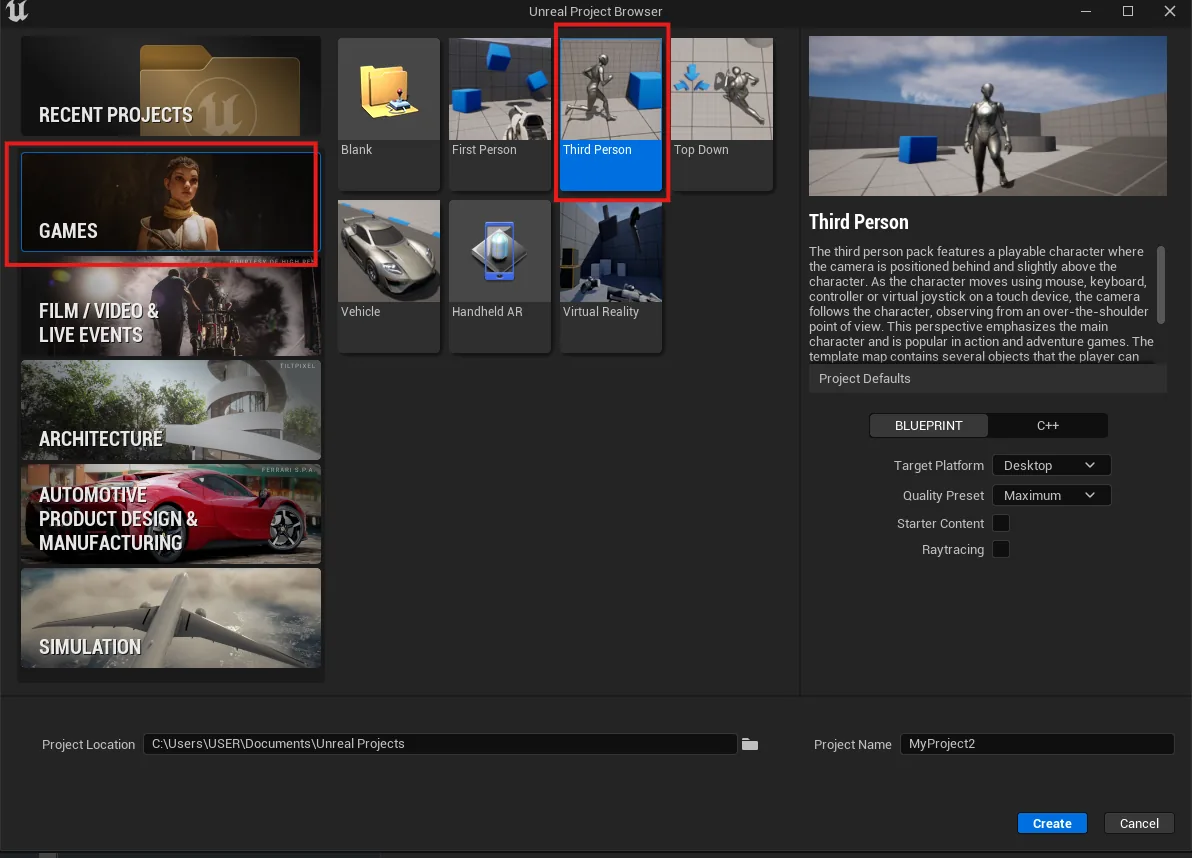
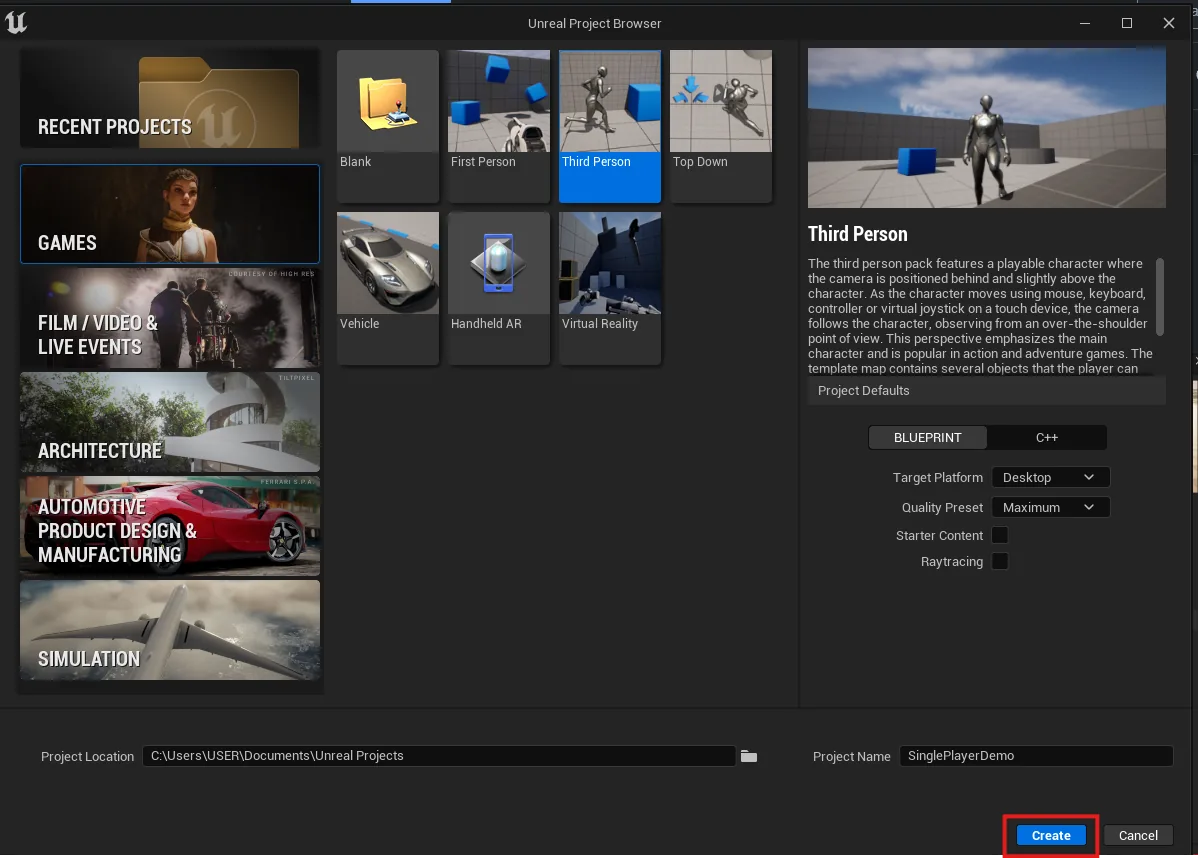
Skip this if you already have one. Otherwise, in Unreal Editor create a new project, choose Third Person under Games, name it, and press Create. You get a working scene you can walk around in, which is all that is needed to see streaming work.
Enable Pixel Streaming
This is the plugin that lets Unreal send video and receive input over a network. Without it the packaged build runs perfectly well and cannot be streamed at all — so it is worth confirming rather than assuming.
-
Open Edit › Plugins
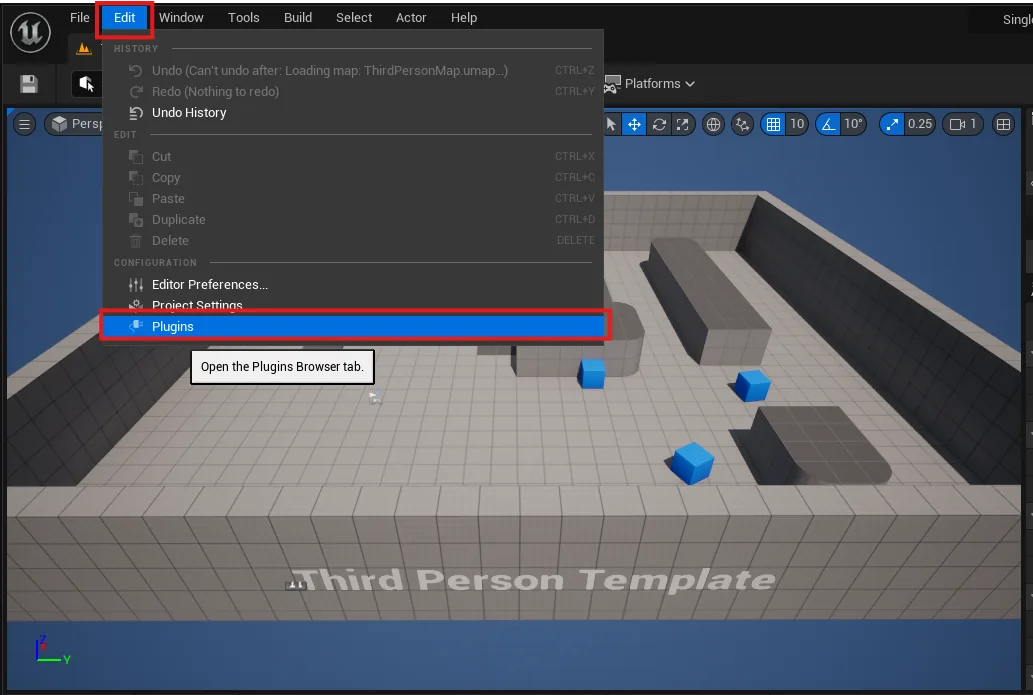
Edit › Plugins. -
Search for "pixel streaming" and tick it
On UE 5.5 and later the list shows two: Pixel Streaming and Pixel Streaming 2. Either works on Eagle 3D Streaming; enable only one. Before 5.5 there is just Pixel Streaming. When you upload, the Control Panel checks the build for it and says PSX Plugin not detected if it is missing.
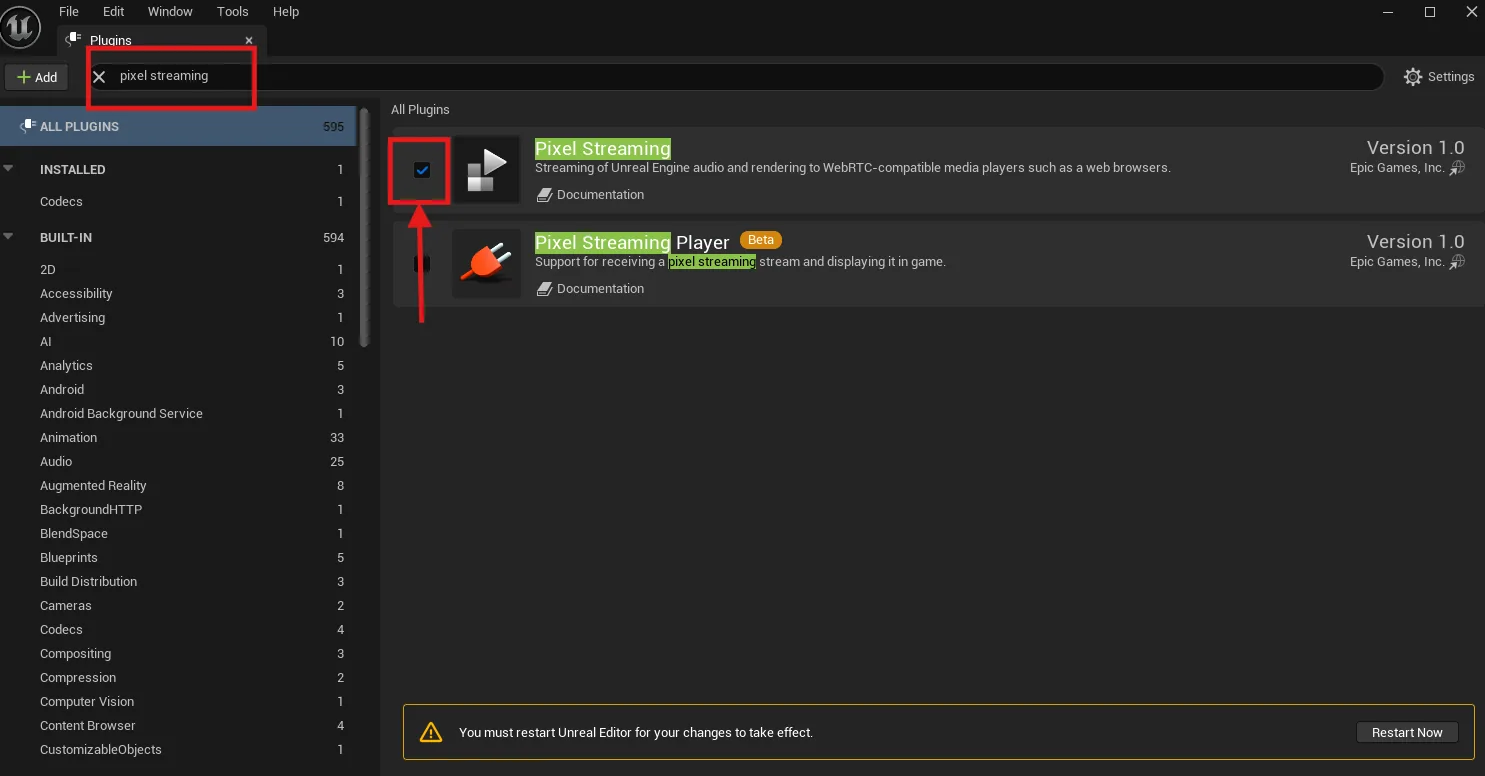
Ticking the Pixel Streaming plugin. -
Press Restart Now
The plugin is not active until the editor restarts. Packaging before the restart produces a build without streaming in it, and nothing later will say why.
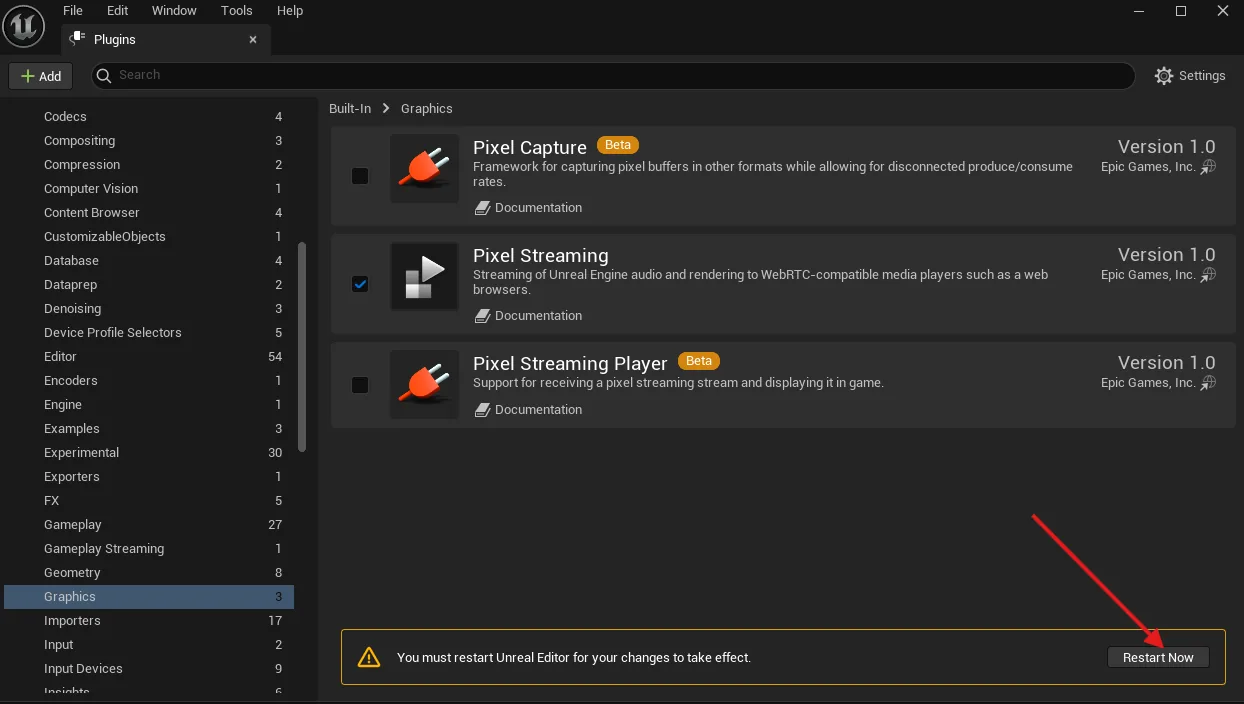
Restart Now.
Package for Windows
-
Go to Platforms › Windows › Package Project
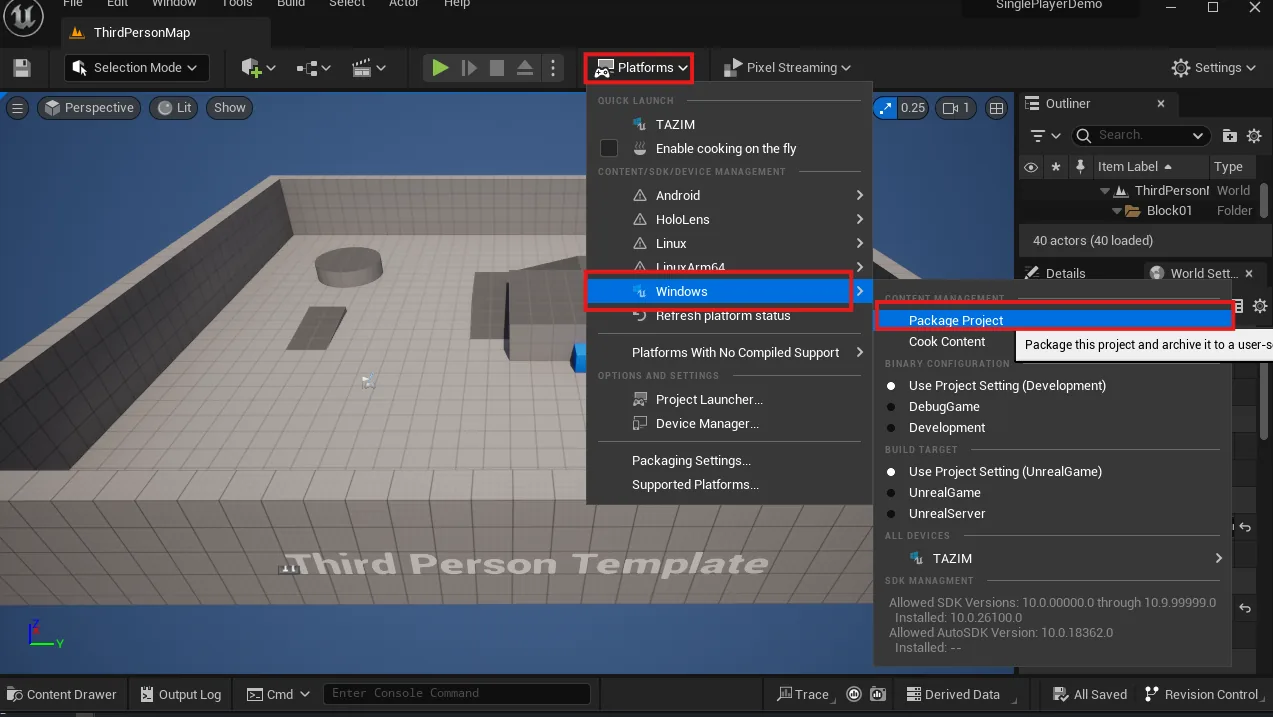
Platforms › Windows. -
Choose an output folder
Pick or create an empty folder. Unreal writes the whole build into it.
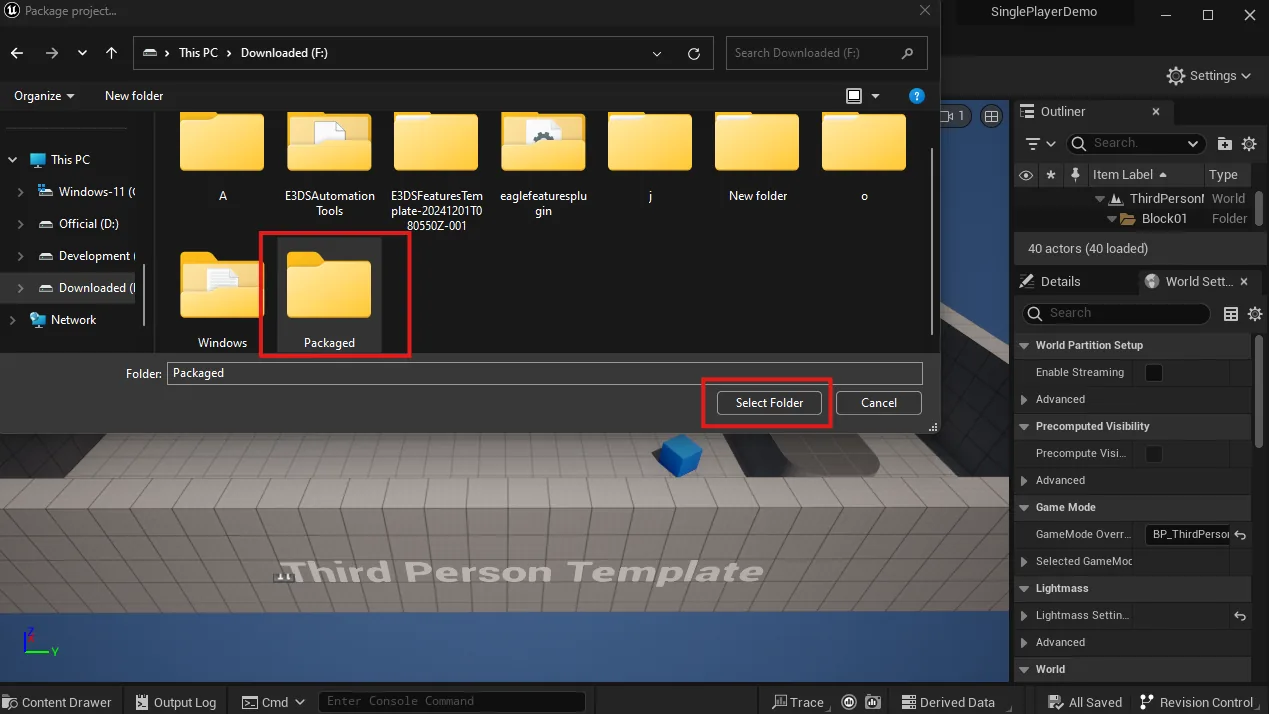
Choosing where the package goes. -
Wait for packaging to finish
Unreal shows that packaging has started, and tells you when it completes. How long depends on the size of your project and the speed of your machine; the first package of a project is much slower than later ones, because shaders are being compiled.
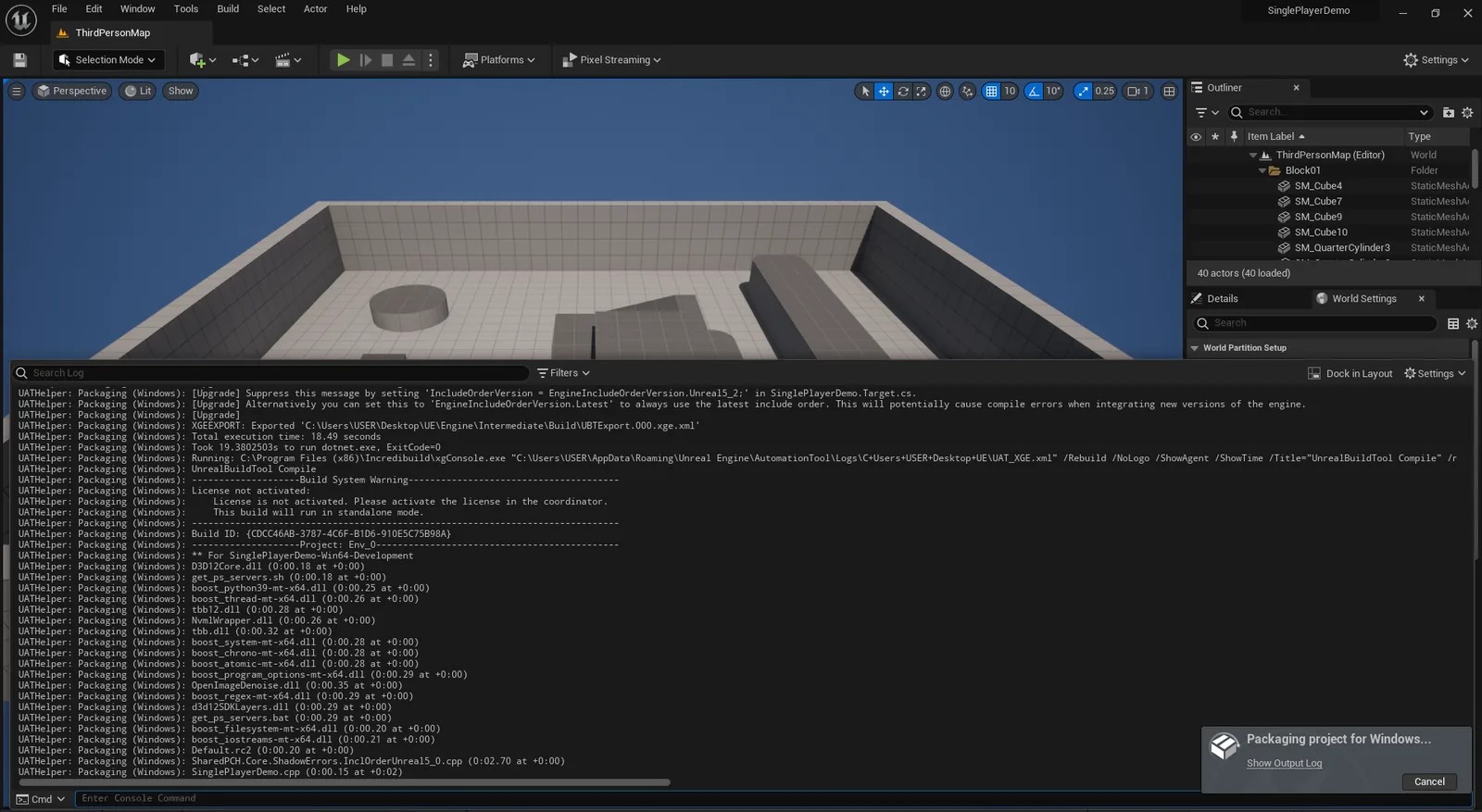
Packaging complete.
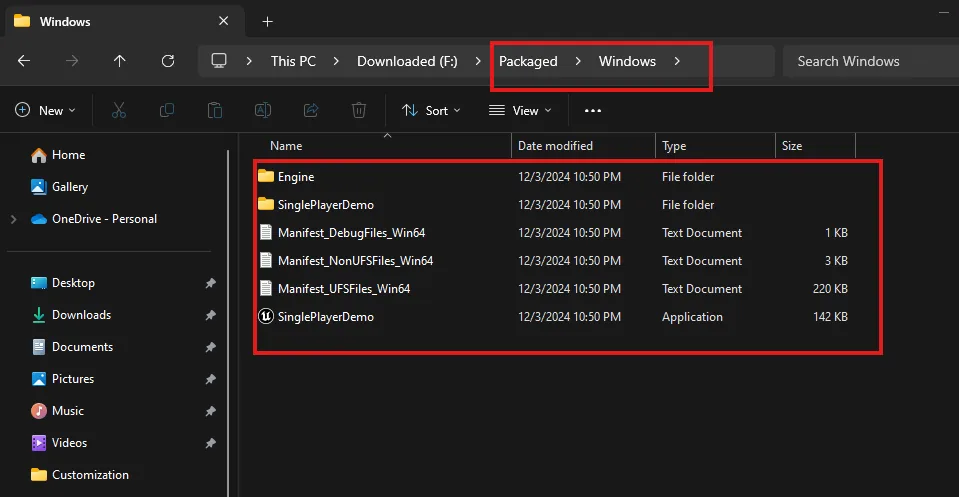
The output folder contains a Windows folder holding your
application's .exe alongside its data folders.
Make the ZIP
-
Select everything inside the Windows folder
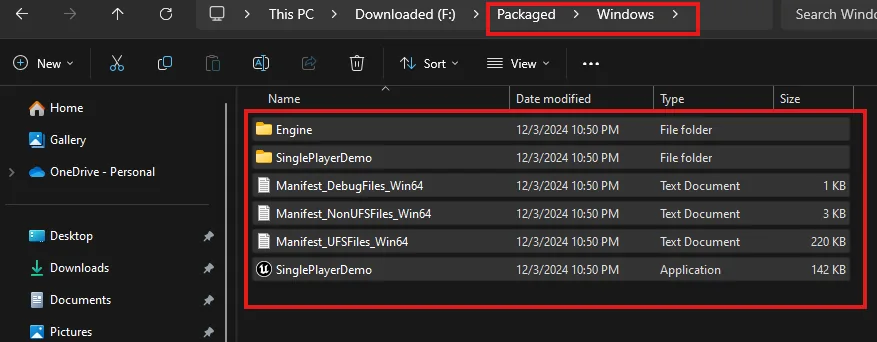
Everything inside the Windows folder. -
Compress it to a ZIP
Right-click the selection and choose Send to › Compressed (zipped) folder. ZIP is the only format the platform accepts.
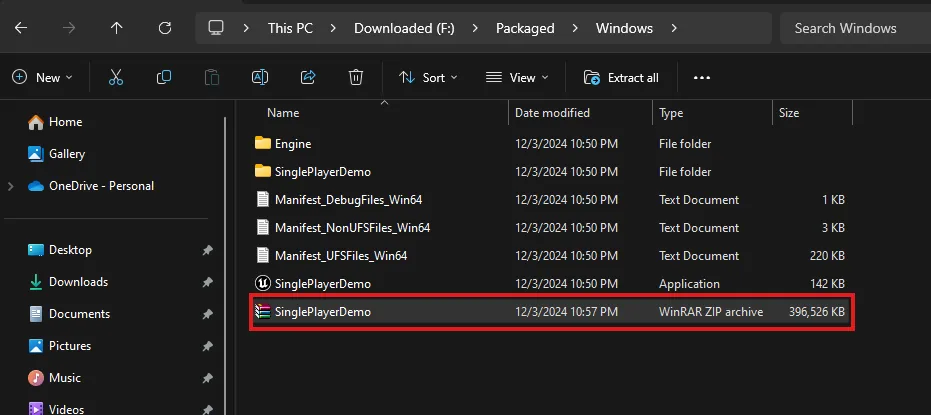
Creating the ZIP.
A single ZIP file with your application's .exe at its top level. That is what you upload.
Or skip the packaging and zipping entirely next time with the Unreal plugin, which does all of this in one action.
Last updated