Try it on a demo app
Upload a prepared demo build and a ready-made patch to Eagle 3D Streaming, and watch the app change — the quickest way to understand patching before your own project is involved.
The packaged demo project, which contains both the build and a patch file. No Unreal Engine required.
-
Upload the ZIP to the Control Panel as an ordinary app — see uploading from the Control Panel.
-
Play it and note what it looks like. This is the "before".
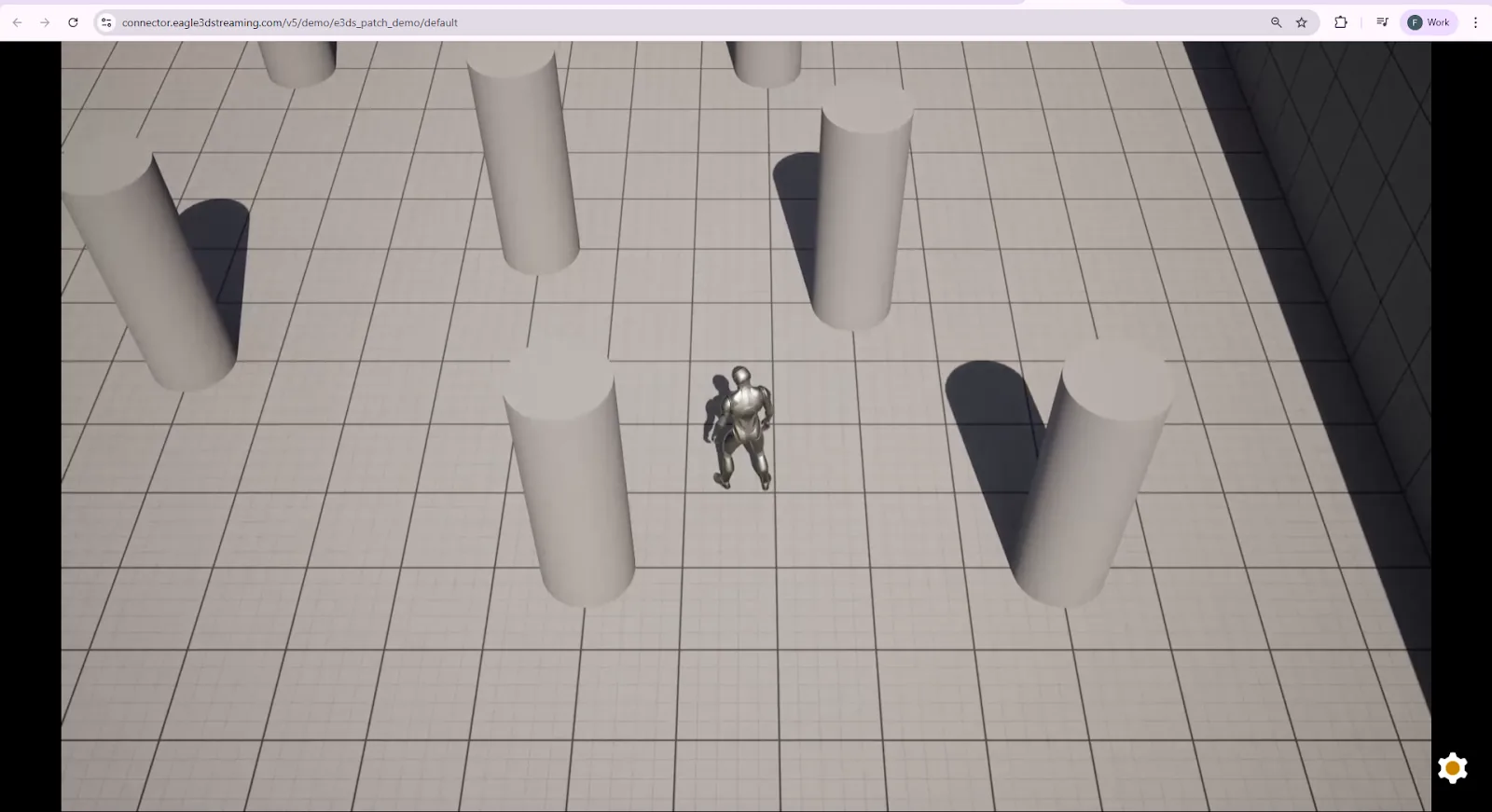
The patch upload URL
Patches do not go through the normal upload page. You construct their address from your username and your app name:
https://upload-old.eagle3dstreaming.com/patch/{userName}/{appName}/latest
So for username demo and app e3ds_patch_demo:
https://upload-old.eagle3dstreaming.com/patch/demo/e3ds_patch_demo/latest
latest means the version of the app that is live now. The patch
is stored against that version number, so a base build uploaded later is a new
version and does not carry this patch.
-
Open that URL.
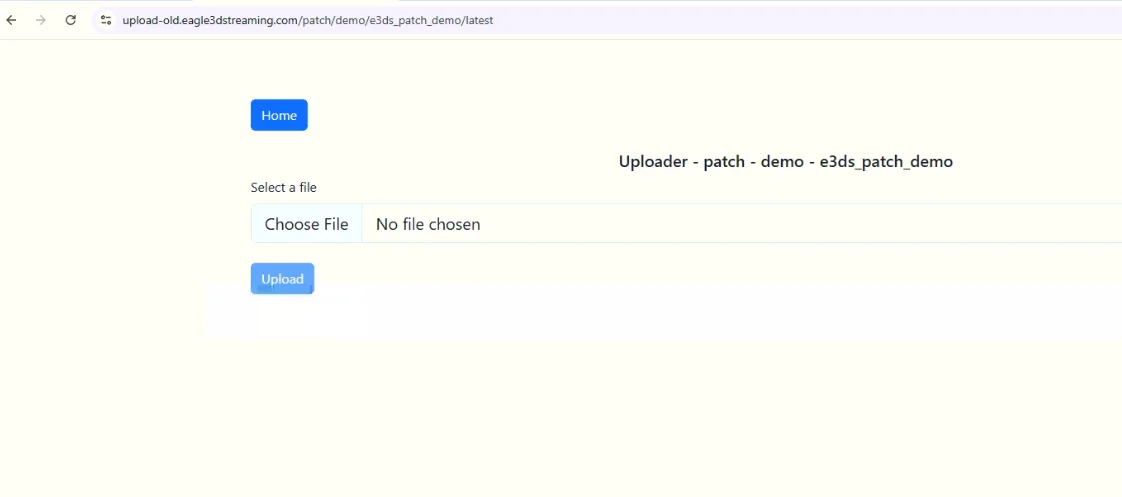
-
Choose the
.pakfile from the extracted demo ZIP.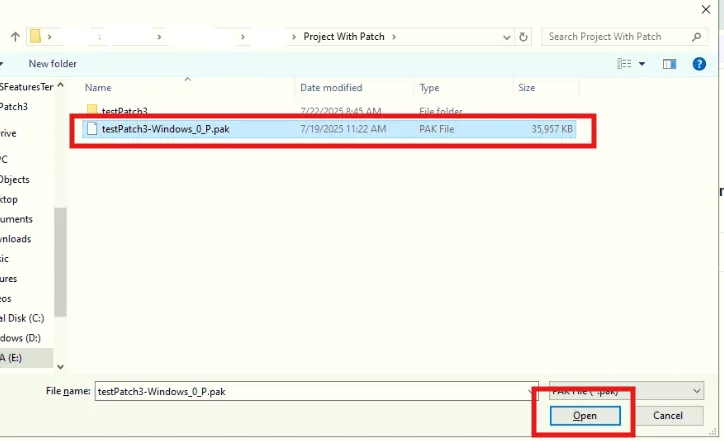
-
Upload it.
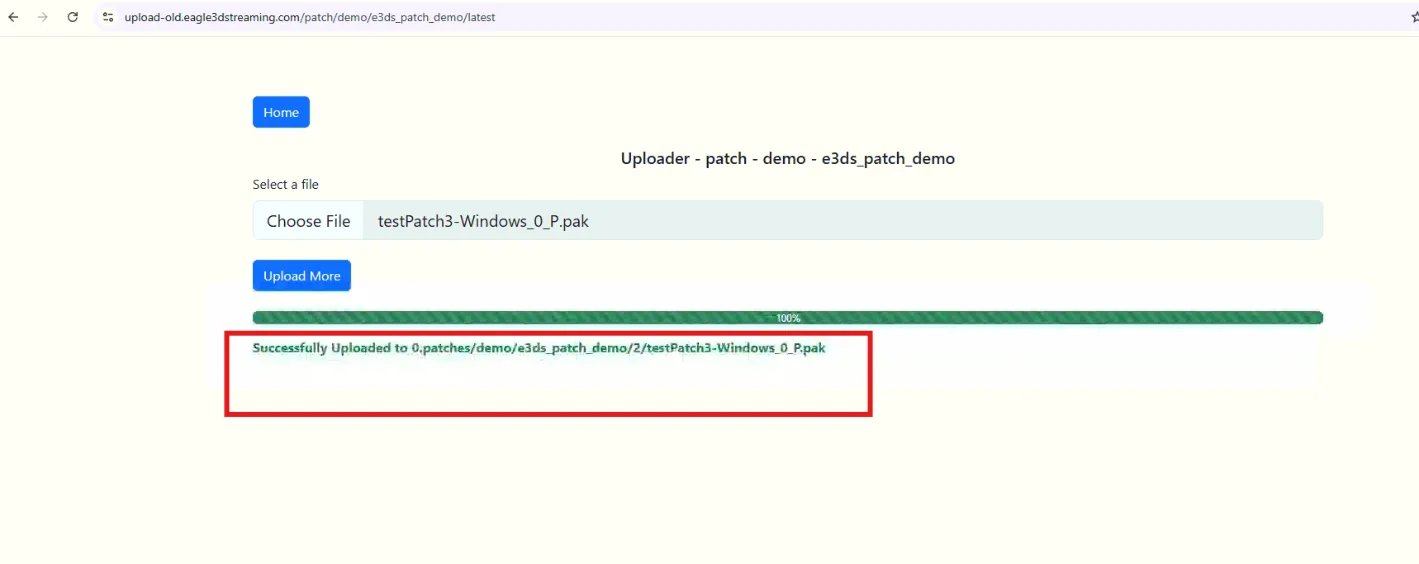
Start a new session and it should now show the patched content — without the base build having been re-uploaded. That difference, between a few megabytes and the whole package, is the entire point of the mechanism. Patches are fetched when the app launches, so a session that was already running, or an instance already started and waiting for a viewer, shows the old content until it is relaunched.
Producing base builds and patches from your own project.
Last updated