Start the server and play
Start a multiplayer server on Eagle 3D Streaming, then bring players to it — from a browser, or from the desktop build while you are still testing.
Start the server
In the Control Panel, go to Multiplayer Server Apps and open your uploaded server.
-
Click Start Server.
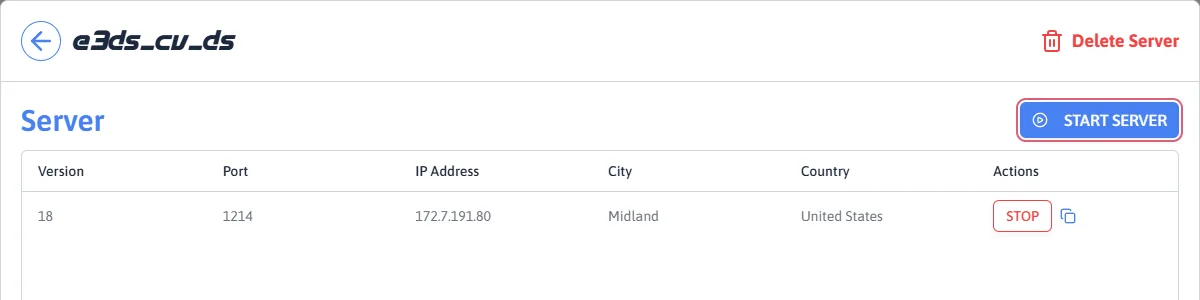
Starting a server allocates it an address, and that is what clients connect to. It is assigned at start time, so it is not something you can hard-code once — which is exactly the problem automatic join exists to remove.
Play from the browser
Open your uploaded game app and create a streaming URL for it.
Open that URL on two devices, or in two browser windows.
Press play on each, then join the server from inside the game.
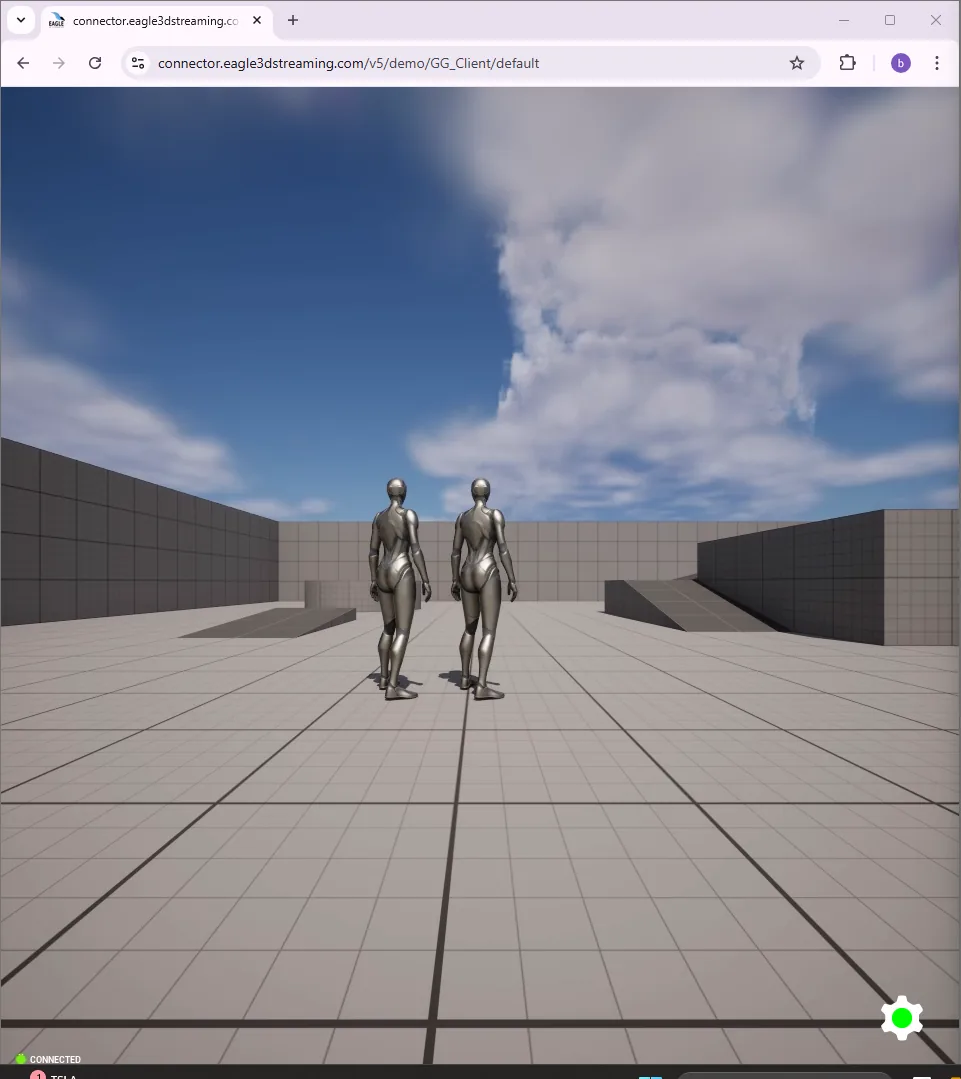
This works from a mobile browser too — there is nothing desktop-specific about a streamed multiplayer client.
Play from the desktop build, while testing
Before uploading the game, you can point the local build at the running server and check the multiplayer behaviour itself.
Start a server in the Control Panel, as above, and note its address and port.
Run the packaged game application on your machine. Package it as Development (or DebugGame) for this test — the console is compiled out of Shipping builds.
-
Press ` (backtick) to open the console and connect:
open 172.7.191.81:28889 Do the same in a second instance, so there are two players.
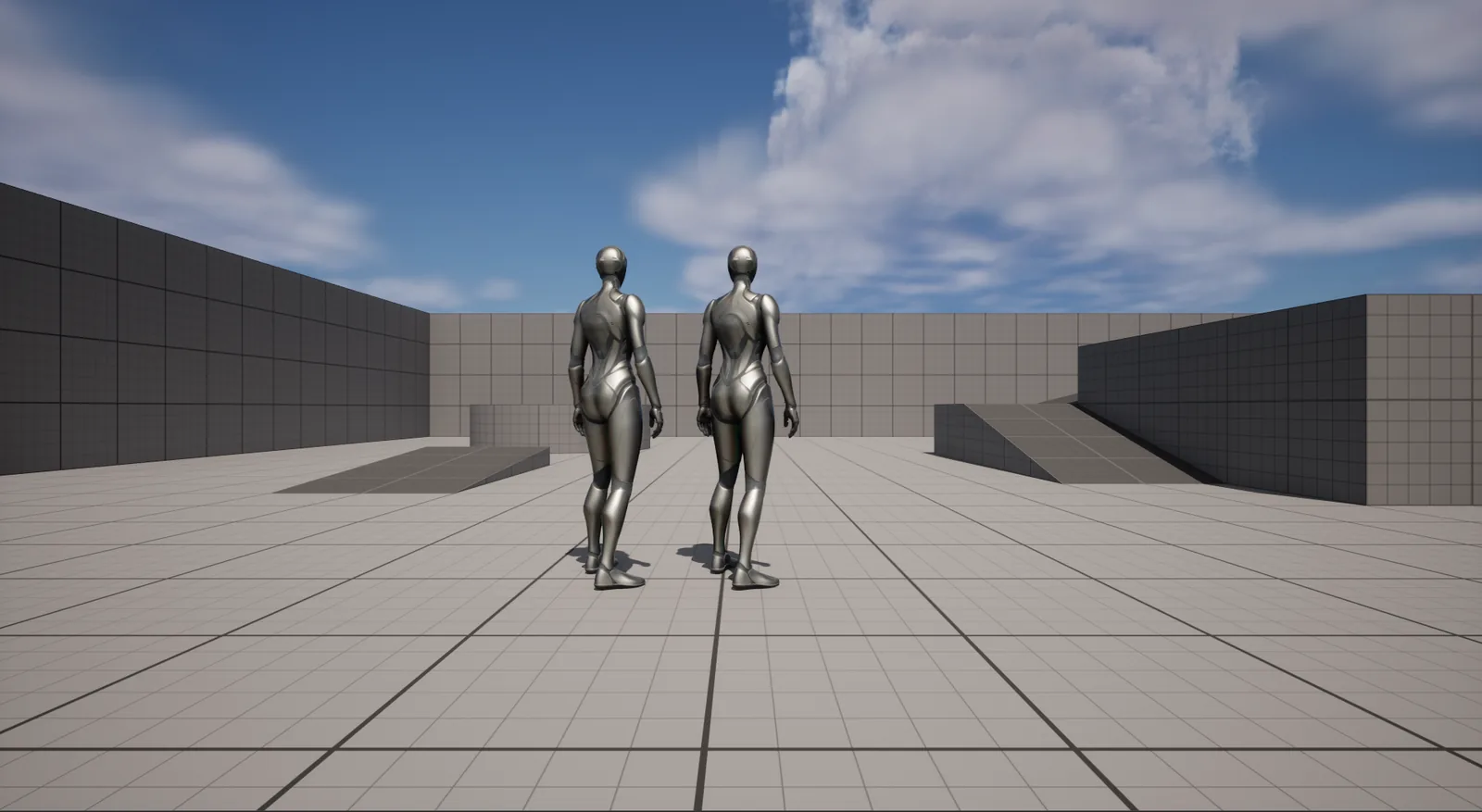
Two avatars in one world, each moving when its own player moves. If each window shows only one player, they are in separate sessions — the join did not happen, whatever the connection appeared to do.
Removing the typed address, which no real player will ever do.
Last updated