Try it on the demo app
A demo Unreal application on Eagle 3D Streaming that shows a command-line parameter arriving, one change at a time. Nothing to install and nothing to configure — every step is a link you can open.
Run the demo, one change at a time
Eight steps. Each adds one thing, and everything else on this page follows from them.
The demo application used below is E3DSFeaturesTemplate. It has
a row of numbered booths, and in one of them a panel reading
Command Line Arguments Received with three objects in front of it:
a ball, a cone and a box.
Follow the steps in order and each one changes exactly one thing.
Step 1 — open it with nothing set
Open the stream link with a configuration whose Parameters To Pass To App is empty, and add nothing to the link:
connector.eagle3dstreaming.com/v5/demo/E3DSFeaturesTemplate/default Open in a new tab ↗
The player starts at booth 1. Nothing has told the application to do anything else, so it does what it does by default. That is the baseline every other step is compared against.
Step 2 — put a parameter in the configuration
In the Control Panel, open the configuration, go to the Developer
tab and turn on Parameters To Pass To App. The field accepts
a command line, and its own example text shows the shape:
Ex: -param1=value1 param2=value2.
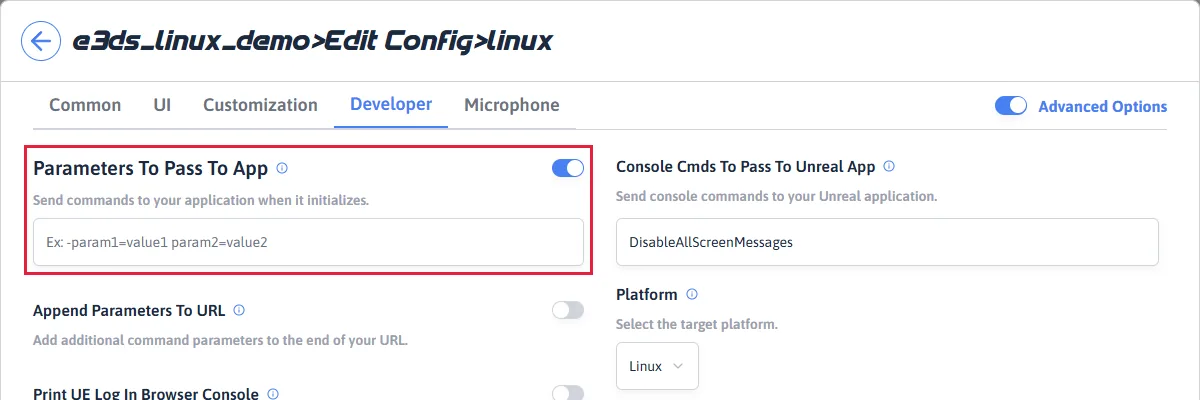
CmdLineDemo — step 8 turns it off.
The CmdLineDemo configuration has this in that field:
-boothno=12 -greenconnector.eagle3dstreaming.com/v5/demo/E3DSFeaturesTemplate/CmdLineDemo Open in a new tab ↗
Two things are different from step 1. The player now starts at booth 12 instead of booth 1, and the ball is green instead of white:
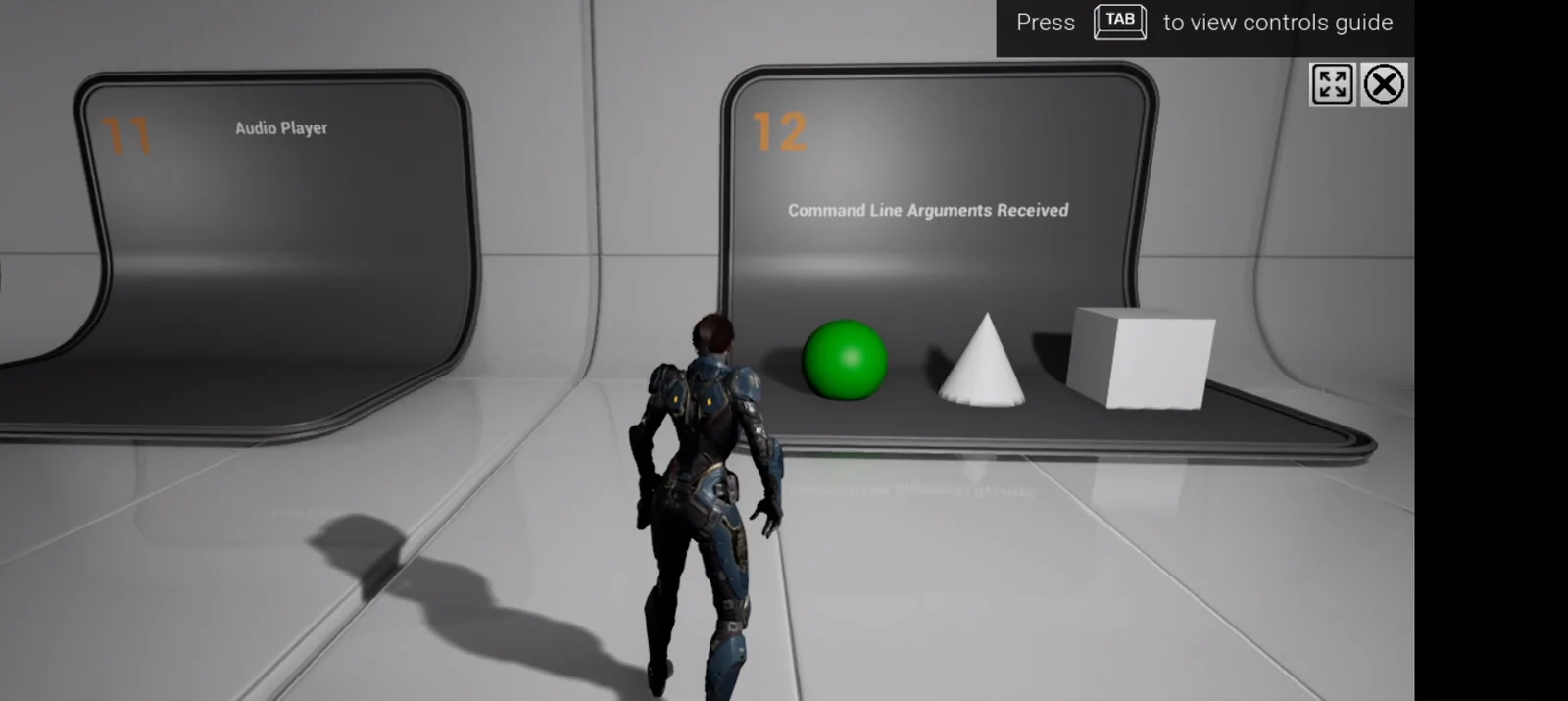
-boothno=12, and a green ball from
-green. The cone and the box are untouched — one colour
was given, so one object changed.
Inside the application a Blueprint reads the number 12 out of
the command line, searches the map for the booth carrying that number, and
places the player in front of it as the level loads. Change the field to
-boothno=7 and the player starts at booth 7 instead.
Step 3 — get the same result from the link instead
Now go back to the configuration with the empty field —
default, which put the player at booth 1 in step 1 — and
put the parameter on the link instead:
Booth 12, green ball. Exactly what step 2 produced — from a configuration with an empty field.
That is the whole idea of this page. There are two places a
parameter can come from — Parameters To Pass To App in the
configuration, and ?exeLunchArgs= on the link — and the
application cannot tell which one it came from. It receives a command line
either way, and behaves identically.
Step 4 — add a second colour
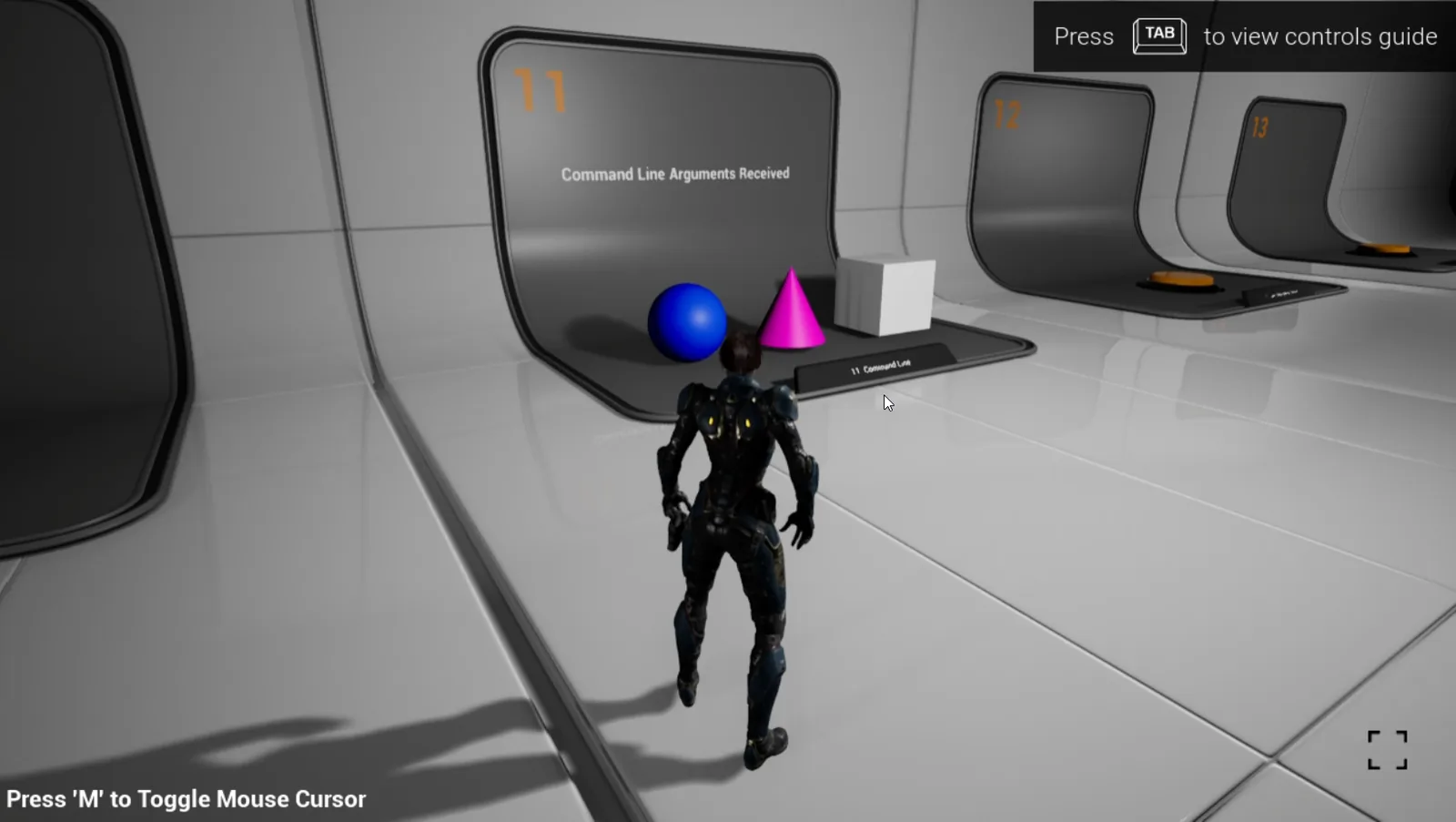
Step 5 — add a third
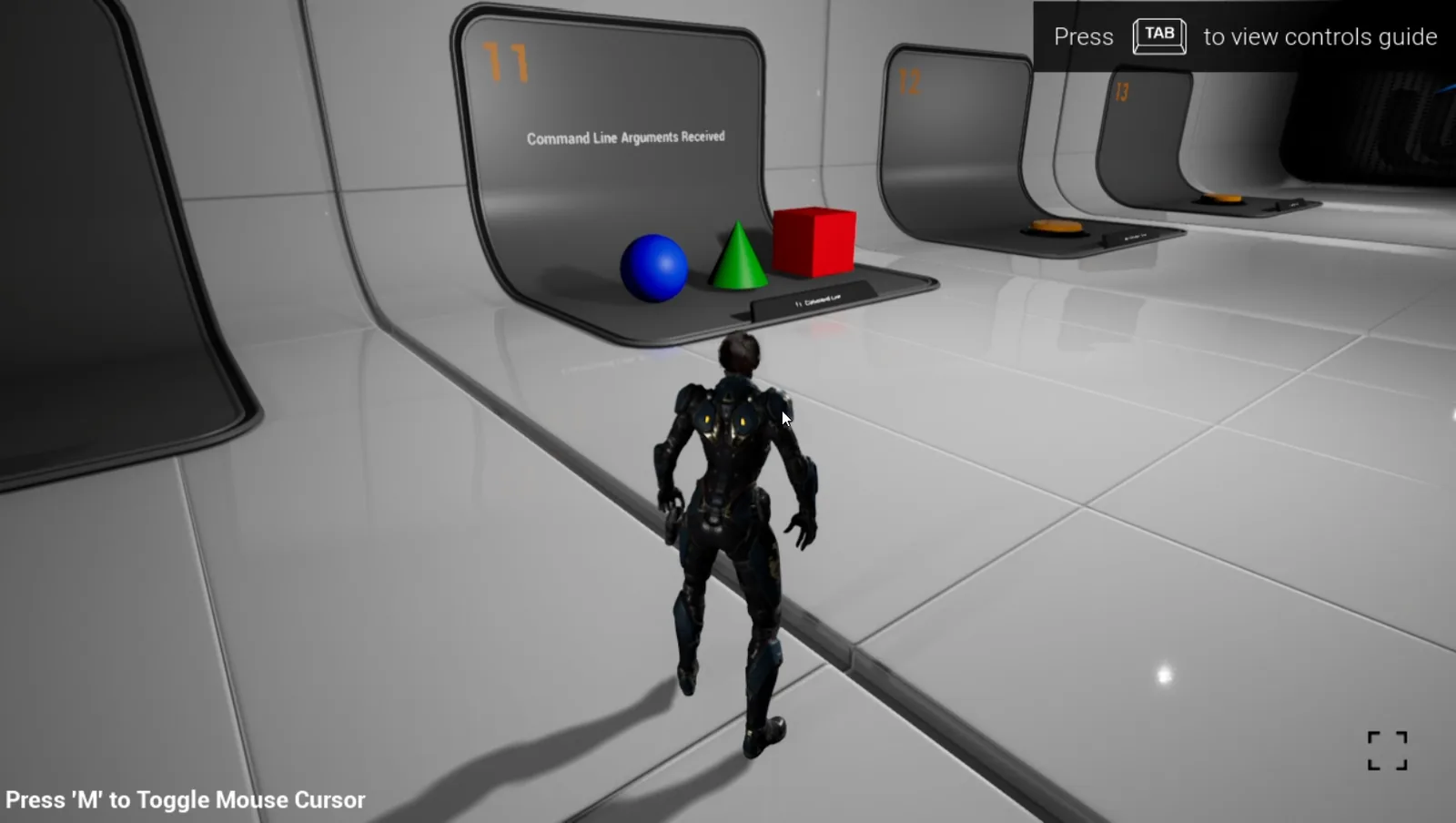
The Blueprint walks the command line in order. The first colour it
recognises goes on the ball, the next on the cone, the next on the box. So
position decides which object changes, and swapping
-blue -green to -green -blue swaps the ball and the
cone.
Step 6 — try a colour the demo does not know
Nothing happens. The objects stay white, and no error appears anywhere.
-turquoise was passed to the application correctly — it
simply is not one of the colours this Blueprint was written to recognise.
Worth sitting with for a moment, because it is true of every parameter on this page: the platform delivers the command line, and the application decides what any of it means. A parameter that does nothing is almost always an application that was not written to look for it.
Step 7 — use both places at once
So far the configuration and the link have been used one at a time. Use both.
CmdLineDemo holds -boothno=12 -green, so put only
colours on the link — no booth number at all:
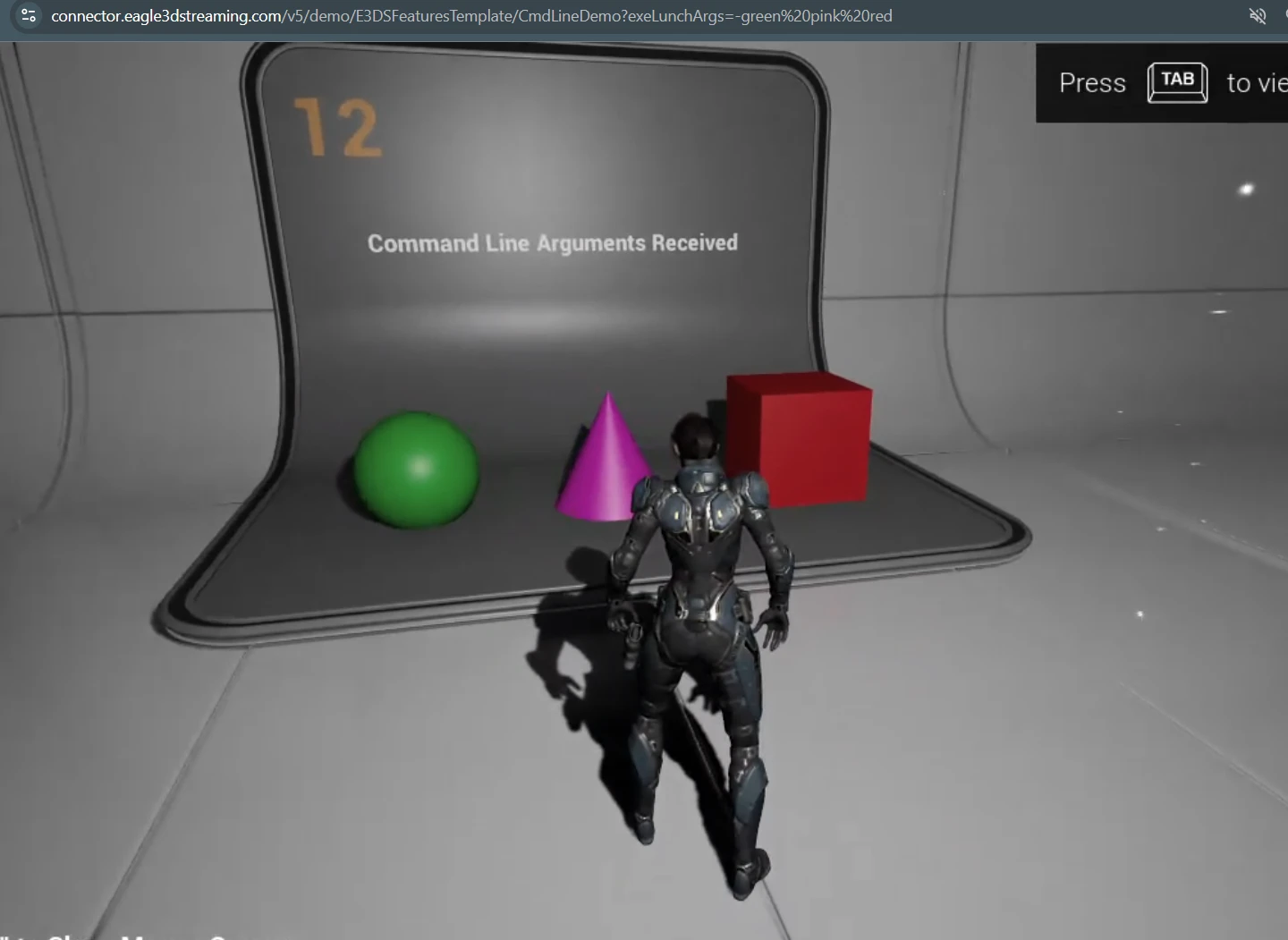
?exeLunchArgs=-green pink red and no booth
number — yet the player is at booth 12. The
booth came from the configuration and the three colours came from the link,
and the application received both.
That is worth pausing on. The link never mentioned booth 12, so the only
place it could have come from is Parameters To Pass To App. The
link's parameters were added to the configuration's rather
than replacing them, which is what Append Parameters To URL
does — and CmdLineDemo has it on:
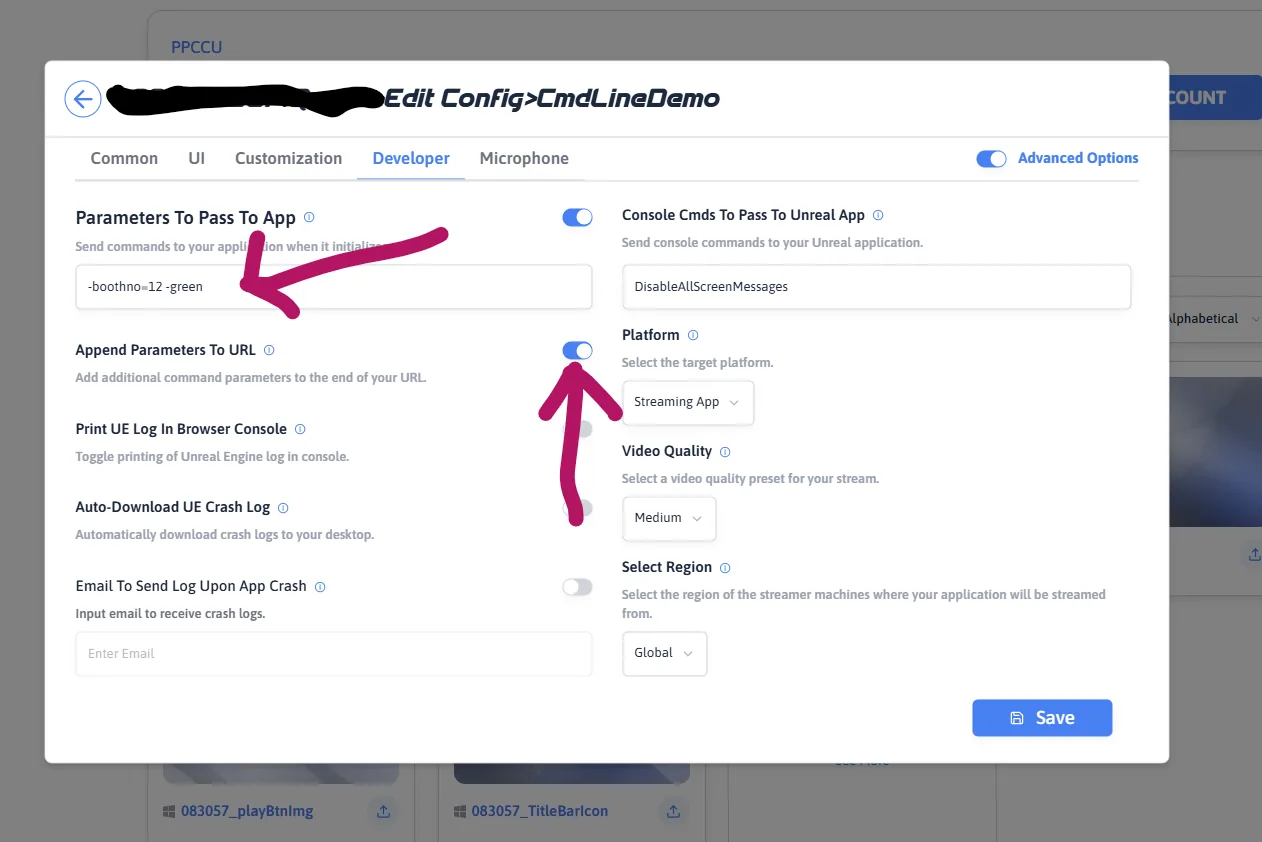
CmdLineDemo's own settings. Parameters To Pass To App
holds -boothno=12 -green, and Append Parameters To
URL is on.
The colours also confirm what step 5 showed: they landed on the ball, cone and box in the order they were written — green, pink, red.
The command line the application actually received
The application logs its own command line when it starts, which is the definitive answer to what reached it. For the step above it reads:

-PixelStreamingURL= is trimmed here, along with the machine's
hardware details.
Read left to right, it is assembled in three groups, always in this order:
| Order | In the log | Came from |
|---|---|---|
| 1st | -boothno=12 -green | Parameters To Pass To App |
| 2nd | -green pink red | the link |
| 3rd | -AudioMixer -AllowPixelStreamingCommands -PixelStreamingURL= … | Eagle 3D Streaming |
Your parameters come before Eagle 3D Streaming's, and within
your own, the configuration comes before the link. Nothing
is removed to make room — note that -green appears twice,
once from each of your two sources, and both survive.
If you ever need to see this for your own application, turn on Print UE Log In Browser Console on the same Developer tab and the log appears in your browser's console.
A note on -green pink red
Only the first of those three carries a dash. pink and
red are bare words, and they still worked.
That is not a rule of the platform, and it is not a rule of Unreal either — it is this demo's own Blueprint. Because a Blueprint reads the command line as one long string and searches it, whatever it searches for is what counts. This one looks for colour names anywhere in the text, so a dash is optional.
Worth knowing because it cuts both ways. In Blueprint you define your
own syntax and can be as forgiving as you like. In C++,
FParse is strict: -green is a flag it can find and
green on its own is not. If you are writing the C++ side, keep
the dashes.
Step 8 — turn that switch off
Turn Append Parameters To URL off and open the same link
again. The configuration's -boothno=12 -green is
not used at all: the link's -green pink red
replaces it entirely, so the player is back at booth 1, with
a green ball, a pink cone and a red box.
Off is the default, and it is the behaviour to be sure
about. A link carrying ?exeLunchArgs= does not merely take
priority over Parameters To Pass To App — it replaces it
completely, including parameters the link says nothing about.
CmdLineDemo has the switch on, which is why step 7 behaved as
it did.
What those eight steps established
| Step | What it showed |
|---|---|
| 1–2 | A parameter in the configuration changes what the application does. |
| 3 | The same parameter on the link does the same thing. Two sources, one outcome. |
| 4–5 | Parameters accumulate, and their order can matter to the application. |
| 6 | The application decides what a parameter means. Unknown ones do nothing, silently. |
| 7 | With Append Parameters To URL on, both places are kept, configuration first. |
| 8 | Append Parameters To URL changes replace into add. |
The detail behind those lines — how to write a link safely, how append and replace work, how to read a parameter inside Unreal, and how to switch link parameters off altogether — is on parameters in a link, and everything else.
One thing to take there from this demo: -boothno=12 (a named
value) and -green (a bare switch) are not the same shape, and
Unreal reads them with two different functions. Using the
wrong one silently never works — see Reading a parameter inside
your application on that page before writing any code that checks a
parameter.
How the links in this demo are built, and the rest of what parameters can do.
Last updated