Upload and stream a Linux build
Upload the Linux ZIP to Eagle 3D Streaming and stream it. Two things differ from a Windows upload, and both cause failures that do not explain themselves.
Before you begin
- A packaged Linux ZIP with a
.shlauncher at its top level — see Build a Linux package. - Or, to try the process without building, the sample ZIP.
1. Upload the ZIP
-
Sign in and press Add Application
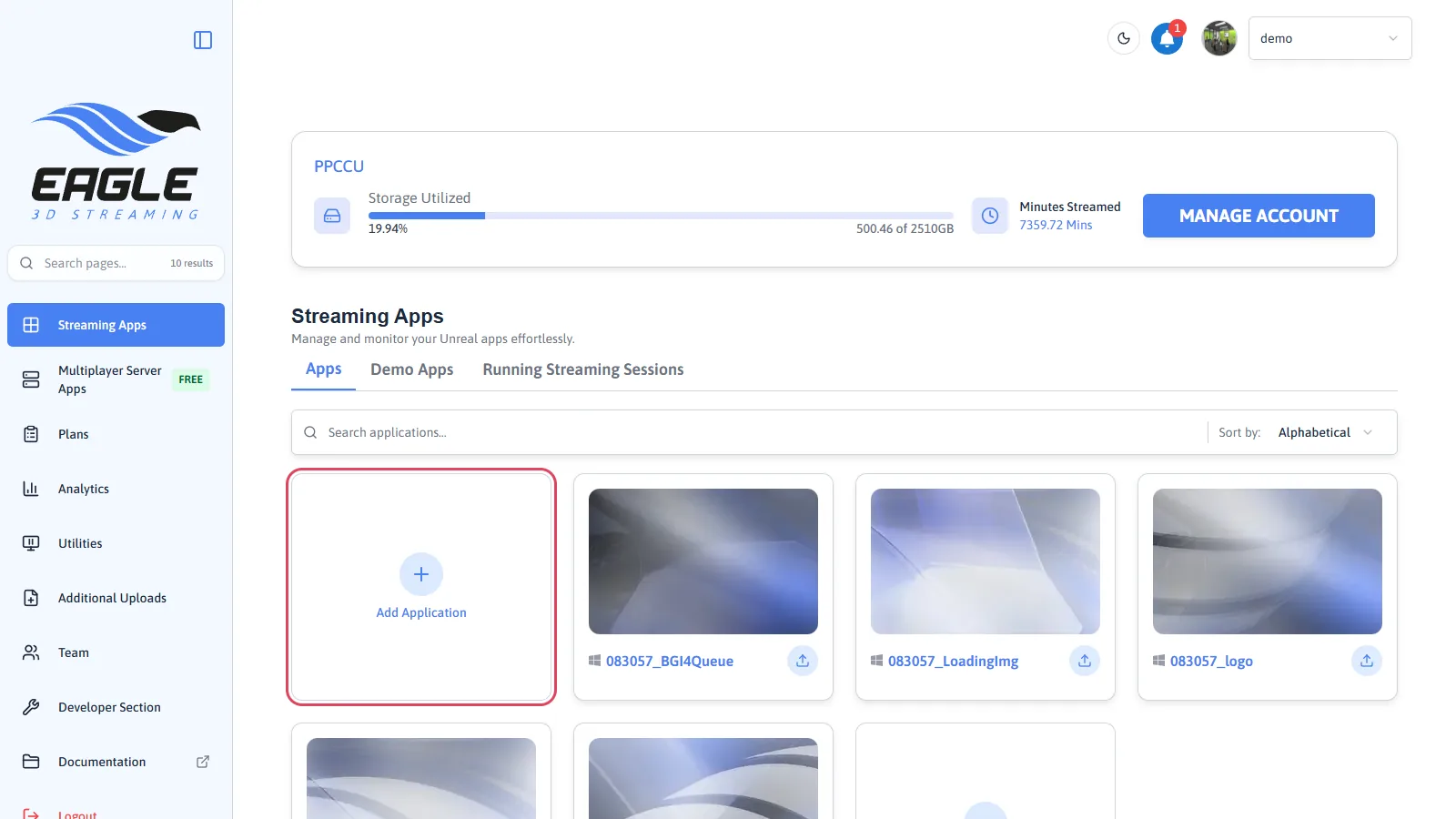
Add Application. -
Browse for your ZIP, and answer Yes to "Is this a Linux build?"
The Control Panel recognises a Linux ZIP and asks Linux Build Detected — Is this a Linux build? Answer Yes. Answering No makes it look for a Windows
.exe, and the upload stops with "No executable file found in the zip."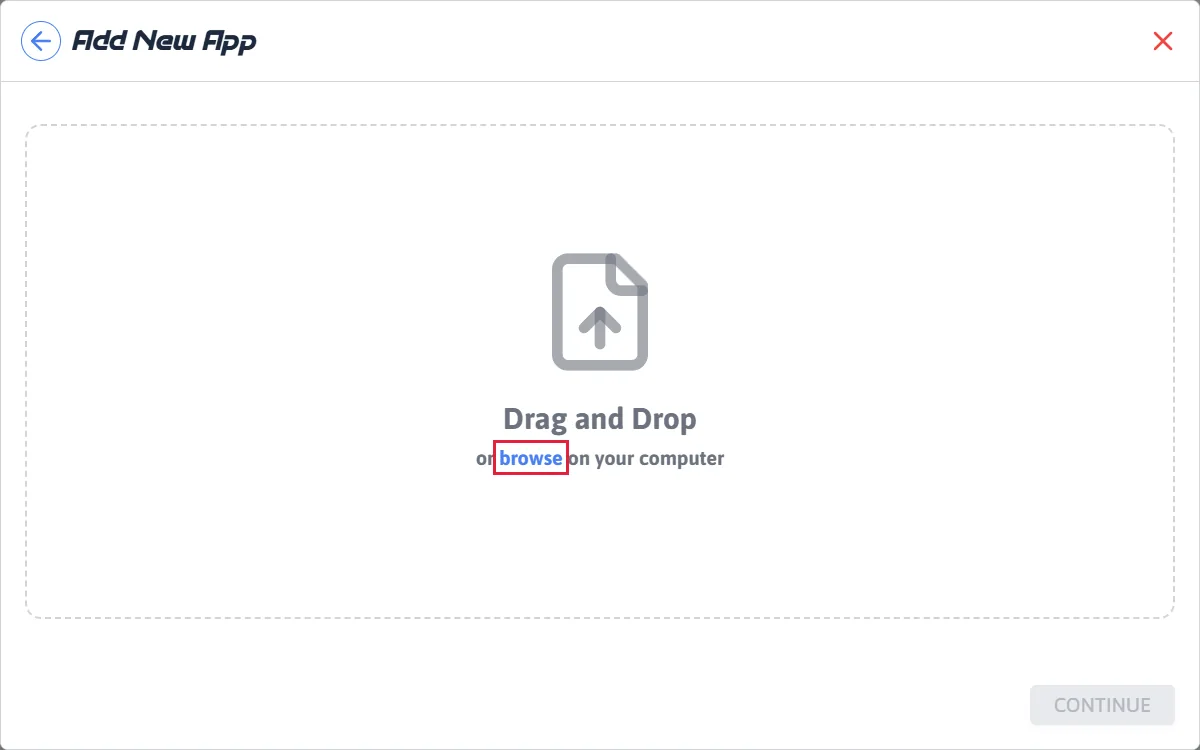
Browse, or drag it in. -
Name it after the
.shfile, then upload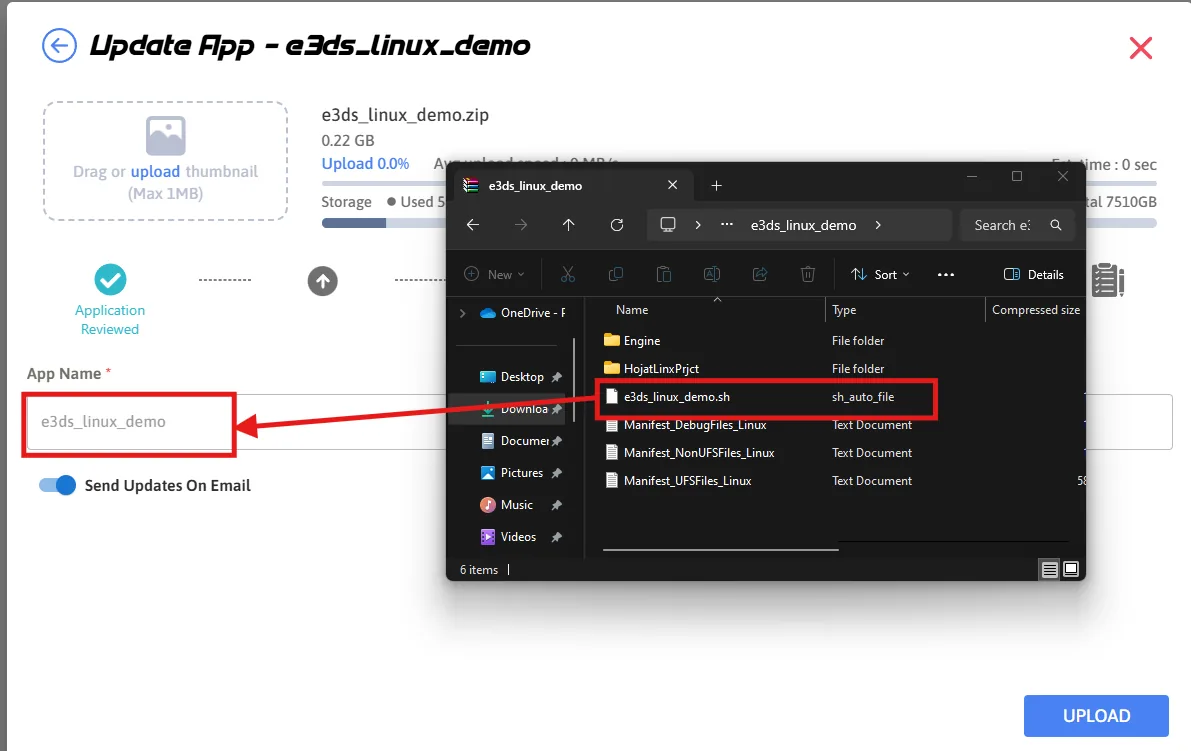
The name must match the launcher. -
Wait for it to be prepared
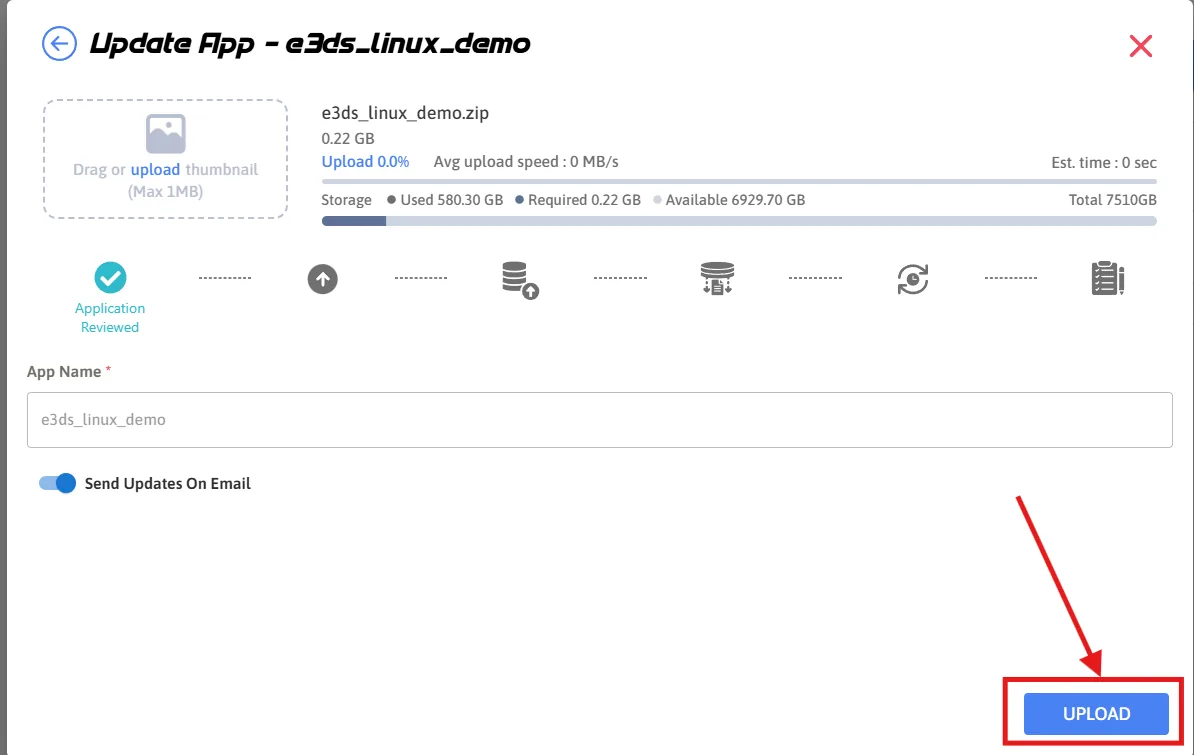
Uploading.
2. Tell the configuration it is a Linux build
-
Create a stream link, and open its configuration
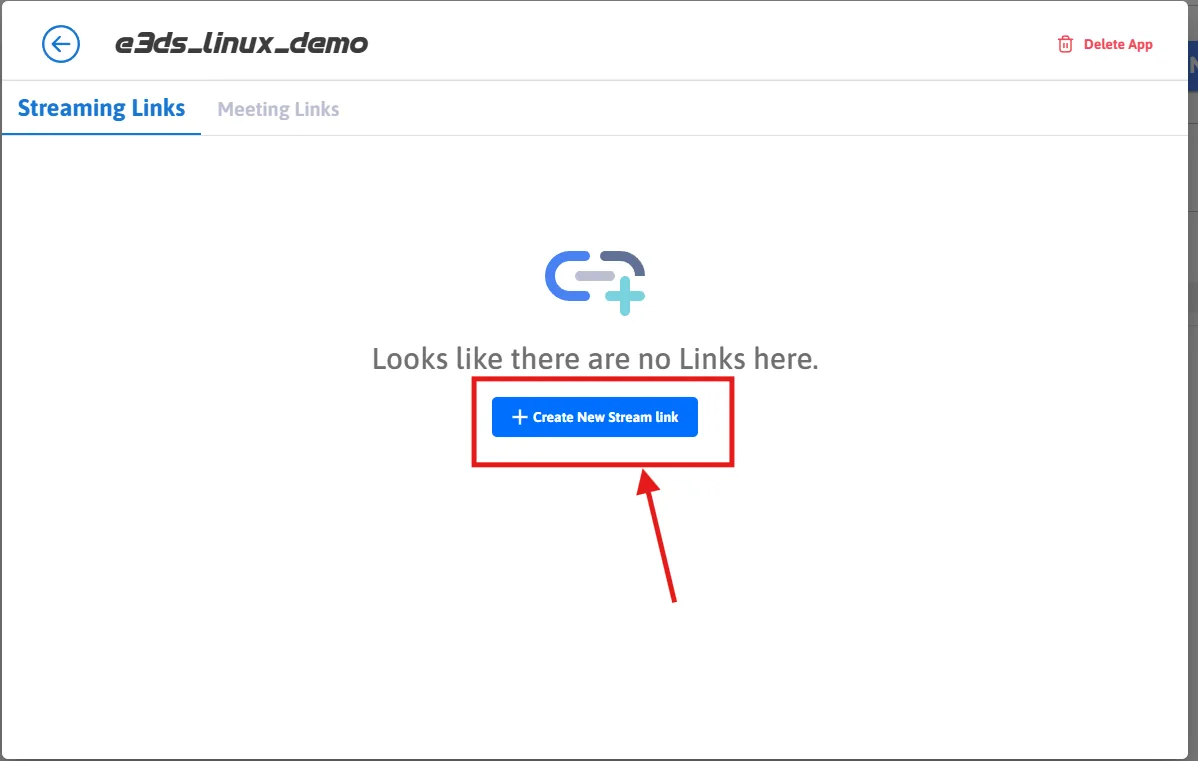
Create a new stream link. -
Press Edit Config, and turn on Advanced Options
The platform setting is not visible until Advanced Options is enabled.
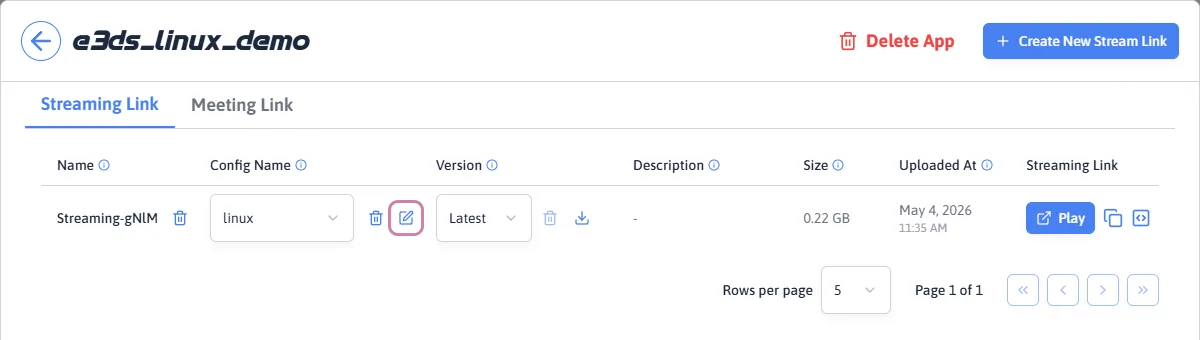
The Edit Config pencil, beside the configuration name. 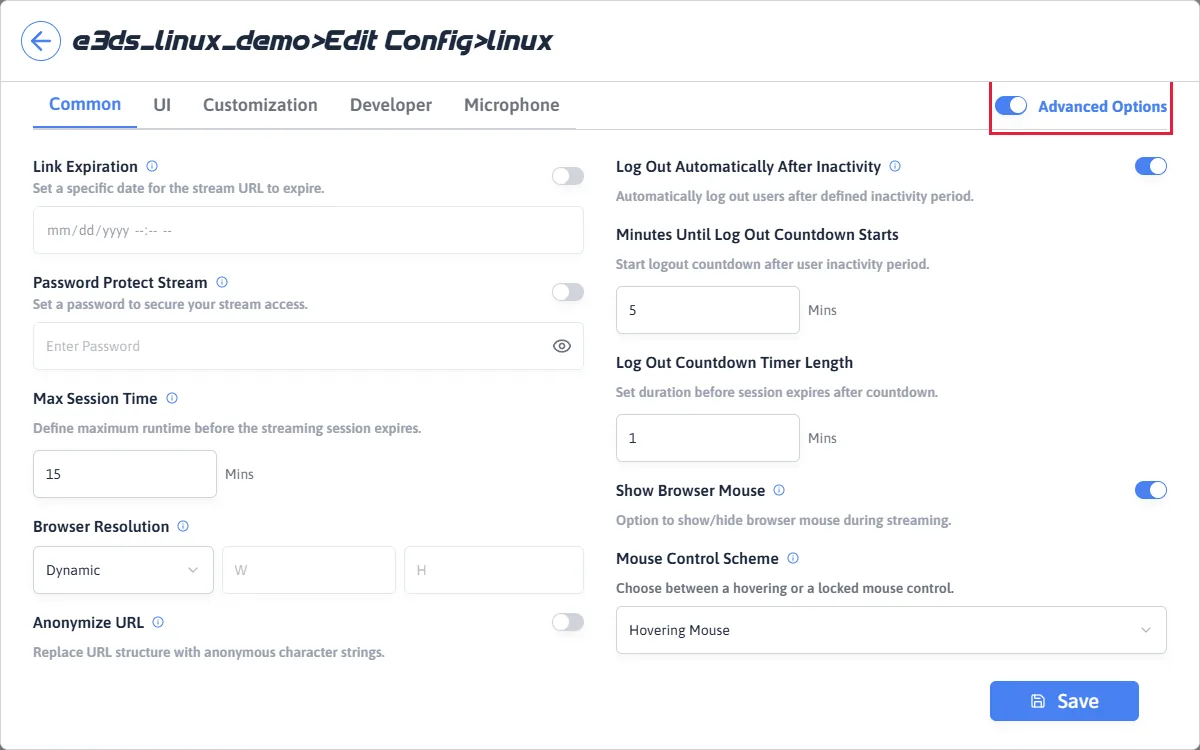
Advanced Options, top right. With it on, all five tabs appear. -
In the Developer tab, set Platform to Linux
The Platform field offers Streaming App, Windows and Linux. This is the setting that decides which machines can run your app.
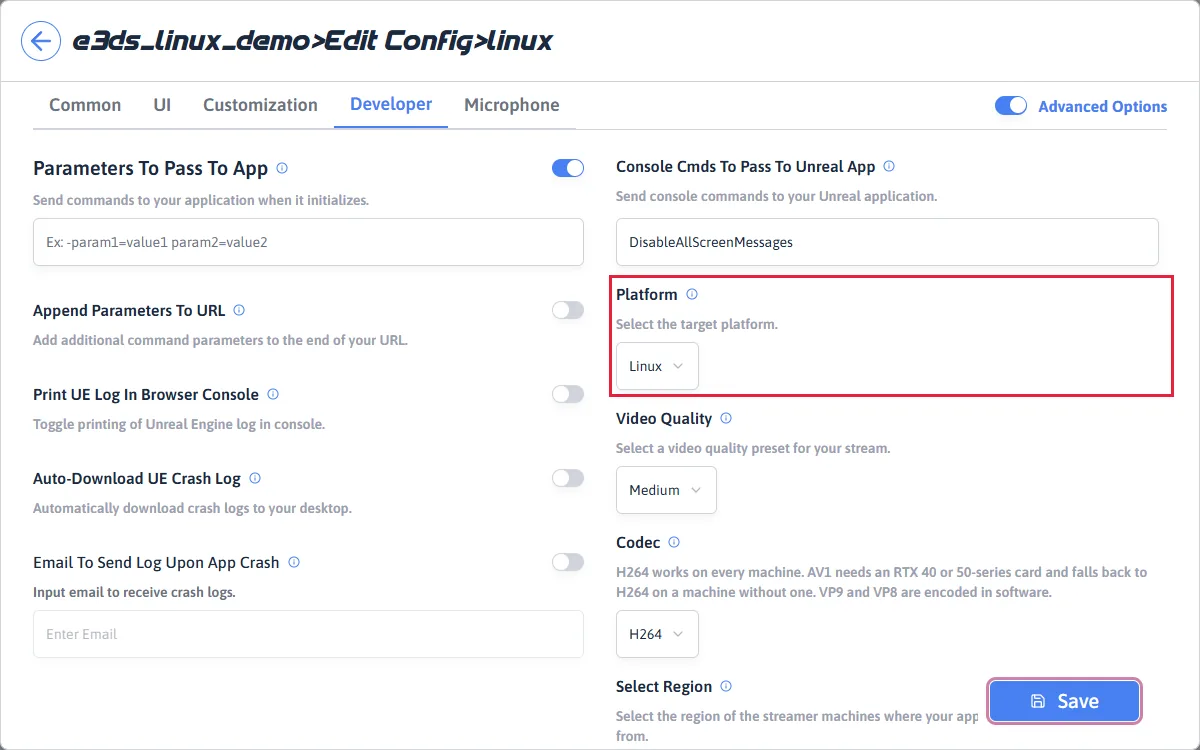
Platform set to Linux, then Save. -
Save
Press Save, bottom right.
3. Stream it
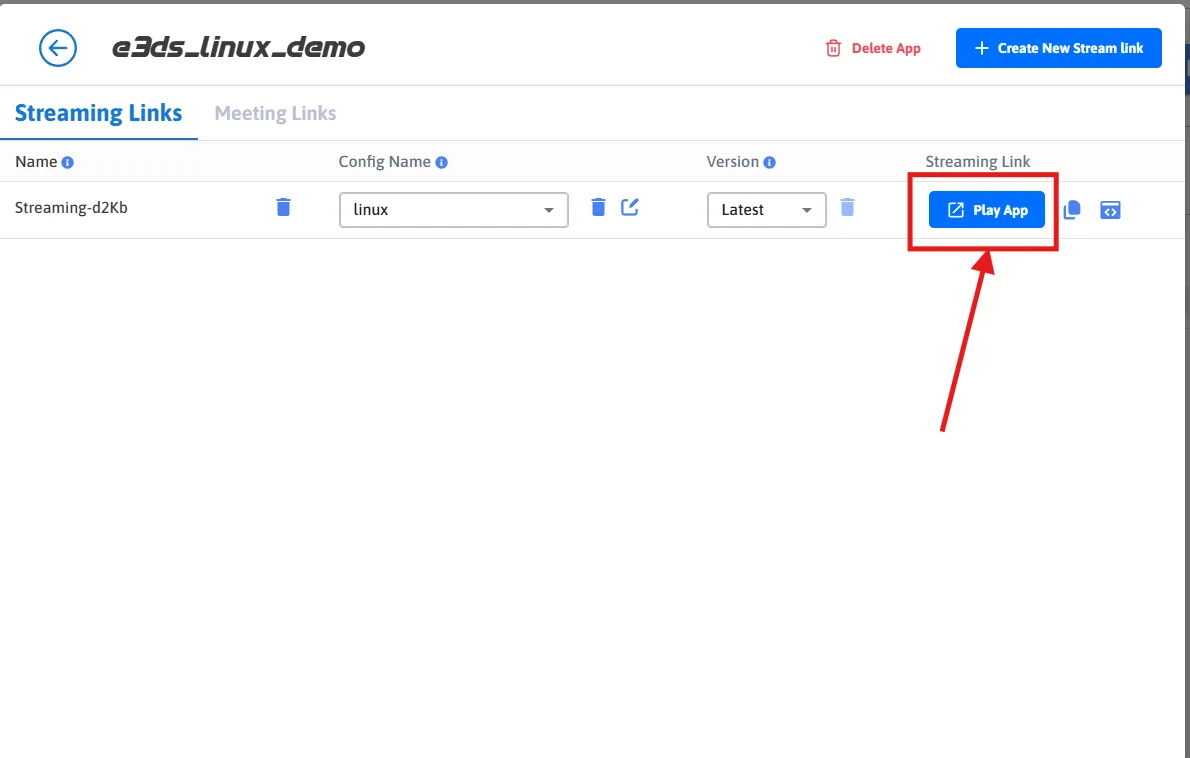
Press Play. A Linux session goes through four stages, and it is worth knowing them because the wait is longer than on Windows.
| Stage | What is happening | If it stops here |
|---|---|---|
| Requesting a slot | Finding capacity for your session. | Usually brief. Persistent waiting means capacity, not configuration. |
| Waiting for a machine | A Linux machine is being allocated and started. | Check the platform setting in step 2. A config still set to Windows waits here forever. |
| Launching the app | Your build is downloaded to the machine and started. | Longer for a large build — the whole ZIP is transferred. |
| Streaming | Video is flowing. | — |
Your Linux build is running in the browser and responding to input.
Including why the wait is longer, and what to do if it matters for you.
Last updated