iframe demo
A working page that drives a streamed Unreal app — teleporting an avatar, opening URLs, switching maps — with the source for both the page and the Blueprint side.
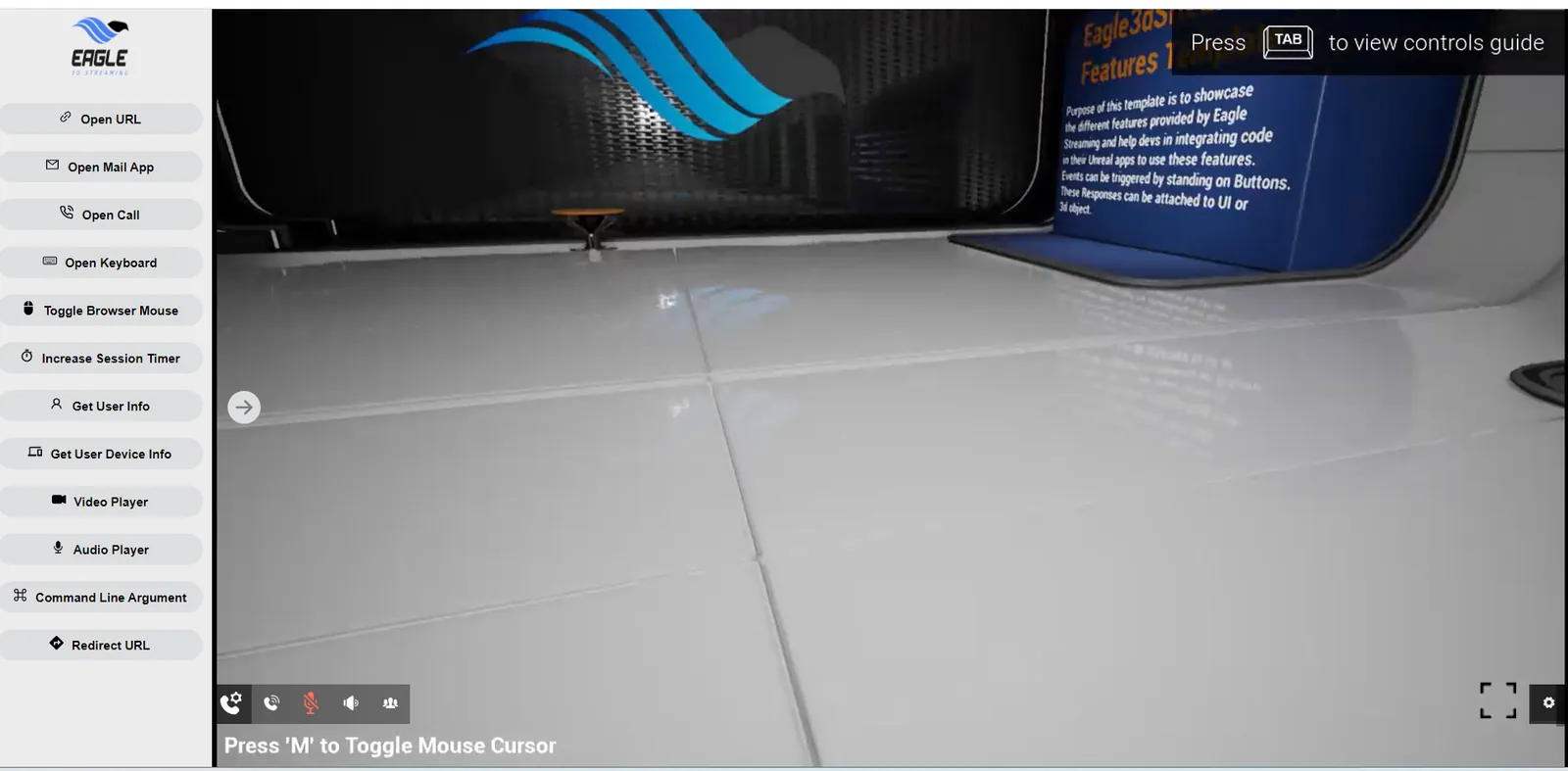
What it demonstrates
Every button on the left belongs to the page, not to the app. Clicking one sends a message into the iframe, the app receives it, and something happens in the 3D scene — the avatar walks to a location, a URL opens, the level changes.
Your own interface — your buttons, your styling, your framework — with the stream as one element inside it. The app does not need to draw the UI, and the page does not need to know anything about Unreal beyond the message it sends.
How a message gets there
The page posts a JSON string into the iframe. The wrapper picks it up and hands the inner value to the app:
function switchMap(val) {
  let descriptor = {
    "type": "changeLevel",
    "value": val          // must match the Unreal .umap name
  };

  let obj = {
    cmd: "sendToUe4",
    value: descriptor,
  };

  document.getElementById("iframe_1")
    .contentWindow.postMessage(JSON.stringify(obj), "*");
}
cmd: "sendToUe4" is the envelope — it means "pass this
through to the app". value is yours: the app decides what
type and value mean. The teleport buttons use the same
envelope with a different payload:
{ cmd: "sendToUe4", value: { Teleport: 1 } }The iframe itself
<iframe
  allow="camera;microphone"
  id="iframe_1"
  src="https://connector.eagle3dstreaming.com/v5/demo/YourApp/YourConfig"
  width="100%" height="100%"
  allowfullscreen>
</iframe>
src is your app's streaming URL. The allow attribute
matters if your app uses the
microphone or camera — without
it the browser refuses those permissions to the frame regardless of what the
viewer allows for the page.
The other direction
The demo also receives — the "get user info" button asks the app for something and displays the answer. That is the same channel in reverse; see sending and receiving data.
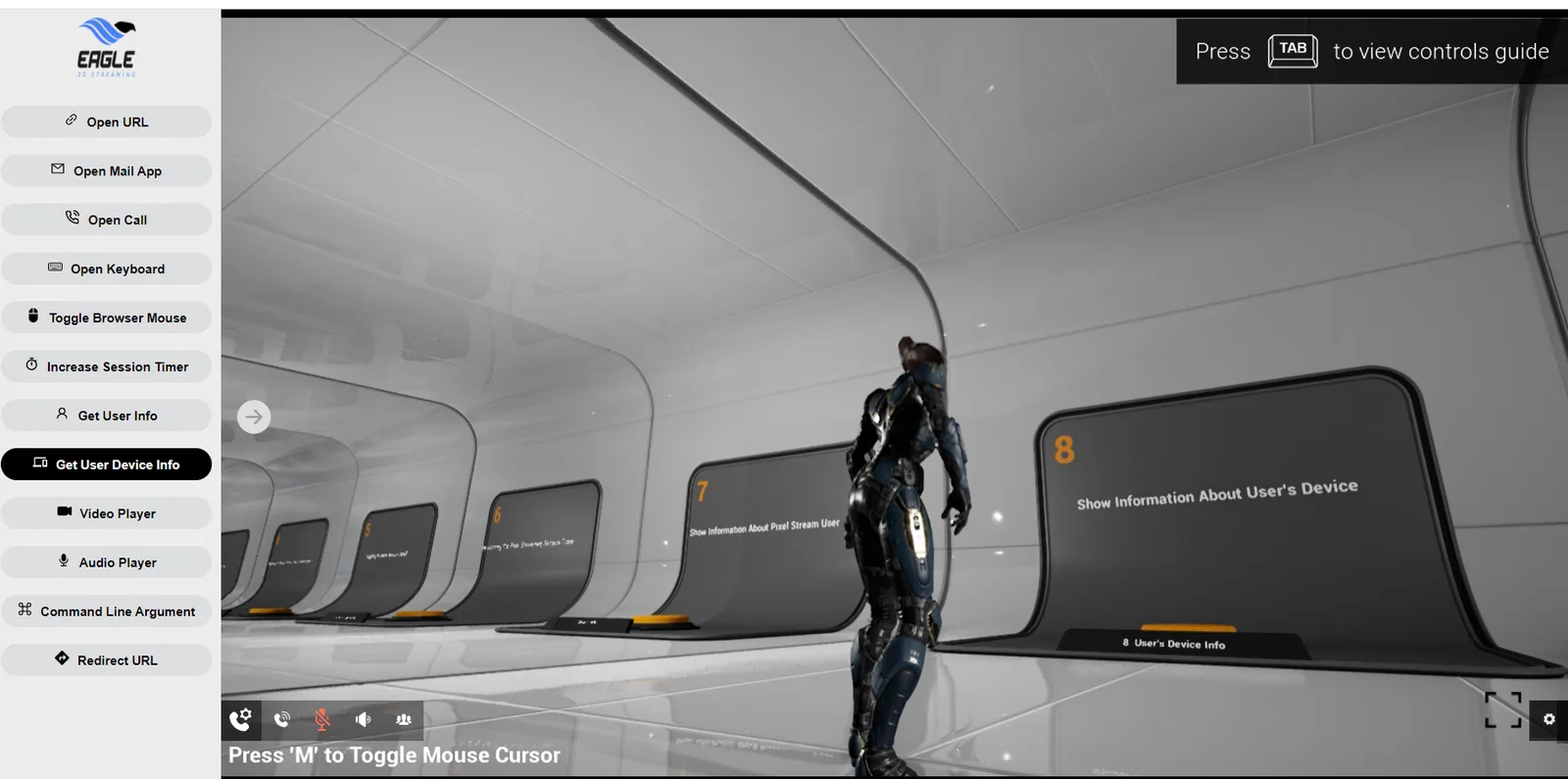
Trying the map-switching branch
git clone https://github.com/e3ds/E3DS-Iframe-Demo
cd E3DS-Iframe-Demo
git checkout demo-to-change-levels
Then open E3DS_Iframe_Demo.htm in a browser. The
switchMap() function above is in js/demo.js.
The Unreal side
Enable the Pixel Streaming plugin in your project — or Pixel Streaming 2 on a Pixel Streaming 2 project.
Add a PixelStreamingInput component to the Player Controller (PixelStreaming2Input on Pixel Streaming 2).
In its Details panel, under Events, click Input event to generate the node, and handle the descriptor your page sends.
Putting the stream into your own site, beyond the demo.
Last updated