File transfer
Move files in both directions between a streamed Unreal app and the viewer's browser: hand the viewer a file your app produced, or let them upload one into the app's own directory.
Sending a file to the viewer
Any file that exists in your project's directory on the streaming machine can be downloaded by the viewer — a generated PDF, an exported model, a saved configuration.
Place a BP_E3DS_PS_Actor in the level.
In the Level Blueprint, add your trigger (the demo uses the H key).
-
Add a Get Project File Path node with the path to the file, and feed it into the single node E3DS Transfer File From Unreal To User Browser. Compile and save. (The screenshot below shows the older two-node version, Construct PS Message To Download A File from Unreal App Directory To User's Device into Download A File From Unreal App Directory To User's Device; it does the same thing.)
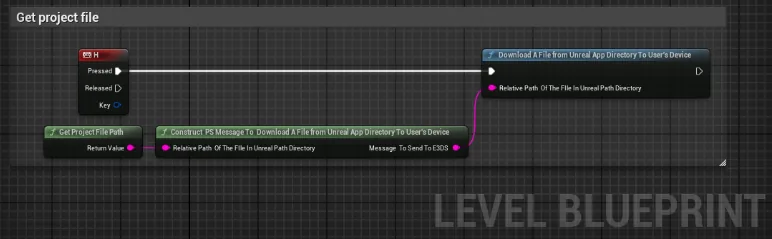
Press the key with the viewport focused and the file opens in a new browser
tab, which downloads it. Nothing happening almost always means the path is
wrong — the file must exist on the machine running your app, not on
yours. A missing file is reported as
EL Error:file does not exist: followed by the path.
Receiving a file from the viewer
The platform opens the browser's file picker, takes what the viewer chooses, and writes it into your project directory. Your app then reads it as an ordinary file.
-
Call E3DS Transfer File From User Browser To Unreal and give it a destination inside the project — for example
ProjectDirectory/Saved/.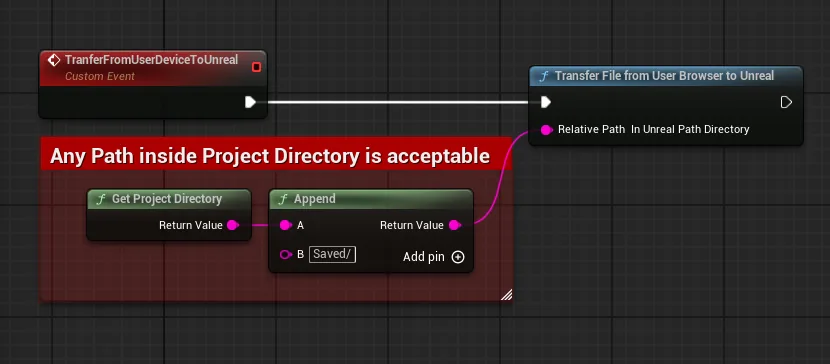
-
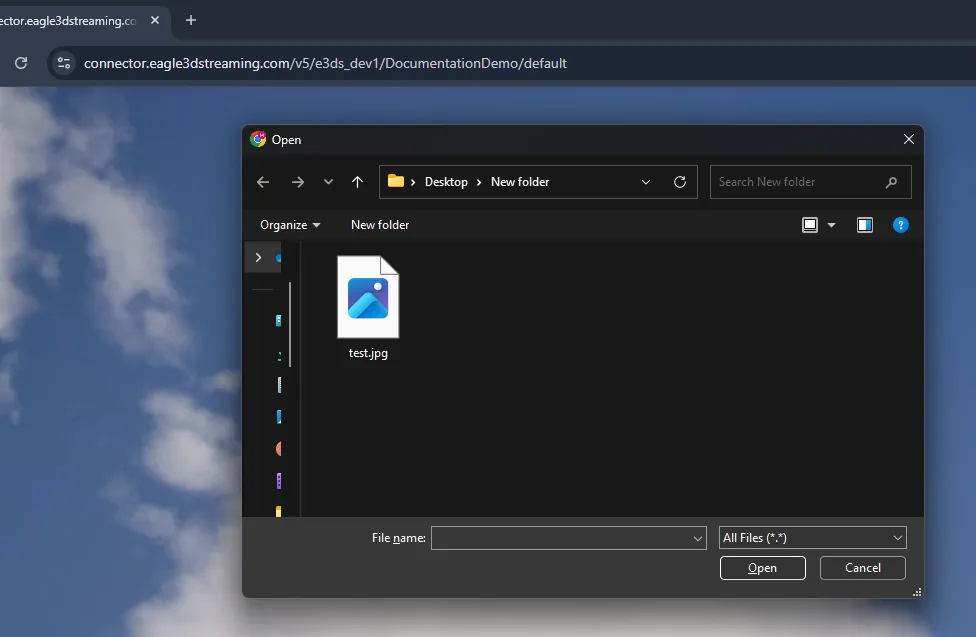
The viewer picks a file in the dialog the platform opens.
Knowing when the upload is done
Uploading is not instant, so the platform reports progress as messages your app can listen for.
| Message | Means |
|---|---|
onUserSideFileSelected | The viewer picked a file. The upload has started. |
onUserSideProcessingProgressUpdate | Sent repeatedly while the browser is sending the file, with filename and progress. Treat it as a sign of activity: progress does not currently arrive as a usable percentage. |
onUserSideFileProcessingFinished | The browser has finished sending it. |
onUploadedFileAvailable | The file is now in your project directory. This is the one that means success. |
onUserSideFileSelectionCanceled | The viewer opened the dialog and closed it without choosing. |
Each carries the filename, except the cancellation. Together they give you the three states worth tracking: in progress, finished, abandoned.
A failed upload sends nothing to your app — no message
says it failed. If onUploadedFileAvailable has not arrived within
a time that fits your file sizes, treat the upload as failed.
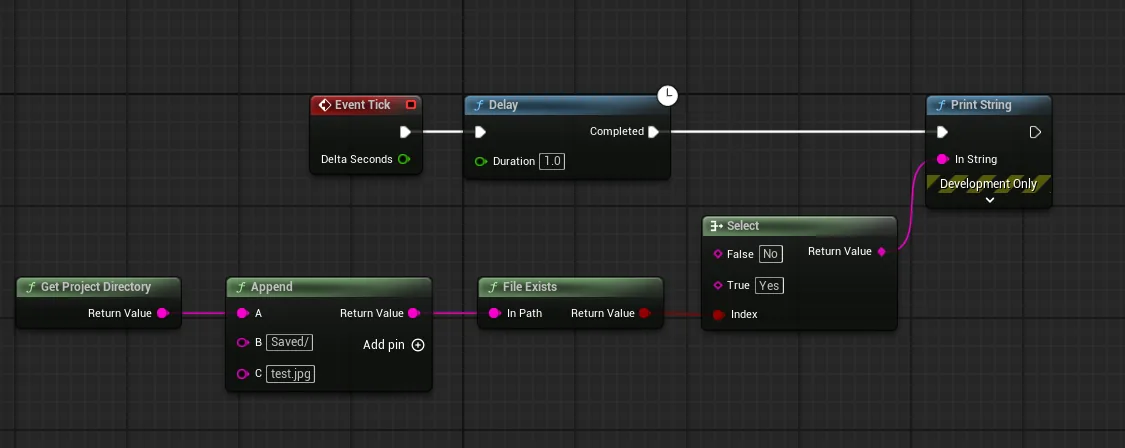
A common pattern is a timer that polls for the file with
File Exists until it appears. That works — until
somebody closes the dialog, and the timer waits forever for a file that will
never arrive. onUserSideFileSelectionCanceled is what stops it.
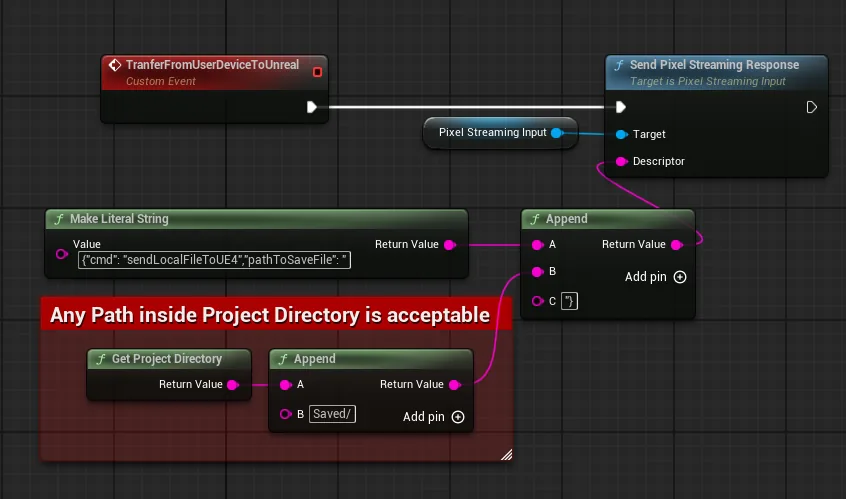
Without the plugin
Send this with Send Pixel Streaming Response:
{"cmd": "sendLocalFileToUE4", "pathToSaveFile": "%AnyPathInsideProjectDirectory%"}
Build pathToSaveFile as an absolute path from
Get Project Directory, and end it with / —
for example Get Project Directory + Saved/, as in the screenshot
below. The file name is appended to it with no separator, so without the
trailing / the file lands next to the folder with the folder's
name stuck to the front. A relative path is resolved against the streaming
system's own folder, not your project.
Knowing whether the viewer is on a phone before you show them a mouse control.
Last updated