Launch profiles
Patching needs two custom launch profiles in Unreal's Project Launcher: one that produces the base build, and one that produces patches against it.
Where these live
Platforms → Project Launcher → Add a Custom Launch Profile. You will make two, and keep both — the base profile is not a one-off.
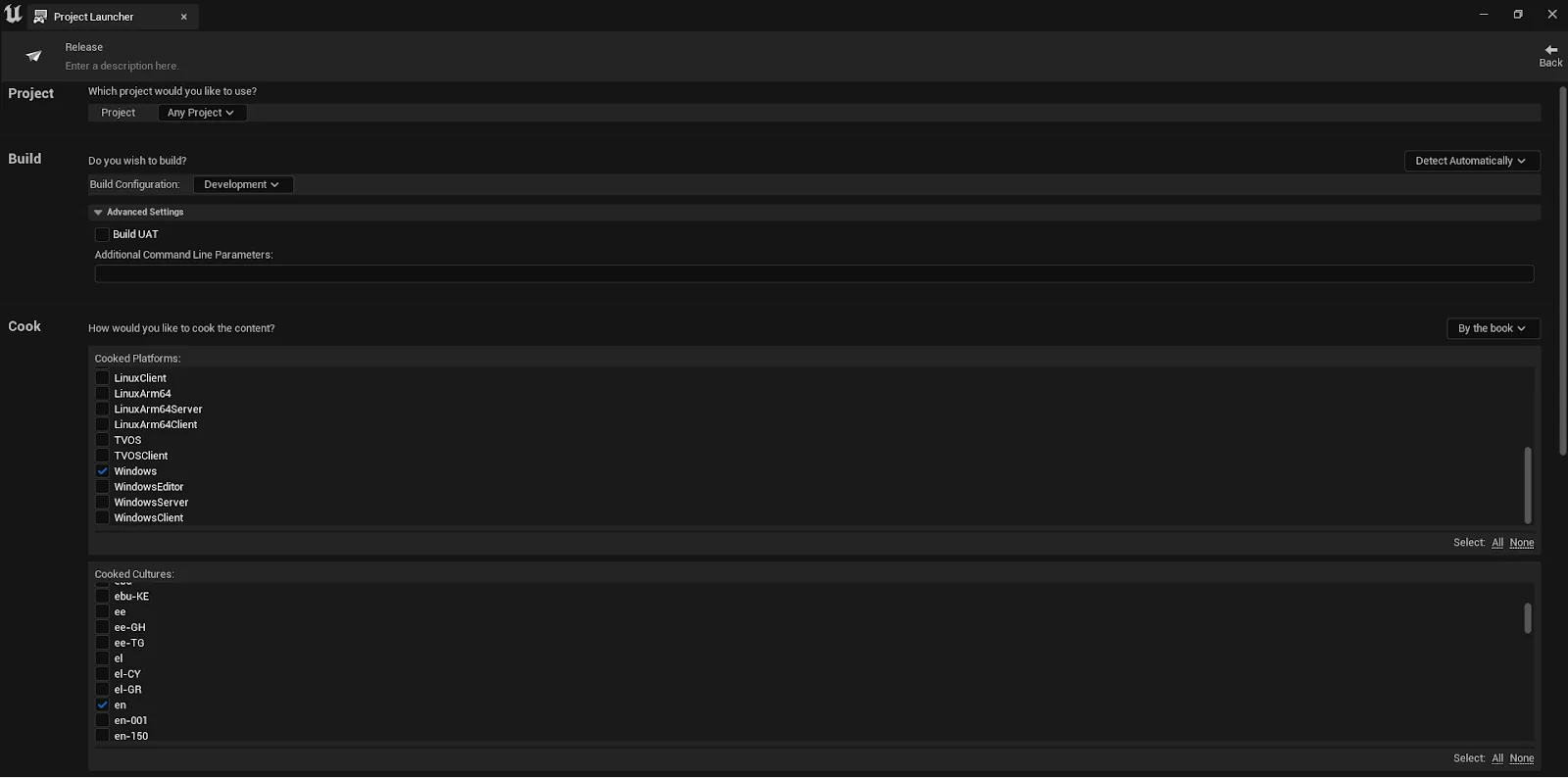
Profile 1: the base build
| Setting | Value |
|---|---|
| Cook Mode | By The Book |
| Platform | Windows |
| Culture | en |
| Maps | Your working map |
| Release / DLC / Patching | Create a release version of the game for distribution, release version 1.0 |
| Advanced | Iterative Cooking, Compress Content, Store all content in a single file (unrealPak) |
| Package | Package & store locally, Retain the staged directory |
| Deploy | Do not deploy |
Profile 2: the patch
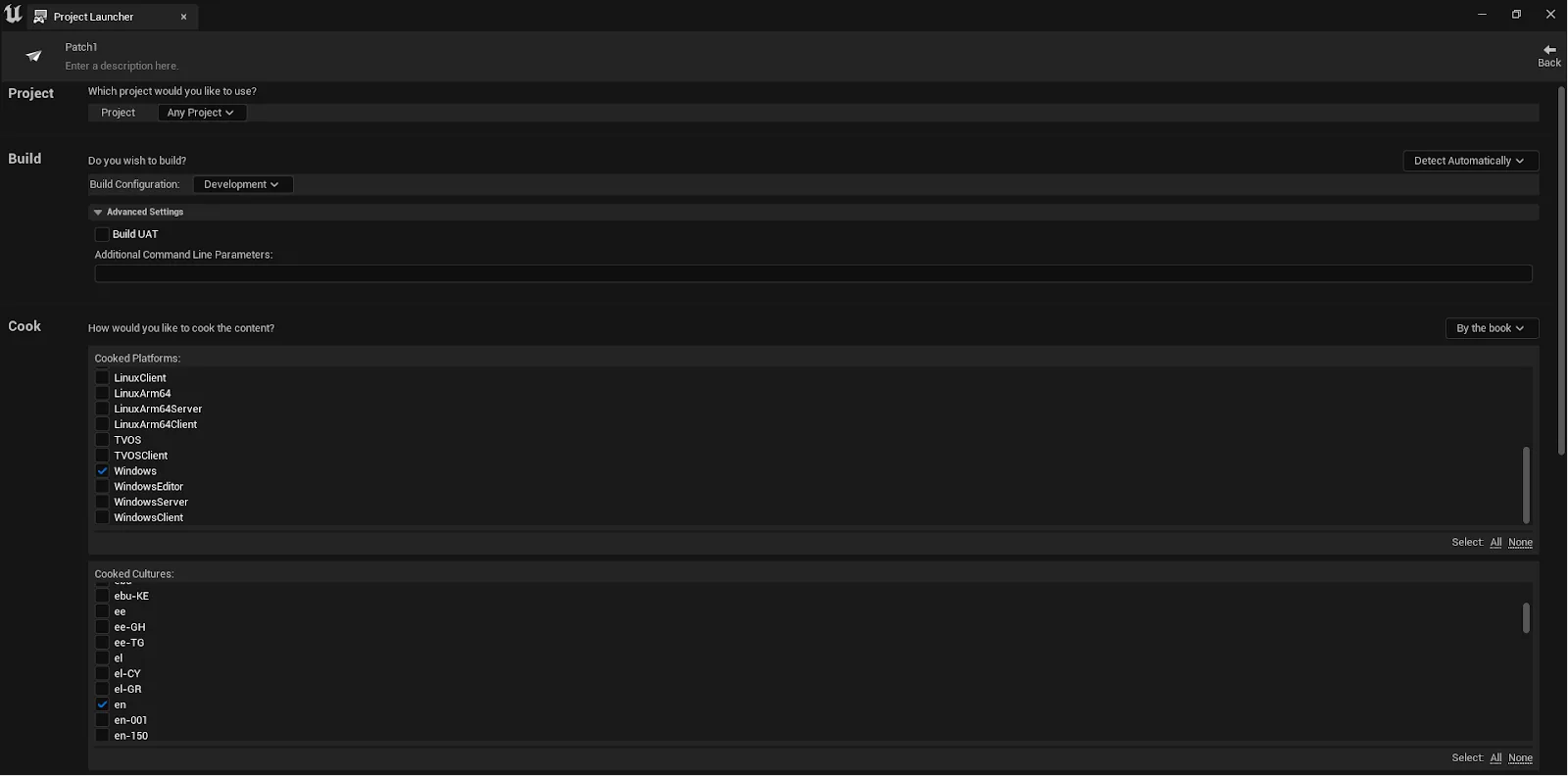
| Setting | Value |
|---|---|
| Cook Mode | By The Book |
| Platform / Culture / Maps | Same as the base |
| New release version | 1.1 |
| Release version this is based on | 1.0 |
| Generate Patch | Enabled |
| Add a new patch tier | Off for a patch that replaces the last one (every build is named _0_P). Tick it to produce the next tier, _1_P, which loads on top of _0_P. |
| Advanced | Compress Content, Store all content in a single file (unrealPak) |
| Package | Package & store locally, Retain the staged directory |
| Deploy | Do not deploy |
The two version fields are the whole mechanism
Based on says which build to compare against; new release version names what you are producing. Point the patch at the wrong base and you get a patch file that appears fine and does not work against the build you actually shipped.
Rules that bite later
- Keep the base
.pak— see patches. - Upload the base first, then patches in order. Higher-numbered patches override lower ones, so sequence is meaning, not tidiness.
- Name them consistently —
testPatch3-Windows_0_P.pak,testPatch3-Windows_1_P.pak, and so on. The number comes from Add a new patch tier: without it, each patch is_0_P, holds every change since1.0, and replaces the previous patch of the same name. - Keep old patch files. Removing a patch does not revert the app today: a machine that already has a patch keeps it, because patches are only ever added or replaced there. To roll back, upload a new base version, or ask support to clear the patch from the machines.
Make your own patch →
Changing a project and producing a patch from it.
Last updated