Update without uploading
Replace an application's files directly on your own streamer machine, without uploading a new build to the Eagle 3D Streaming Control Panel. The app entry, the configuration and the streaming URL all stay as they are.
This exists for one reason above all others: the build never leaves your machine. If your application cannot be uploaded — because of a security policy, a customer contract, or content you are not allowed to transfer — this is how you stream it anyway.
It is not a shortcut for ordinary updates. Uploading through the Control Panel is simpler, is versioned, and works across every machine. Do that unless you have a reason not to.
Before you begin
- The E3DS Stream Host installed on the machine that will host the app.
- An application entry to put your build under: either one you upload (set it up once), or, with nothing uploaded and no storage used, the E3DS Starter App every account already has (no upload at all).
- Your packaged build, ready to copy.
Set it up once
-
Upload an application, using the name you will actually use
The Control Panel entry is what creates the app record, its configuration and the local directory Stream Host later uses. Something has to be uploaded first.
If you cannot upload the real build, upload a small placeholder — but give it the real name. Stream Host builds the local directory path from the application name, so a placeholder called
Testproduces a directory your real app will not be found in. If the app isMyApp, the placeholder isMyApp. -
Install and configure E3DS Stream Host
On the machine that will host the application — see stream from your own hardware.
-
Stream it once
This is not optional and it is easy to skip. The first stream is what makes Stream Host download the app and create the local directory structure. Until that has happened there is nothing on disk to replace.
The uploaded app stays in your account and its storage counts against it, even after your own build has replaced it on the machine. To avoid that, use the method below instead.
No upload at all: use the E3DS Starter App
Every account has the E3DS Starter App, a demo app shown in the Control Panel's Demo Apps section. It appears under your username, but its files are stored once by Eagle 3D Streaming and shared by every account, so it adds nothing to your storage. Its stream link can stand in for an upload of your own:
-
Copy the E3DS Starter App's stream link
In the Control Panel, open Demo Apps and find the E3DS Starter App card. Its link has this form:
https://connector.eagle3dstreaming.com/v5/<username>/E3DS_StarterApp/default -
Point it at your own machine
Replace
connector.eagle3dstreaming.comwith the domain your Stream Host machines serve — the one at the start of your own stream links. Everything after the domain stays the same. -
Open the link once
Stream Host downloads the Starter App (about 0.45 GB) and creates its directory,
C:\e3ds_streaming_apps\<username>\E3DS_StarterApp\<version>. The version is a number, such as2. -
Replace the build, as below
Follow Replace the build in that directory. The executable must be named
E3DS_StarterApp.exe.
The same link now streams your build from your machine. Use that link from then on; nothing was uploaded and nothing is stored in your account.
Replace the build
Everything below happens in one directory:
C:\e3ds_streaming_apps\<username>\<application-name>\1
For a user mwoji with an app called MyApp, that is
C:\e3ds_streaming_apps\mwoji\MyApp\1. The trailing
1 is the version directory.
-
Stop any session, then back up what is there
Stop any active session on the app first (or close Stream Host): a running app locks its files, and they cannot be deleted or replaced.
Copy the directory somewhere else first. If the new build does not run, this is the only way back — there is no upload history to fall back on, which is the trade you accepted by not uploading.
-
Delete the old files, but keep
.metaRemove the application files from the version directory and leave the
.metafolder alone. Stream Host created it and uses it to recognise the app; deleting it means Stream Host no longer knows what is in this directory.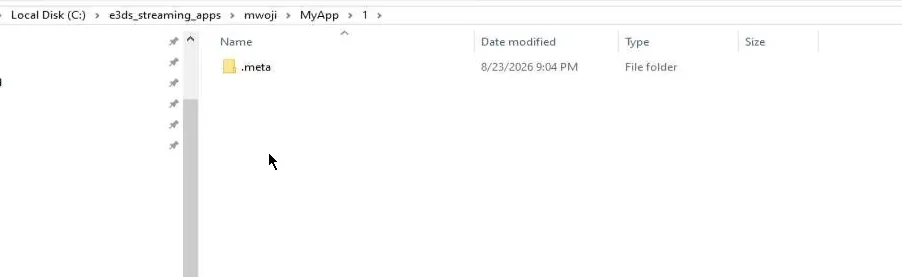
Keep .meta; remove the rest. -
Copy your new build in
The whole packaged application — every folder and file, not just the executable. Paste it into the same version directory.
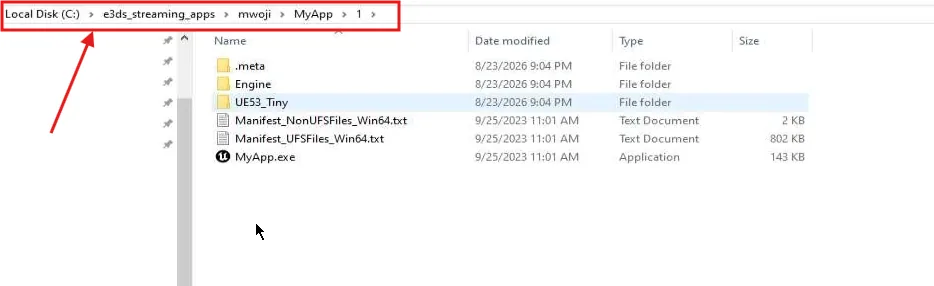
The complete build, in place. -
Name the executable exactly as the application is named in the Control Panel
For an application called
MyApp, the executable must beMyApp.exe. Rename it if your build produced something else. Stream Host looks for<application name>.exe, and a mismatch means it finds nothing to start.
Opening the same streaming URL as before starts a session running your new build. Nothing about the link, the app entry or the configuration changes — only what is on the disk.
Doing it again
Later updates are the same four steps, without the setup: stop any active
session, back up the version directory, remove the old files while keeping
.meta, copy the new build in with the same executable name.
Installing it, and keeping it running across reboots.
Last updated