Convai microphone
A Convai project expects a microphone attached to the machine it runs on. In an app streamed by Eagle 3D Streaming there isn't one — the microphone is at the viewer's end. Here is how to connect the two.
Live demo · demo project · video walkthrough
Convai listens to Unreal's audio input, and on a streaming machine that input is empty. The browser has the viewer's voice; Pixel Streaming can carry it; the work is pointing Convai at that stream instead of at the local device that does not exist.
Part 1. The character Blueprint
-
Open your character Blueprint and add a PixelStreamingAudio component, wiring up the audio-streaming nodes.
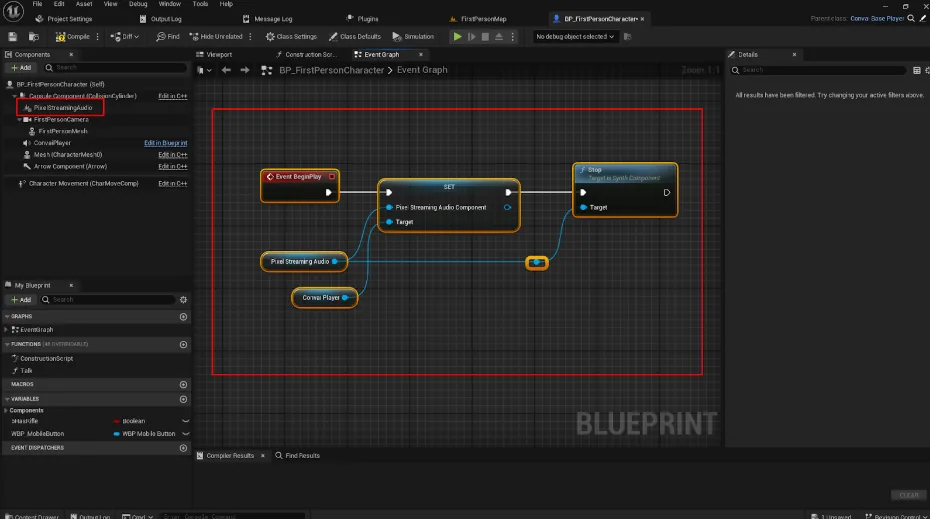
-
Select the ConvaiPlayer component and, in its Pixel Streaming section, untick "Use Pixel Streaming Mic Input".
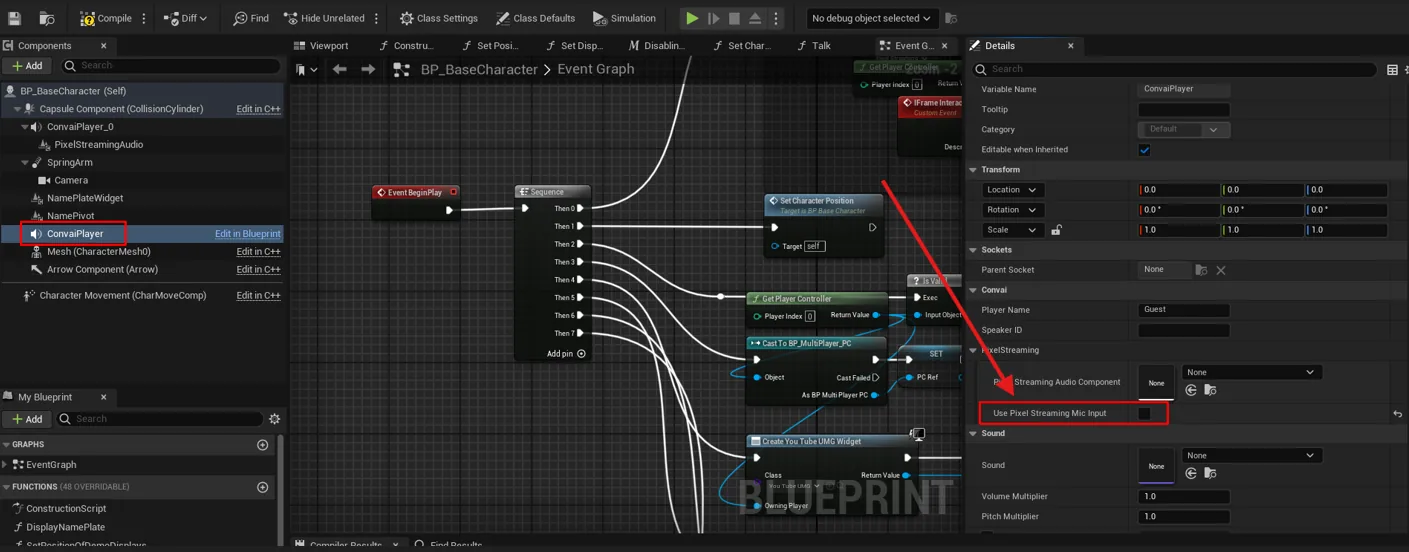
-
Select the PixelStreamingAudio component and, under Effects, set Base Submix to
AudioInput.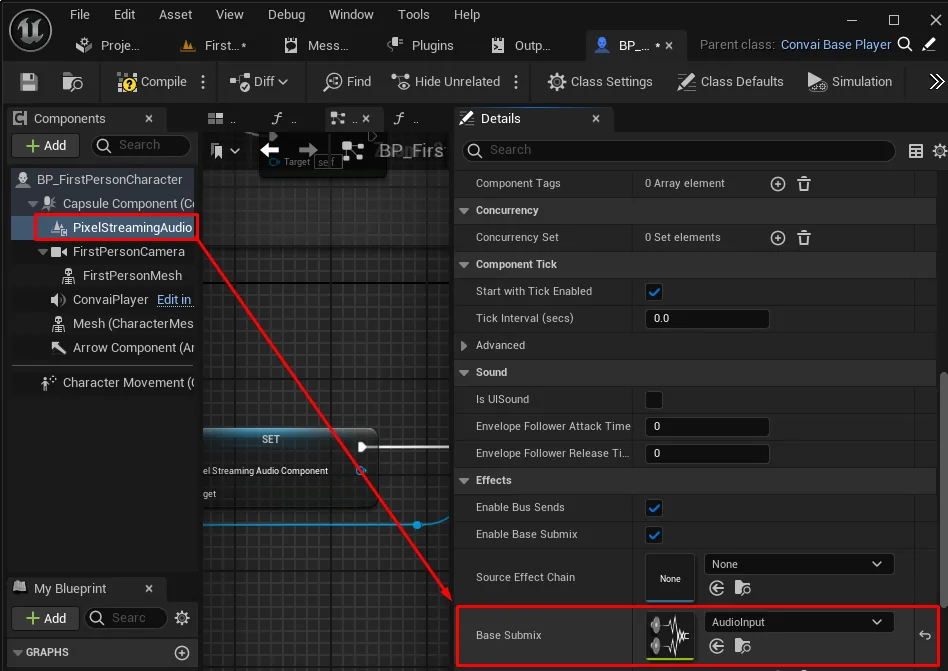
-
Under Edit → Project Settings → Plugins → Convai → Convai API → API Key, enter the API key from your Convai dashboard.
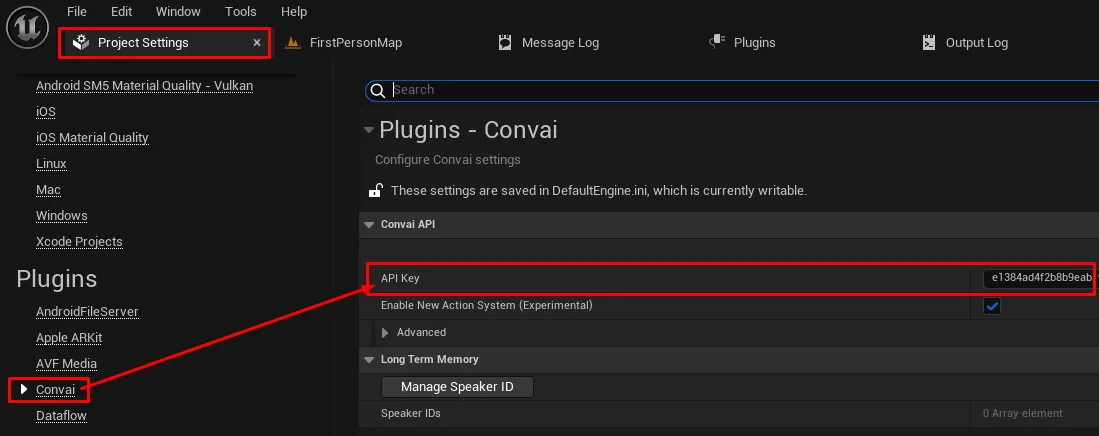
Part 2. On the platform
Package and upload the project.
Create a configuration for it, and on the configuration's Microphone tab turn on Use Browser side Microphone.
The Blueprint work routes the audio inside Unreal; the configuration setting is what makes the browser capture it in the first place. With one but not the other, the character simply never hears anything.
When the character does not respond
Work through these in order — most reports are the first one.
- The microphone permission was denied, ignored or blocked. The causes and the fix are on audio and microphone, where a blocked microphone can stop the stream starting at all.
- The tab is muted. Right-click the browser tab and check "Mute site" is off — and check system volume.
- The browser restricts it. Chrome, Edge and Firefox are the supported ones. Safari and some mobile browsers limit microphone access depending on version.
- An old permission is cached. After changing any of the above, clear the cache and start a fresh session — the old decision can survive a reload.
The configuration side, for any app that listens.
Last updated