Upload from the Control Panel
Upload the ZIP you packaged to the Eagle 3D Streaming Control Panel, then create a link that streams it. Nothing to install, and it works the same way for everyone on your team.
Before you begin
- A ZIP of your packaged application, up to 50 GB — see Prepare your app in Unreal.
- The Pixel Streaming plugin enabled before that package was built. Without it the Control Panel refuses the upload: No PSX plugin found. Upload is not allowed.
Upload it
-
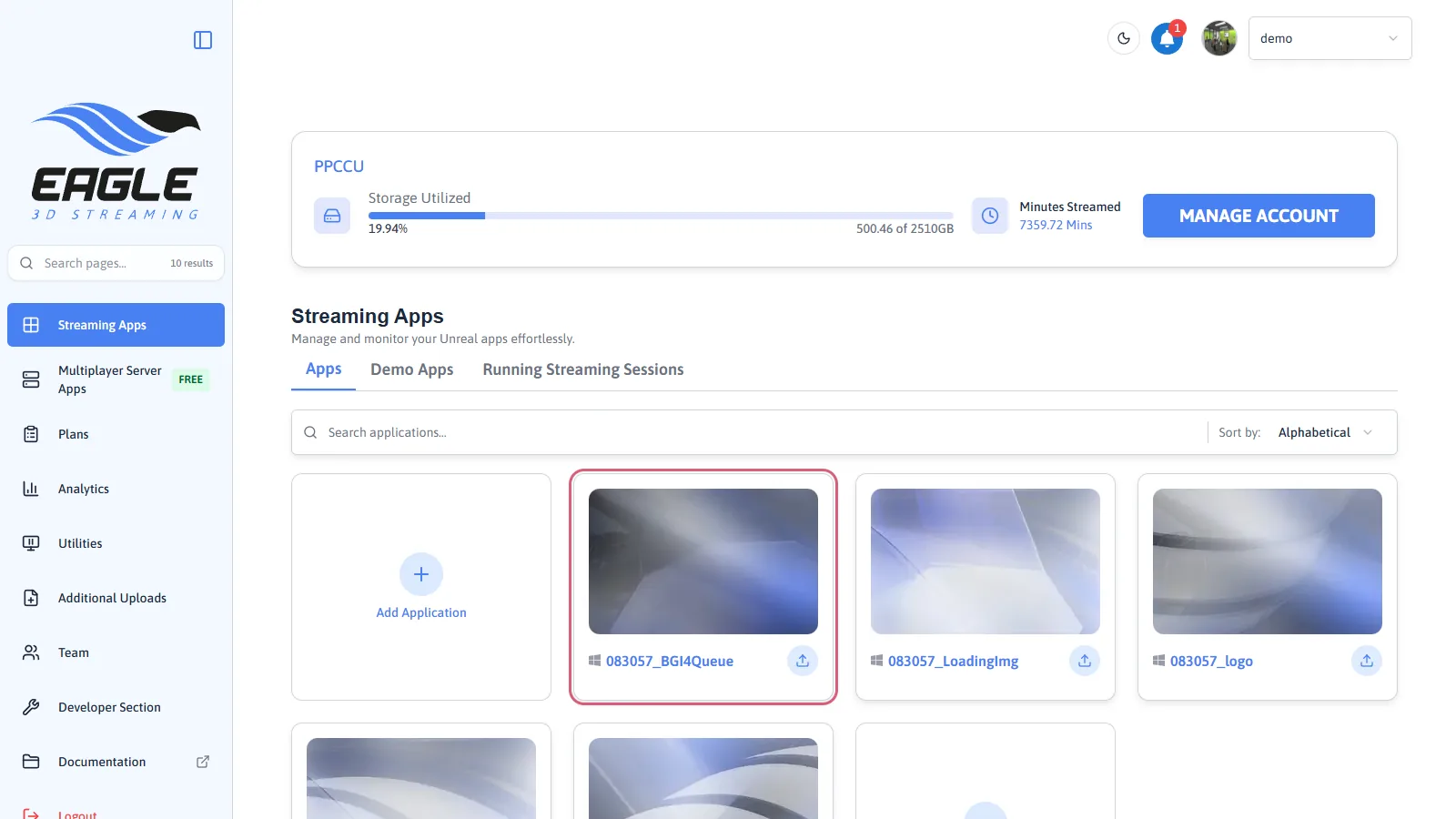
Sign in and press Add Application
Open Streaming Apps in the sidebar and press Add Application — the button at the top right, or the card after your existing apps. Both open the same upload window.
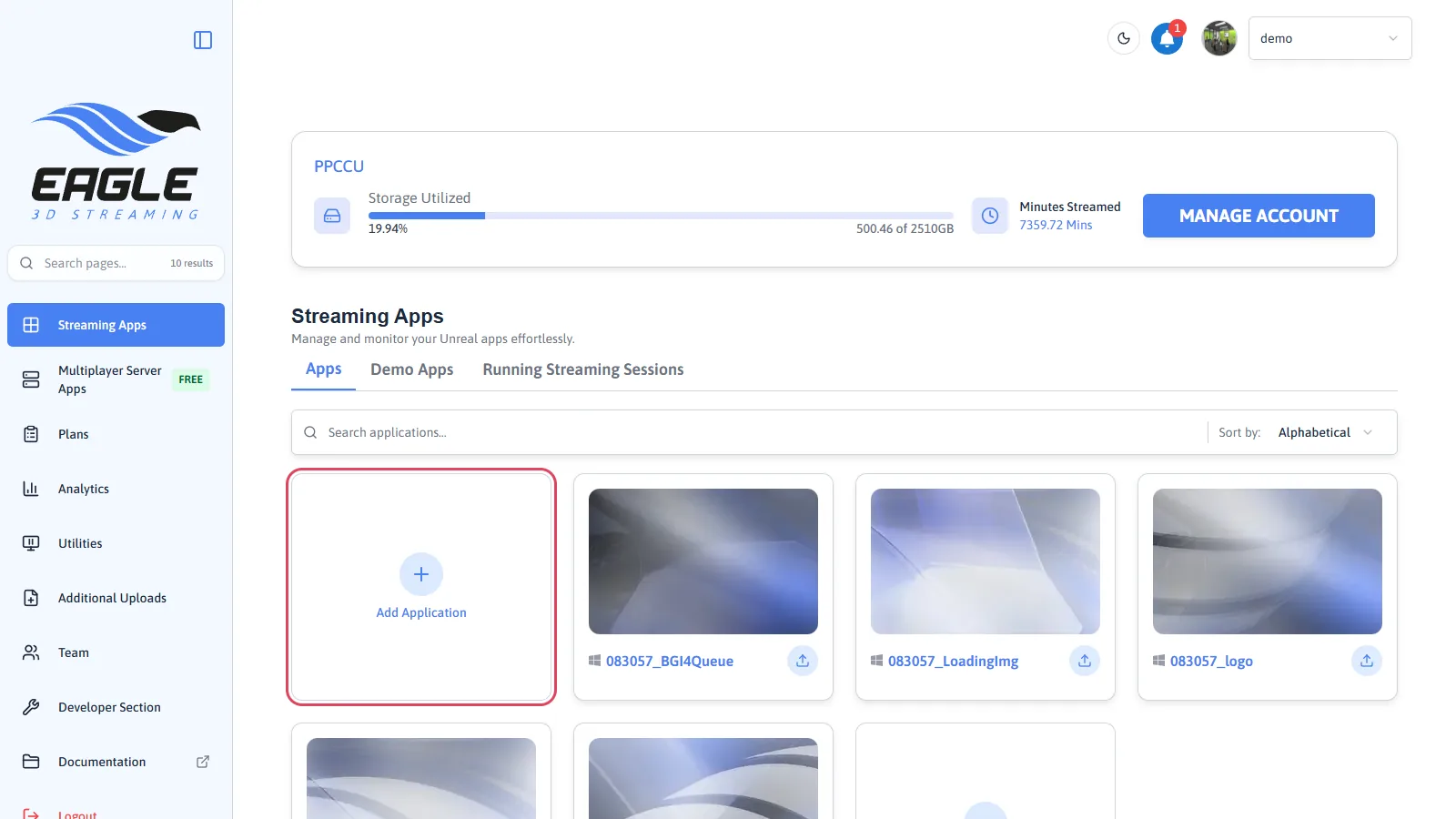
Add Application. -
Choose your ZIP
Press Browse, or drag the file in. Only
.zipis accepted — anything else is rejected with an Invalid file type message rather than failing quietly later.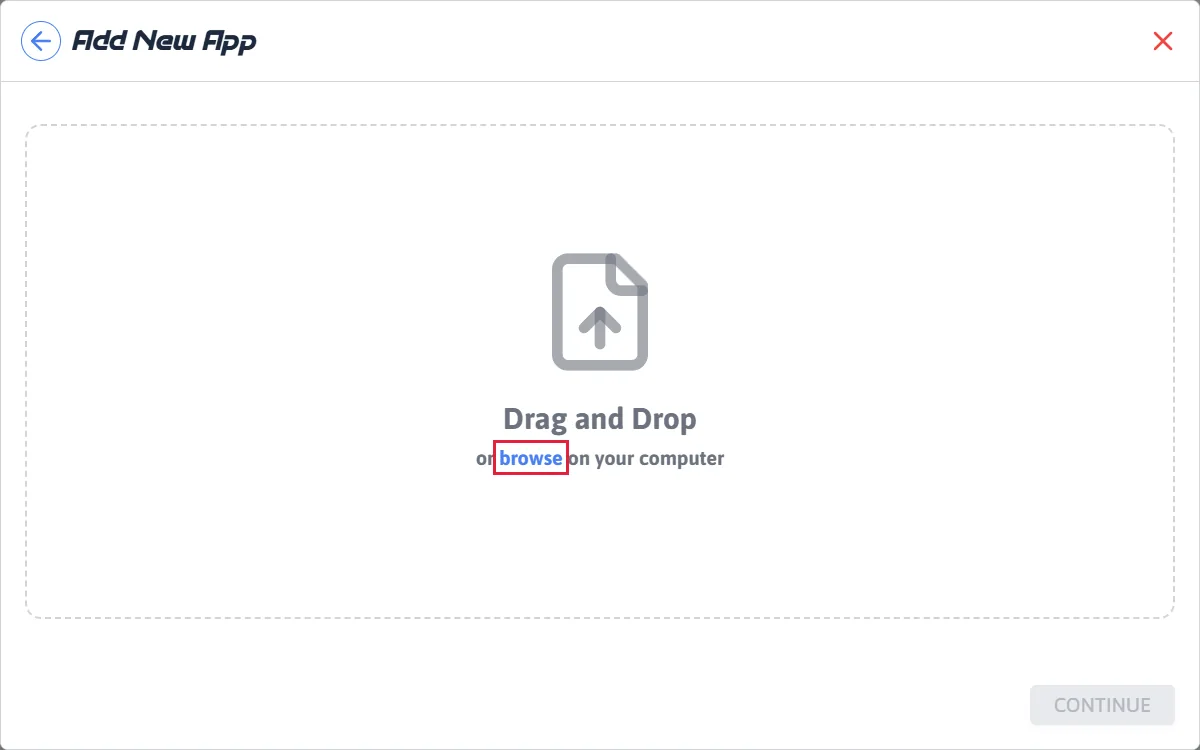
Browse, or drag the file in. 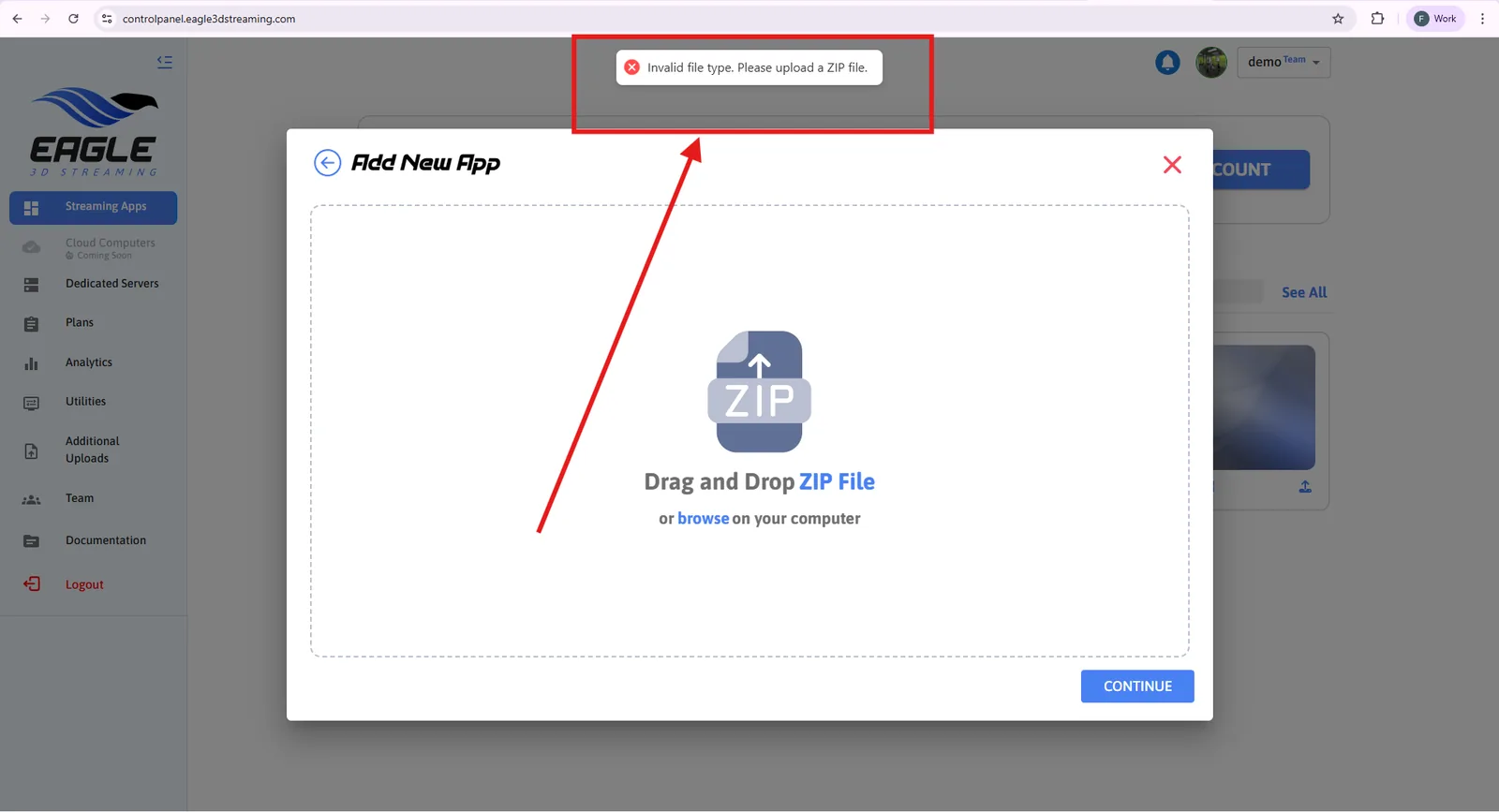
What a non-ZIP file gets you. -
Name it and press Upload
A thumbnail is optional, and so is a Version Description (up to 120 characters). So is Send upload status updates by email, which mails you when the application is ready instead of making you watch the page — worth switching on for a large build. An app name already in your account is refused, and so is an upload larger than your remaining storage.
When the transfer finishes, the Control Panel says Your app is in the stream test queue: the platform is test-streaming the build before it is ready to play.
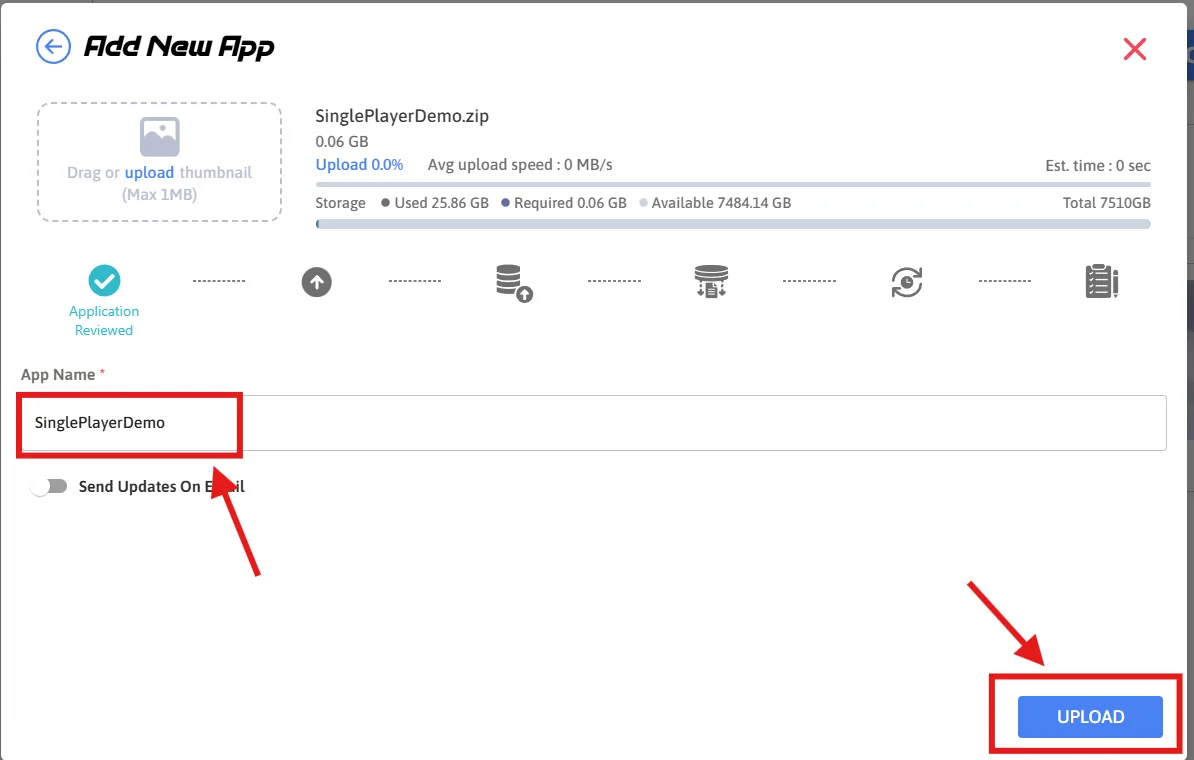
Naming the application. -
Wait for it to be prepared
An estimate appears in the Control Panel. The upload is only the first part: the platform then unpacks the build and gets it onto a machine, so the wait continues after the file has finished transferring.
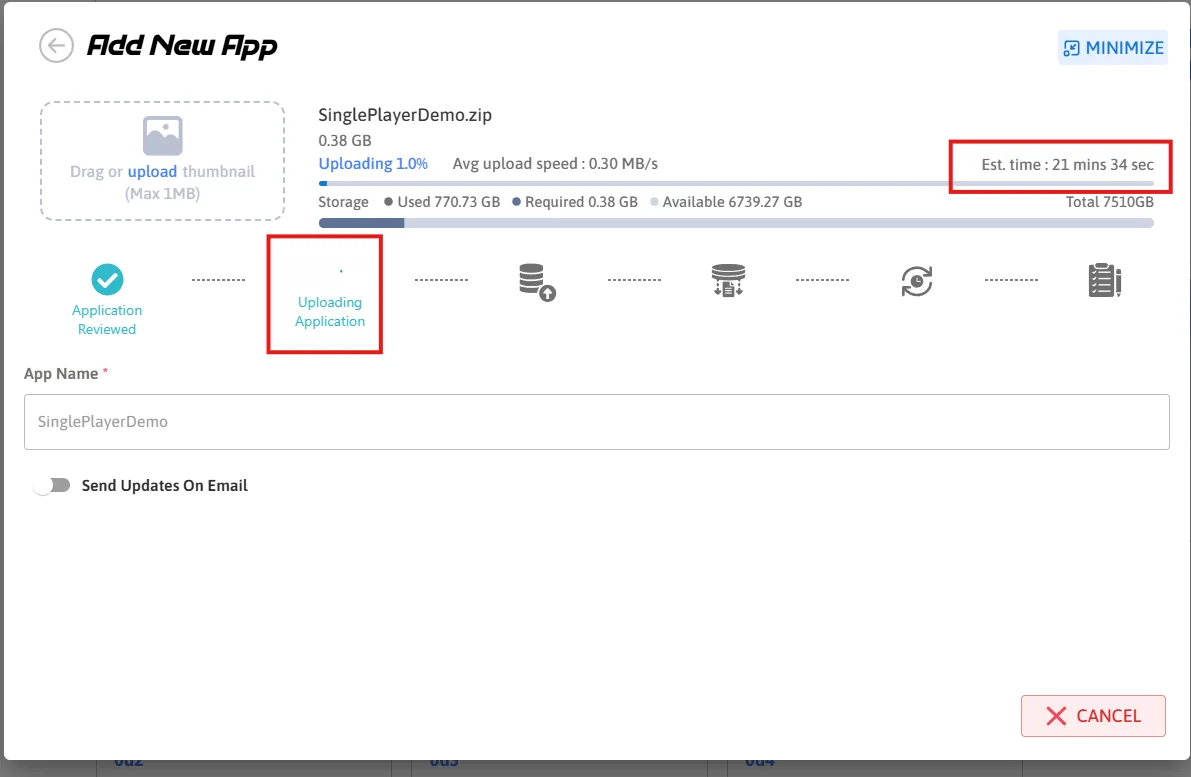
Uploading.
The application appears in your Control Panel and is no longer marked as preparing.
Stream it
-
Create a stream link
Open the application and press Create New Stream Link. This link is what you send to other people — anyone who opens it gets the stream, with no account of their own.
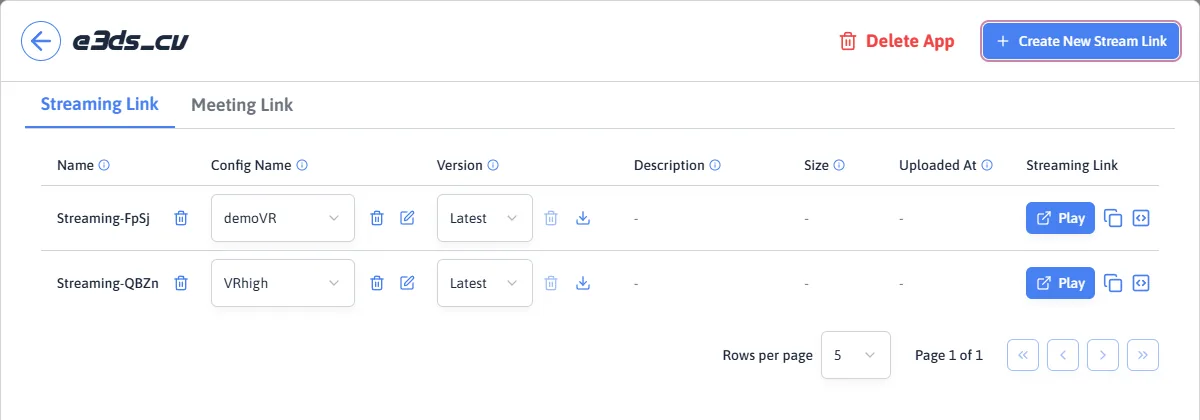
Create New Stream Link. -
Press Play
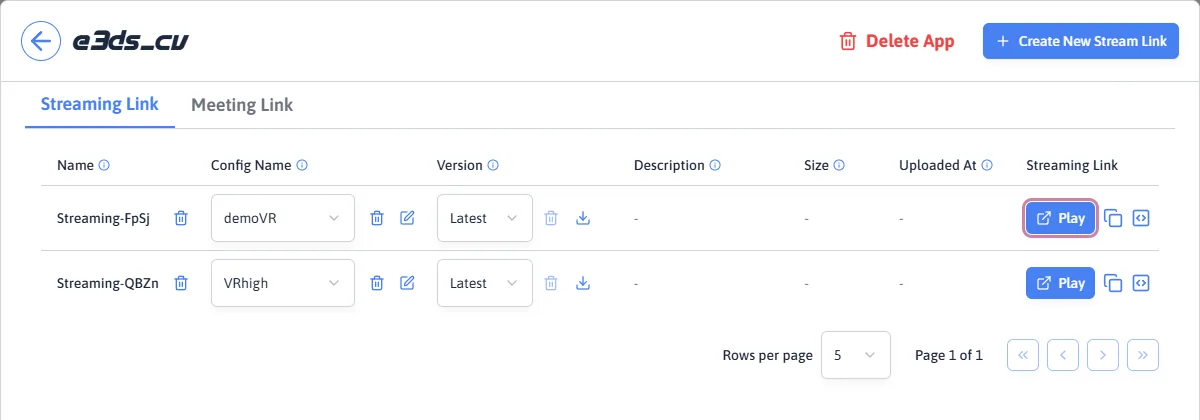
Play. -
Wait for a machine
A GPU machine is starting for your session.
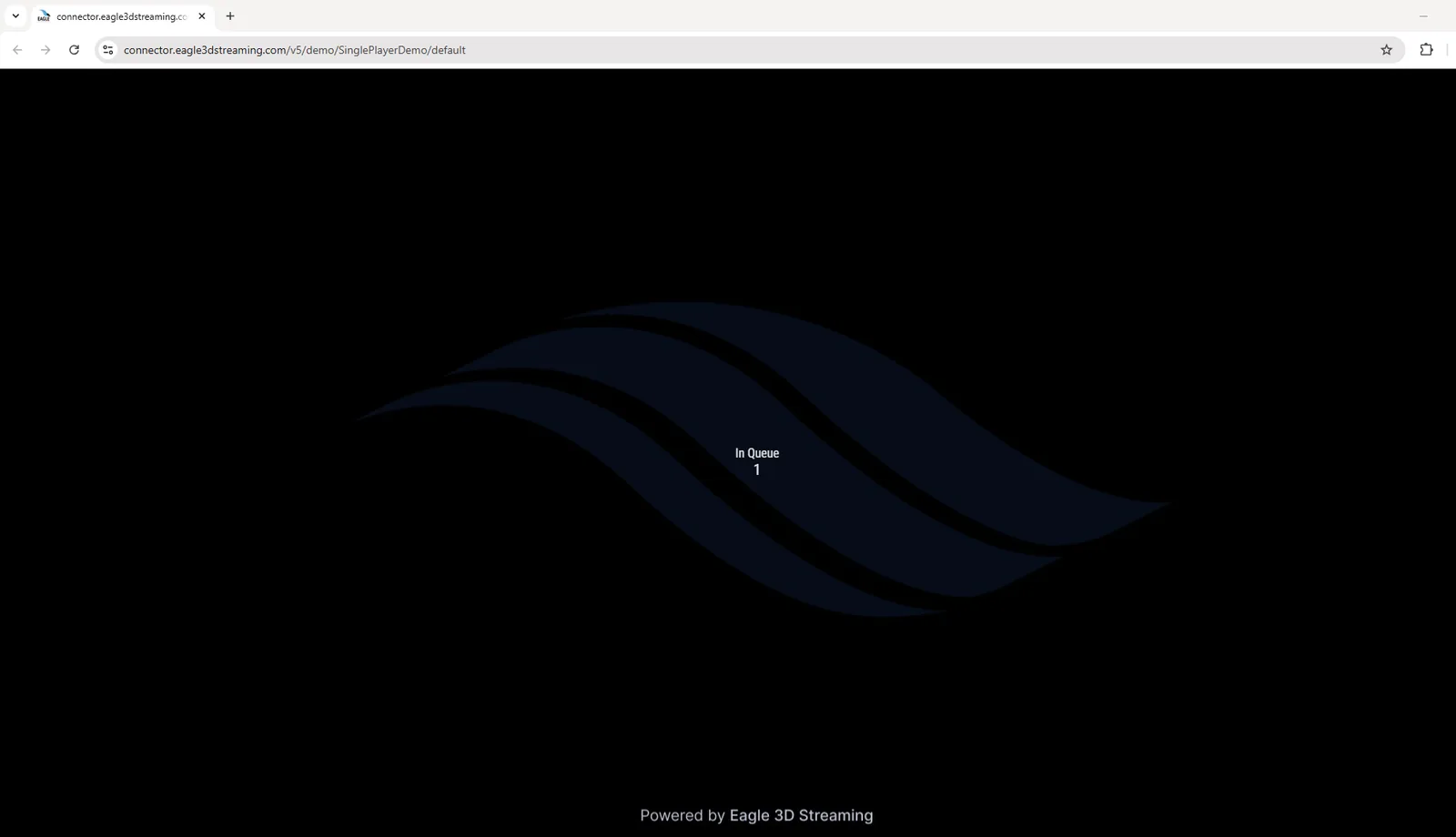
Waiting for a machine. -
Press Play
Browsers will not start audio and video on their own, so every stream waits for one click. This is a browser rule rather than a setting.
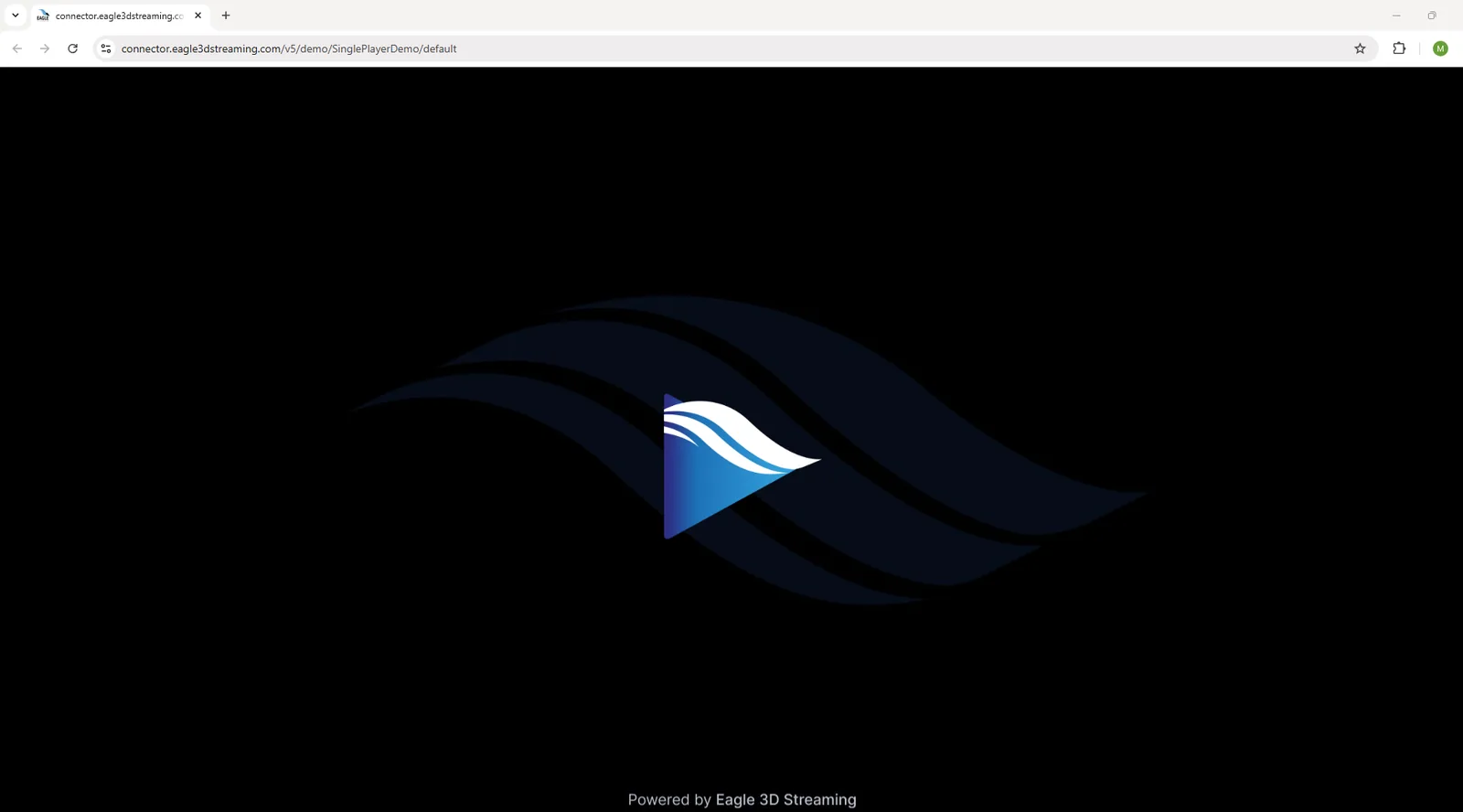
The play button.
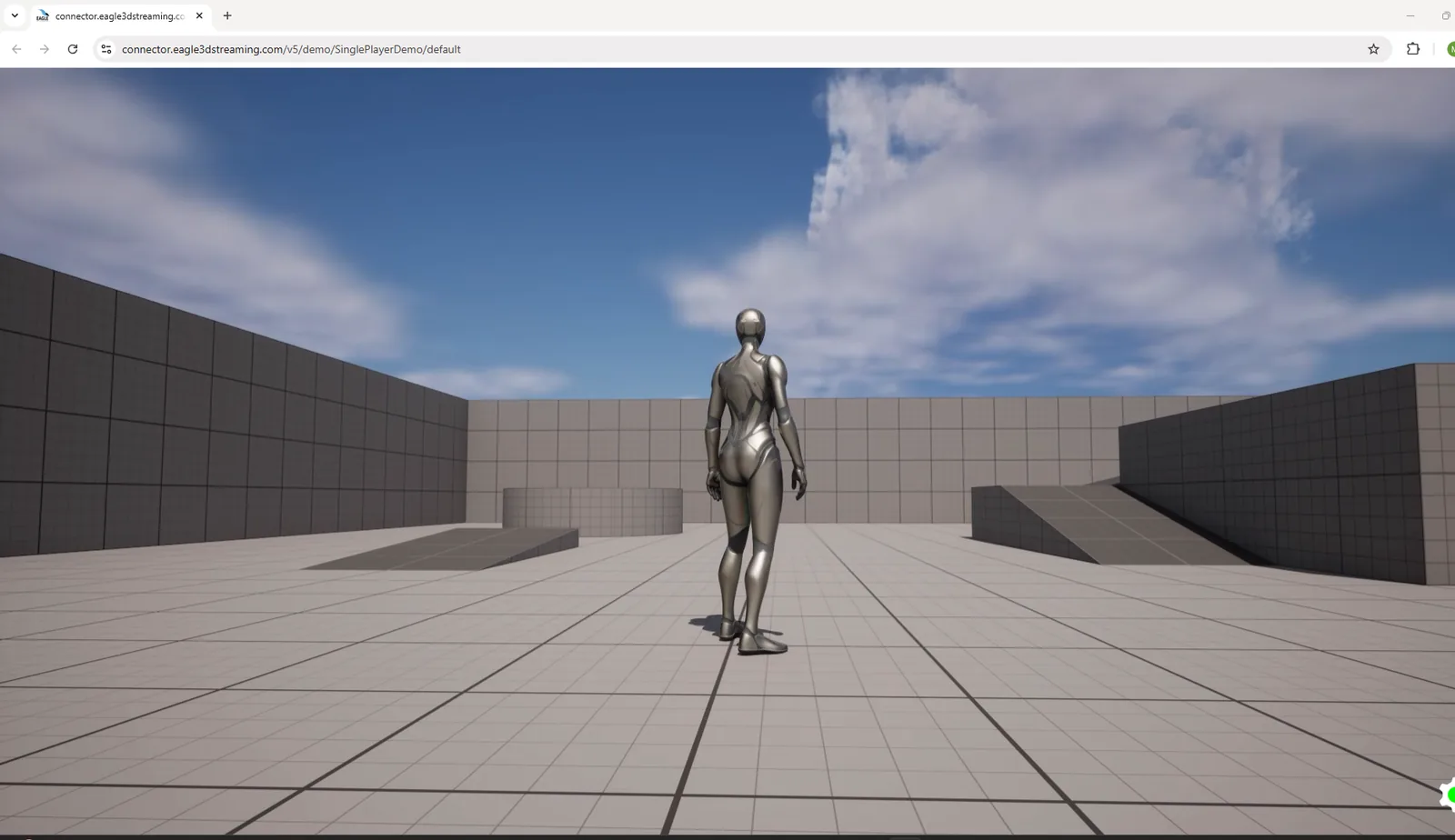
Your application is running in the browser and responding to your input.
One action instead of package, zip, browse, upload — worth setting up once you are uploading regularly.
Last updated