A Linux build
Testing a Linux Pixel Streaming build locally follows the same shape as Windows — run the app with streaming arguments, run the signalling server, open a browser — but you write the launch script yourself, and the download script often needs repairing first.
All of this happens on a Linux machine. You need a project packaged for Linux with the Pixel Streaming plugin enabled.
Step 1. Check the build runs
chmod +x YourProjectName.sh
./YourProjectName.sh
Step 2. Download the signalling server
Open a terminal in
<App Folder>/Samples/PixelStreaming2/WebServers (on the older plugin, before UE 5.5: Samples/PixelStreaming/WebServers) and run:
chmod a+x get_ps_servers.sh
./get_ps_servers.sh
If that works, you will end up with SignalingWebServer,
SFU and friends, and you can skip to step 3.
When it says "No such file or directory"
That message is misleading — the file is right there. It has two common causes, and it is worth checking them in this order.
-
curl may not be installed. Check, then install it if there is no output:
which curl sudo apt-get install --reinstall curl -
The script may have Windows line endings. If it still fails after curl is present, convert it:
dos2unix get_ps_servers.sh
chmod a+x get_ps_servers.sh
./get_ps_servers.sh
The shell is reporting the interpreter it cannot find, not the script. A
Windows carriage return at the end of the #! line makes the
interpreter name unfindable — hence a file-not-found error about a file
that plainly exists.
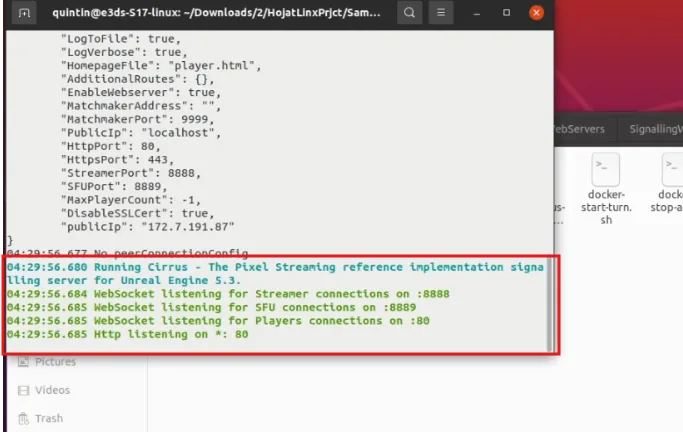
Step 3. Start the signalling server
In SignalingWebServer/platform_scripts/bash:
./run_local.shGive your password if asked, and leave this terminal open.
Step 4. Write a launch script
There is no shortcut Target field on Linux, so the streaming arguments go in a
script of your own. In the app's root folder — the one holding the
Engine folder and the packaged .sh — create a
file and paste this, replacing the project name with yours:
#!/bin/sh
UE_TRUE_SCRIPT_NAME=$(echo "$0" | xargs readlink -f)
UE_PROJECT_ROOT=$(dirname "$UE_TRUE_SCRIPT_NAME")
chmod +x "$UE_PROJECT_ROOT/YourProject/Binaries/Linux/YourProject"
"$UE_PROJECT_ROOT/YourProject/Binaries/Linux/YourProject" YourProject \
  -log -AudioMixer -PixelStreamingIP=localhost -PixelStreamingPort=8888 -RenderOffScreen "$@"
Those are the same arguments the Windows shortcut carries. In
vim, save and quit with :wq.
Step 5. Run it
chmod a+x YourNewFile.sh
./YourNewFile.sh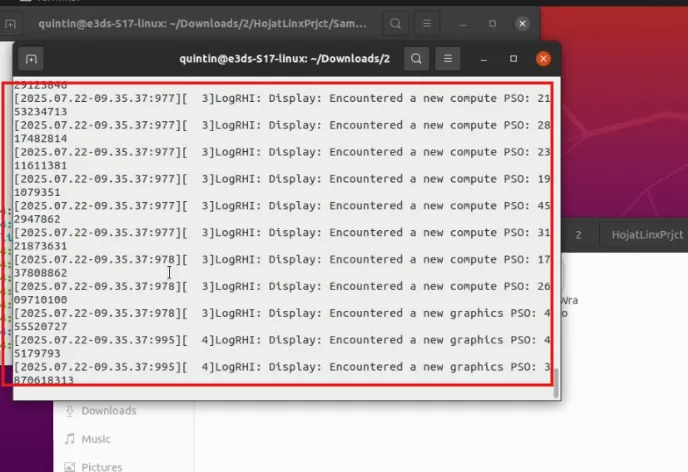
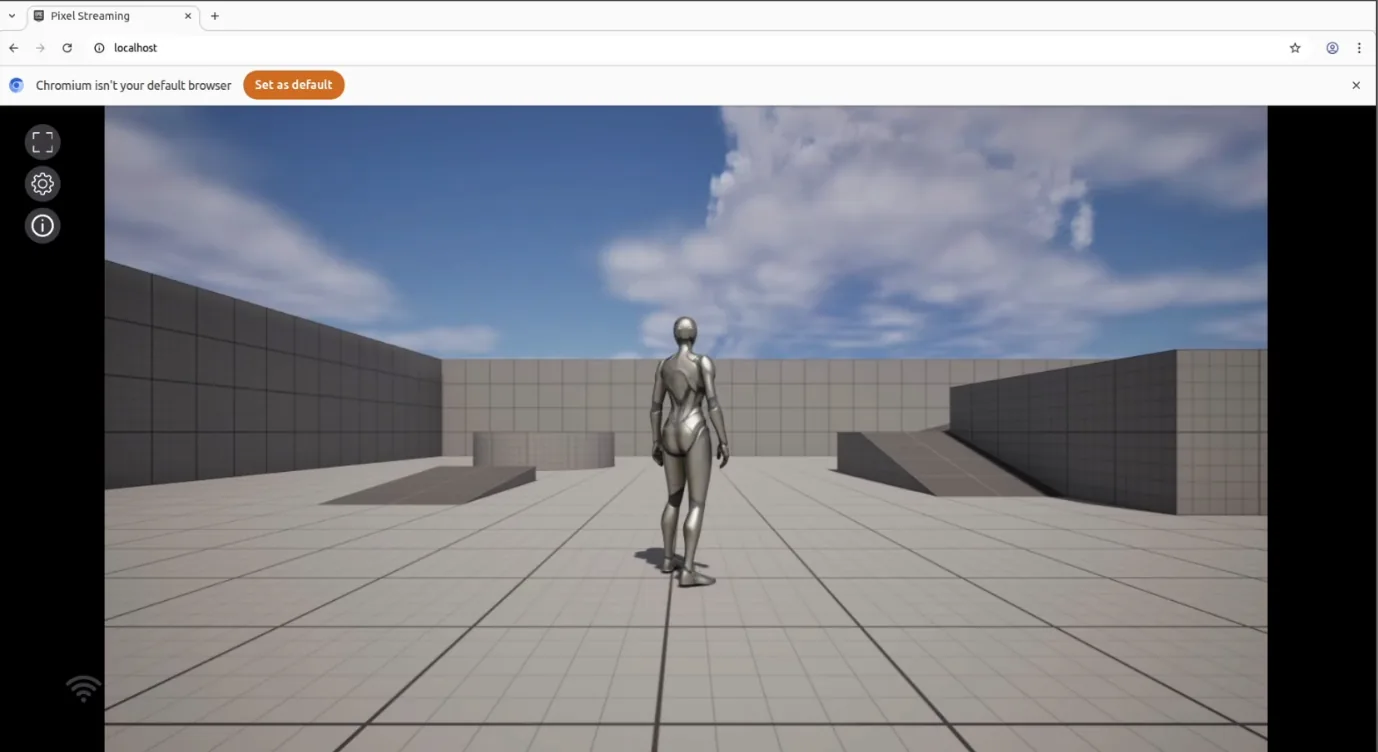
Step 6. Open it in a browser
On the same machine, go to localhost and press
CLICK TO START.
From another device on the network
Find the machine's address and open it from the other device:
hostname -Ihttp://<your-ip-address>Once it streams locally, the platform setting that matters most.
Last updated